
Maimiao Teacher Guide
Help
Maimiao Word Cards helps teachers turn their own word lists into flashcards for recognition practice, dictation, and review. You can share a deck directly or assign a learning task, then review independent deck learning and task results separately.
You know your students best: which words they need, which meaning to teach first, and which examples will make sense to them. Maimiao helps you turn that knowledge into flashcards for everyday teaching, building a vocabulary resource you can reuse and improve over time.
I’m Leizi, the independent developer behind Maimiao. I currently build and run it on my own. This guide takes you from a word list through creating cards, sharing a deck, assigning learning, and reviewing students’ results.
Meet Maimiao
Start with these three steps to help students learn vocabulary with Maimiao.
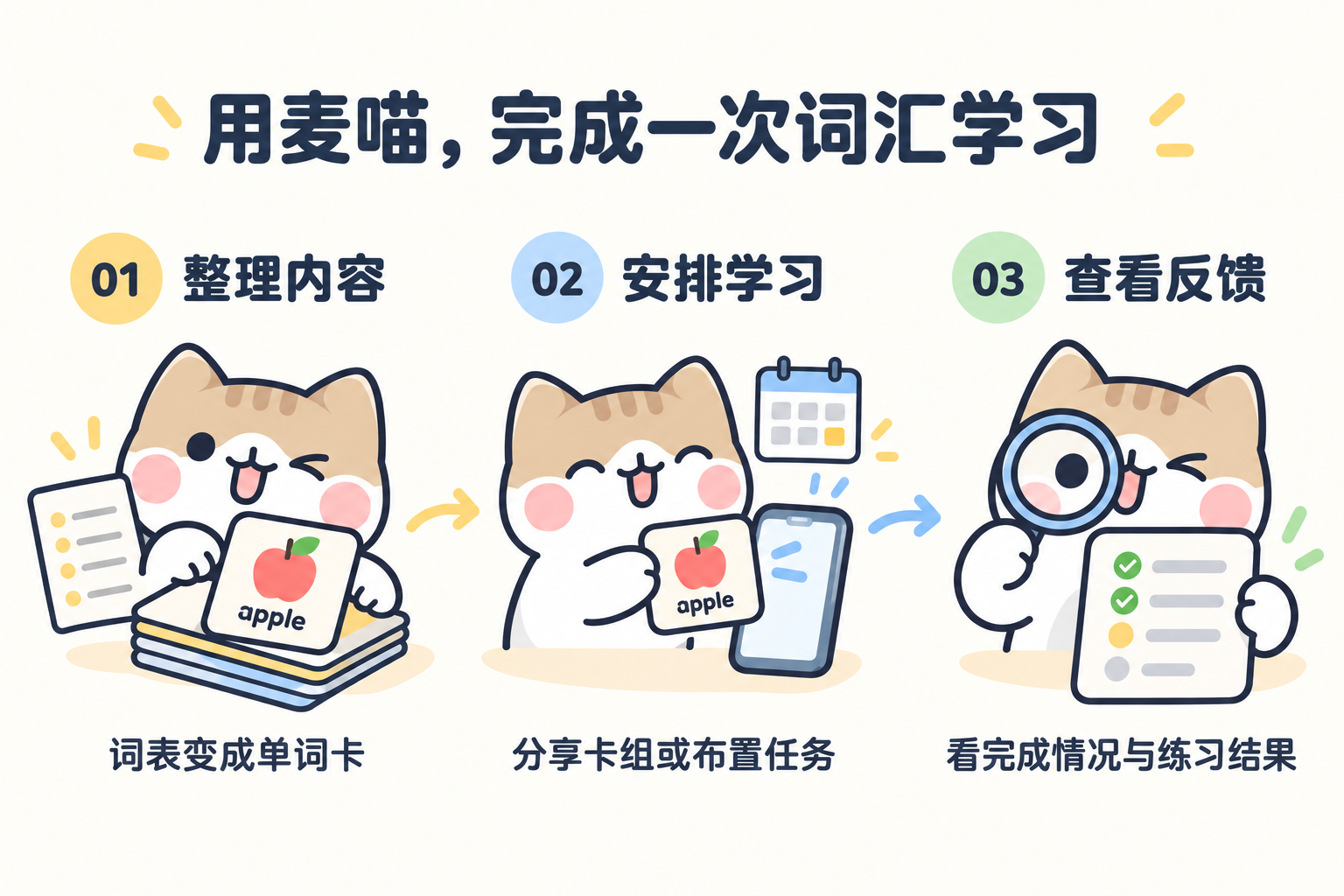
Prepare content: turn your word list into a deck.
Create or import the words, meanings, examples, and images you want to teach, so students practise the content you have prepared.
Arrange learning: let students begin recognition practice, dictation, and more.
Share a deck for independent practice. When you need specific requirements, create a task with selected words, required exercises, and a deadline. To spread the work across several days, create a multi-day learning plan.
Review feedback: see who is learning, who has finished, and which words need work.
After sharing a deck, check its current learners and completed independent-study records. After assigning a task, check who has completed it and who has not, then open the practice results to decide which words need further explanation or practice.
Choose an approach for your teaching
Whether you teach independently, one-to-one, in small groups, or in a school language classroom, start with the vocabulary you are teaching:
| Your teaching situation | Suggested approach |
|---|---|
| Pre-lesson preparation, homework, or weekly dictation | Create a one-time task with selected words, required exercises, and a deadline, then review the results |
| A regular class learning new lessons and revisiting earlier ones | Assign this week’s work as a task; share earlier decks separately for independent review |
| Targeted one-to-one practice, or several classes using the same word list | Reuse the deck and set the vocabulary and dates separately for each student or class; create groups for ongoing follow-up |
| A vocabulary camp or holiday programme where everyone starts together | Use a multi-day plan to divide one vocabulary set across shared study dates |
| Students joining a camp at different times and reviewing lessons independently | Share each lesson’s deck and pin a lesson-and-link directory in your class chat so students can choose |
| Teacher-led whole-class review on a shared screen | Open a deck to support questions and explanations; individual task records require students to complete tasks using their own accounts |
Try a few words from your current lessons with one or two students. Maimiao provides vocabulary practice, deck progress, and task feedback; explanations, language use, and paper answers still need your teaching judgement.
Get started
Use the creator app to organise decks, assign learning, and review progress. A desktop browser makes editing and proofreading easier.
Students can use the learner web app or open the WeChat Mini Program through a link or Mini Program code you share. Send the specific deck or task so they can begin with the content you have chosen.
After signing in to the creator app, use the left navigation: My decks (我的卡组) manages existing content, Import deck (导入卡组) uploads word lists, Learning tasks (学习任务) shows tasks and plans, and Learning groups (学习小组) lets you invite and manage students. Check account limits and import usage under Plans and benefits (版本与权益).
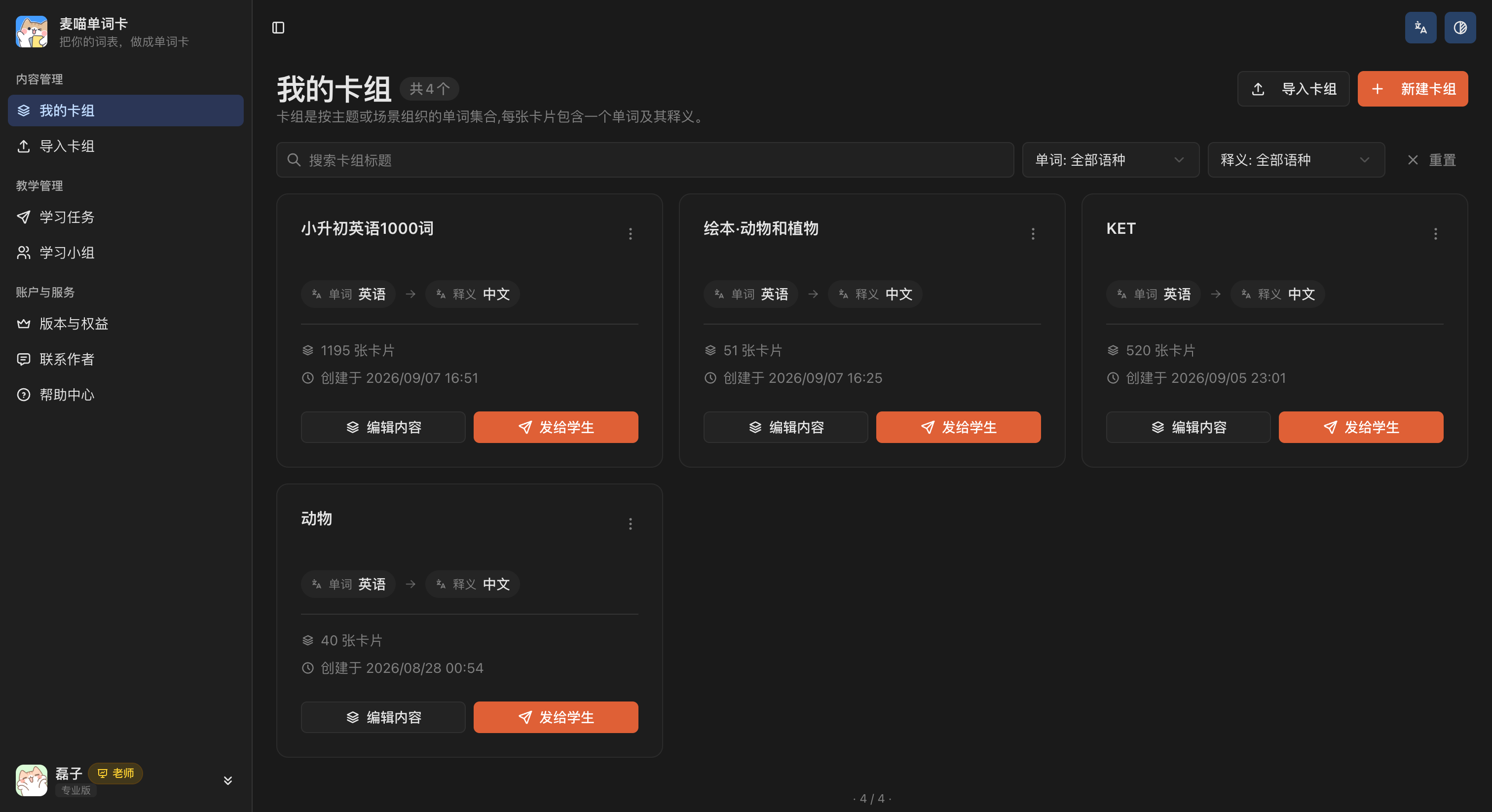
We’ll use “Everyday English · 30 Words”: 10 food words, 10 animal words, and 10 school words. First, we’ll assign a learning task using the food words, then spread the full list across three study days. The screenshots also show optional quizzes and matching practice; choose what suits your teaching. You can substitute a textbook unit, picture-book vocabulary, or words your students often get wrong.
Download
Download the “Everyday English · 30 Words” Excel sample to follow the import, card creation, and assignment steps.
The file has four columns: word, phonetic transcription, meaning, and meaning notes. It uses British pronunciation, with notes demonstrating common phrases, plurals, and points to watch. Keep the header row and enter one word per row to replace the sample with your own content. Words 1–10 cover food, 11–20 animals, and 21–30 school vocabulary.
Create a deck
A deck is a set of flashcards. Group words from the same textbook unit, picture book, or set of common mistakes to make them easy to find, share, and assign.
Import a word list
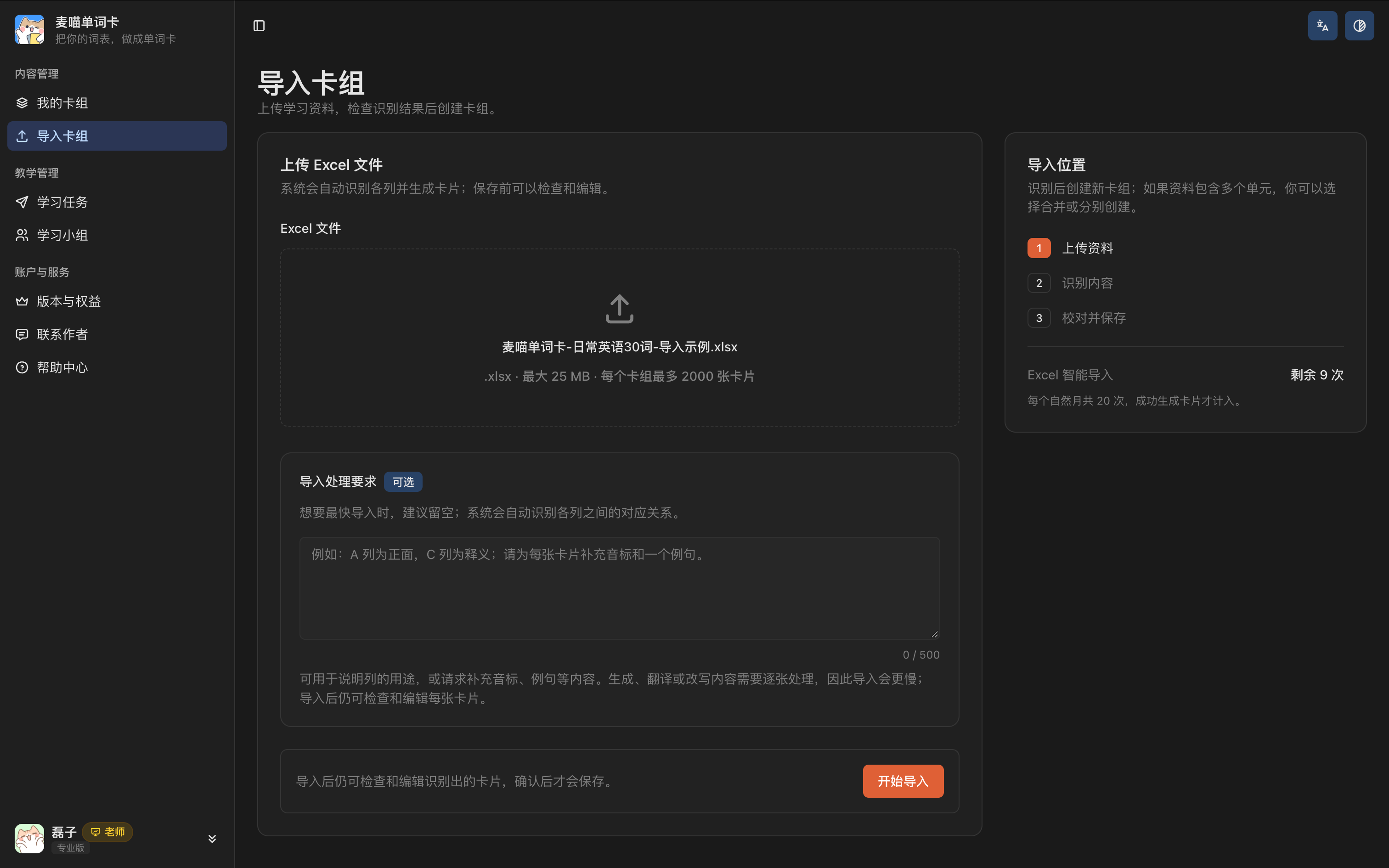
If you have an Excel word list, open Import deck and select the file. It must be an .xlsx file no larger than 25 MB.
Direct import from Word, PDF, and images is also planned. For now, put vocabulary from these sources into Excel first. If you only have a few words, you can add them manually.
You do not need to rearrange an existing list into a fixed template. Maimiao uses AI to identify what each column contains, such as words, meanings, phonetic transcriptions, or examples. Column names and order can vary as long as the information in each row belongs together. You can keep existing parts of speech, notes, and unit information.
Multiple worksheets in one Excel file can be read together. If words are grouped by worksheet or by a column such as “Unit” or “单元”, Maimiao identifies those groups so you can save them as separate decks. Upload one Excel file at a time; import separate files individually.
You can leave Import instructions (导入处理要求) blank. To specify column mapping, write something like: “Column A contains words, C contains meanings, and D contains meaning notes. Group words by the Unit column.” You can also ask for phonetic transcriptions or examples to be added, though generating content takes longer and still needs your review.
Once you have selected the file, click Start import (开始导入), wait for processing to finish, then review the cards.
Review and save
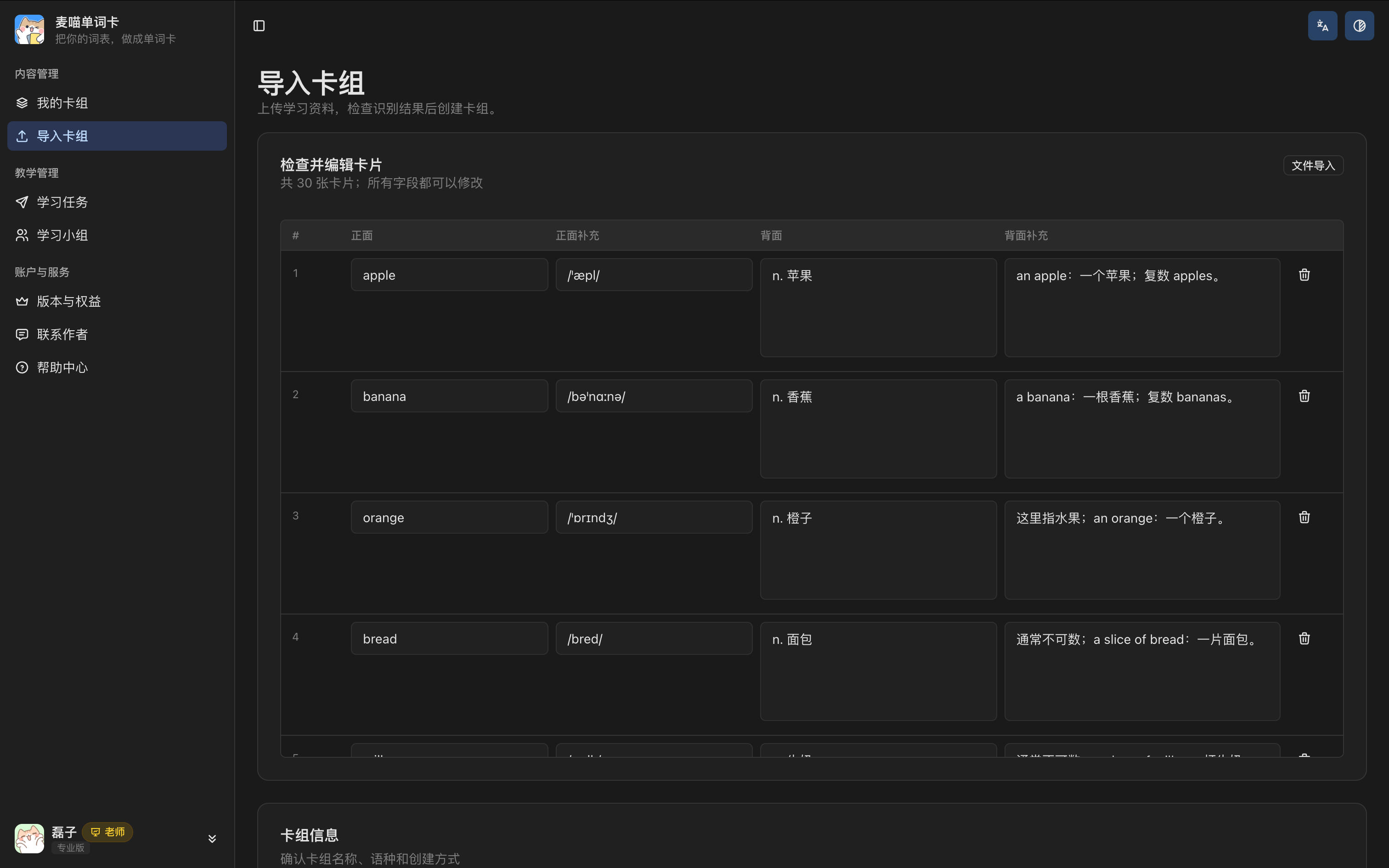
Check the words and their meanings first, then make sure examples and notes are in the right places. Remove duplicates and anything you do not need. In this sample, Front contains the word, Front notes the phonetic transcription, Back the meaning, and Back notes the meaning notes. Edit the relevant field directly to make a correction.
If a word has several meanings, prioritise the one you are teaching in this lesson. For example, when teaching apple as the fruit, keep the meaning, examples, and image focused on that sense. Students will use this content in their exercises, so it is worth checking each card before saving.
Next, confirm the name and languages under Deck information (卡组信息). You can name the deck “Everyday English · 30 Words”, set the front language to English, and the back language to Chinese. If multiple worksheets or unit groups were identified, check the groups, then choose whether to create separate decks or merge them into one. Confirm each name and word count before saving.
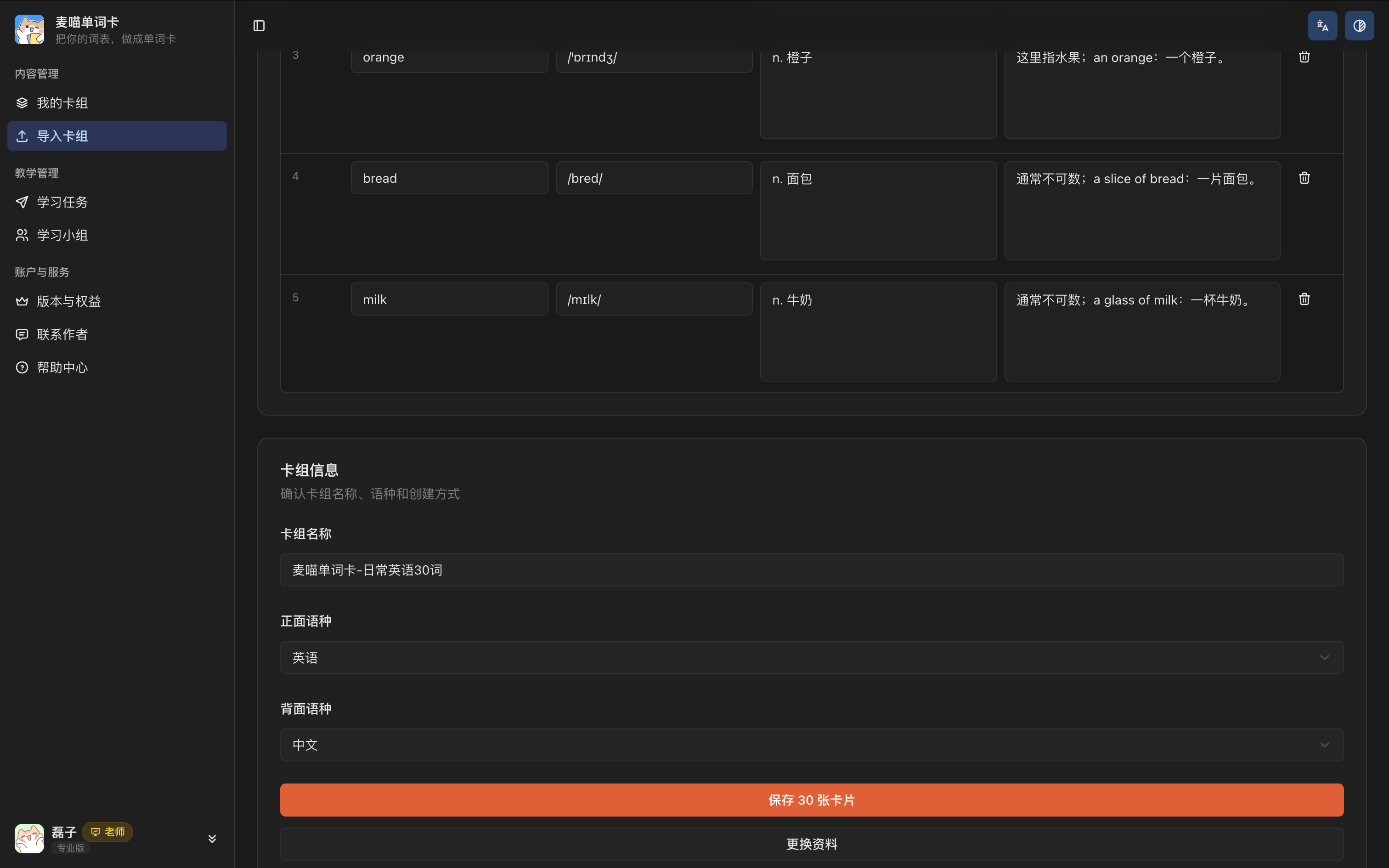
Remember
Processing the file does not save the deck. Click Save, wait for confirmation, then open the deck from My decks to check it.
To add more words to an existing deck, use Bulk import (批量导入) from that deck.
Import
If you keep several units in one Excel file, retain the “单元” (Unit) column so Maimiao can identify which unit each word belongs to. You do not need to split the file beforehand.
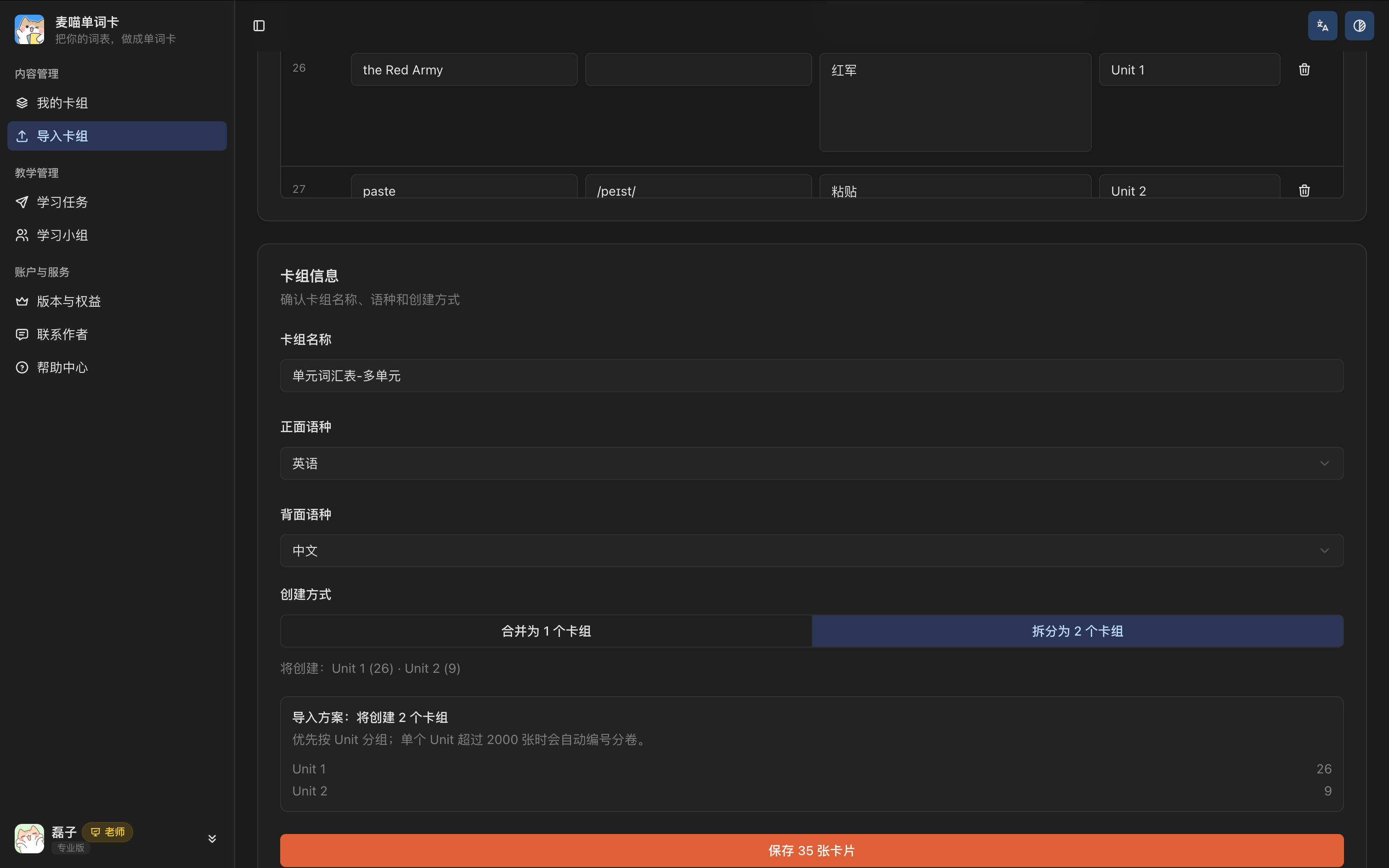
Download the multi-unit Excel sample. It contains 26 entries in Unit 1 and 9 in Unit 2, for a total of 35.
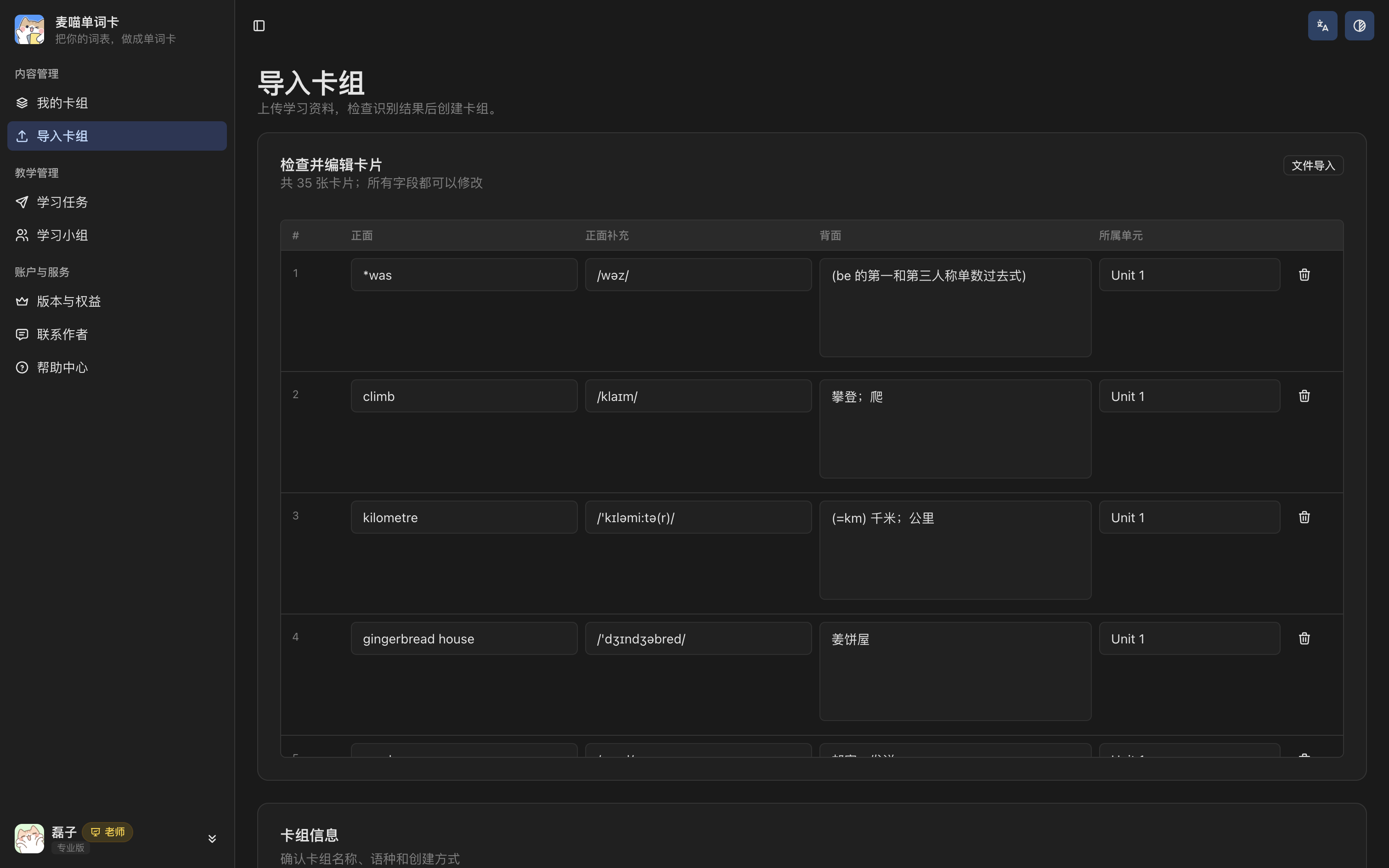
You can leave Import instructions blank after uploading. Once processing finishes, check the Unit column (所属单元) in the review table and correct any mistakes. Also check textbook markers attached to words, such as the asterisk in *was. Decide whether to keep them before saving so they do not accidentally become part of a spelling exercise.
Scroll down to Creation method (创建方式). Choose Split into 2 decks to use the units separately, or Merge into 1 deck to keep them together. When splitting, check that the preview shows Unit 1 with 26 entries and Unit 2 with 9, then click Save 35 cards. After saving, you can open each unit’s deck to edit content or assign learning.
Add cards manually
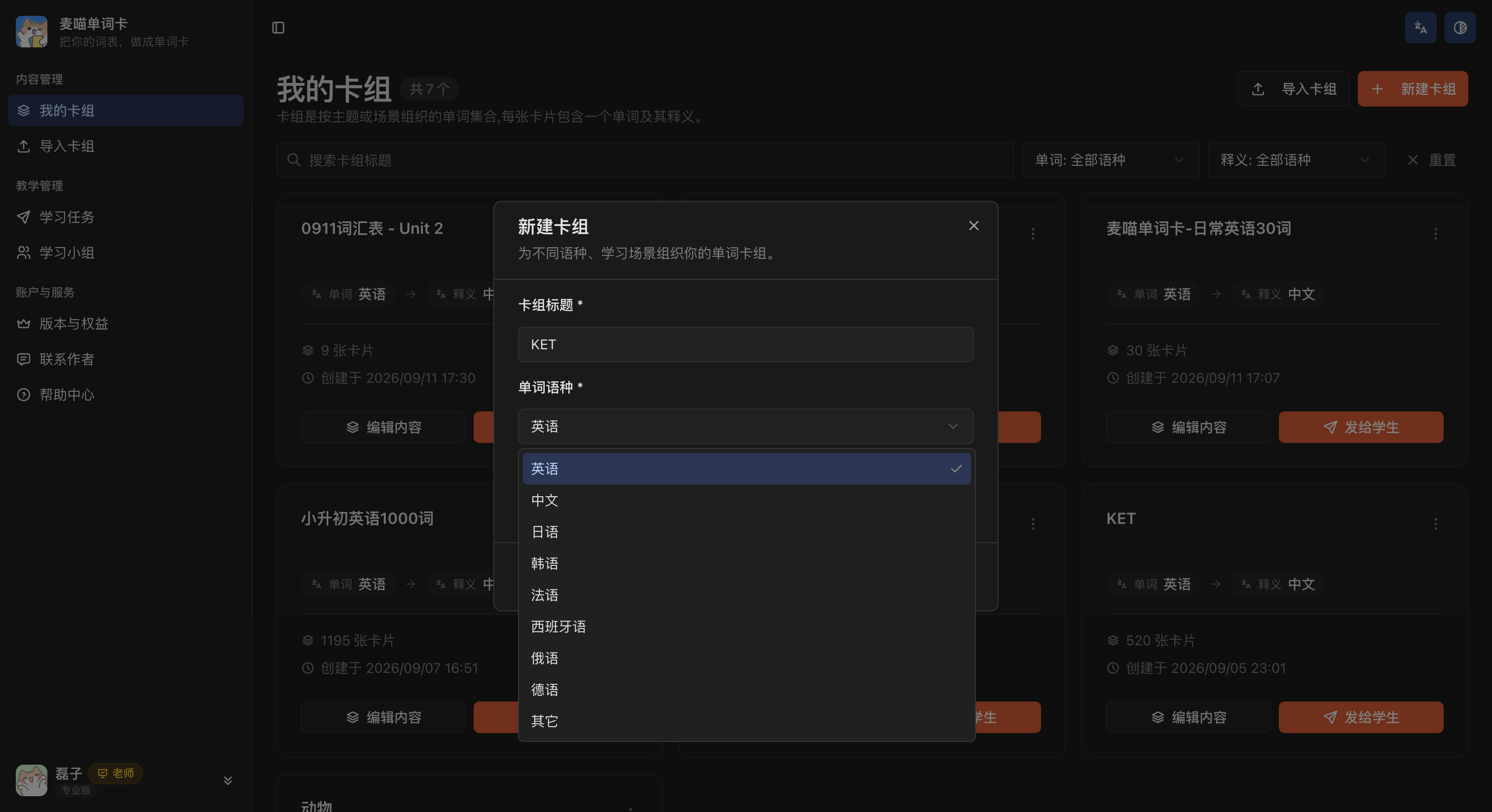
For a small number of words, open My decks, click New deck (新建卡组), and give it a title you can recognise later. Choose the languages used for the words and meanings. For English vocabulary with Chinese definitions, choose English for words and Chinese for meanings.
Open the new deck and click Add card (添加卡片). If you have already imported the list, simply open that deck to add or edit cards.
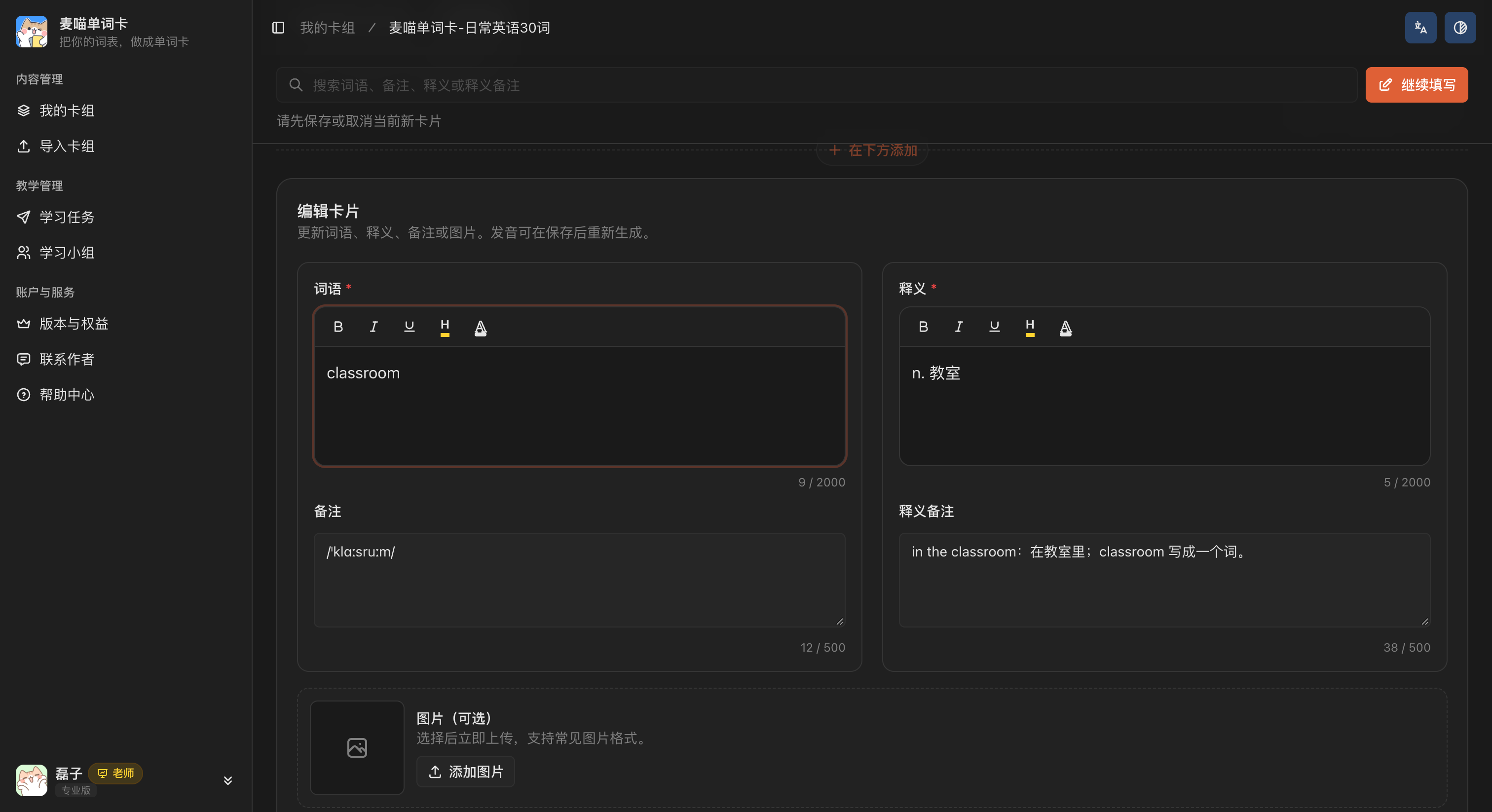
Start with the required Word and Meaning fields. For example, enter classroom as the word and “n. 教室” as the meaning. Put the phonetic transcription in Notes beneath the word, and phrases or usage guidance in Meaning notes, such as “in the classroom: 在教室里”. Click Add image if needed. Check the content, then save the card.
You can edit, delete, or reorder existing cards. For example, keep food words together, followed by drinks, to make the selection easier to check when assigning a task.
Audio and images
Check pronunciation
Audio may still be generating after you save a card. Open the deck and click the play button beneath a word to listen; the button beneath its meaning plays the meaning. Before assigning dictation, make sure every word in the task plays correctly.
To change the audio for a card, click the corresponding Regenerate (重新生成) control to expand its settings. Choose a Voice (音色), then click Regenerate. For English words, for example, you can choose male or female voices with American or British pronunciation. Listen again once generation finishes.
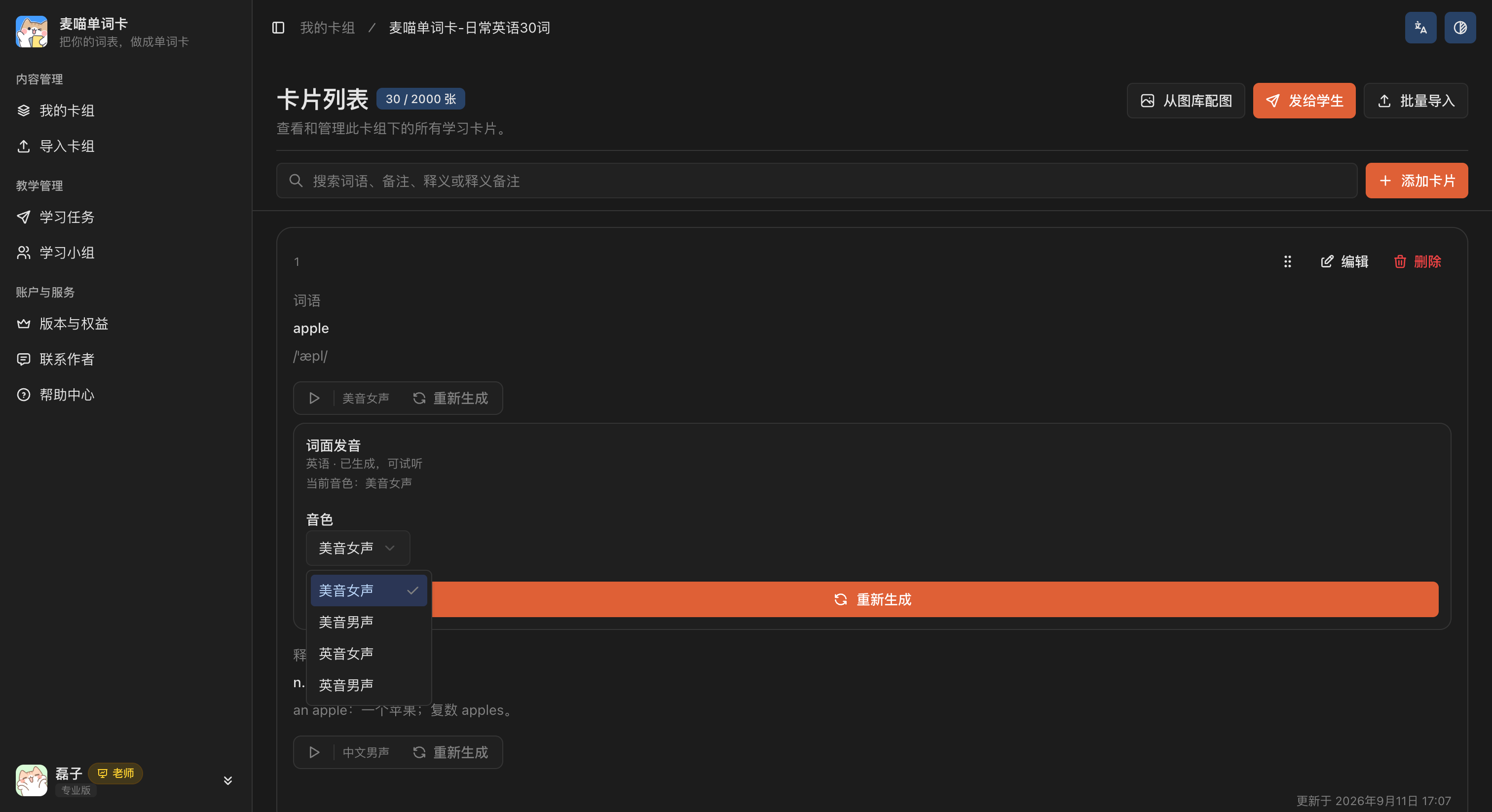
Use Fill missing audio (补全缺失发音) when audio is missing. If some items fail, retry those items. After changing a word or meaning, check its audio and regenerate it if needed. Available voices depend on the language and are shown in the menu.
Choose images
Upload your own images, or click Add images from library (从图库配图) on the deck page to find candidates for cards without images in bulk. You can also browse the Maimiao word image library separately.
The candidate view shows the word, your card’s meaning, and the library’s meaning together. Before applying an image, confirm that it represents the sense you want to teach. If orange means the fruit here, do not select an image for the colour. Deselect unsuitable candidates. If nothing fits, keep the card text-only or upload your own image.

After applying images, the page shows how many were applied, skipped, or could not be confirmed. Close the message and check the thumbnails in the card list. Edit a card if you need to replace its image.
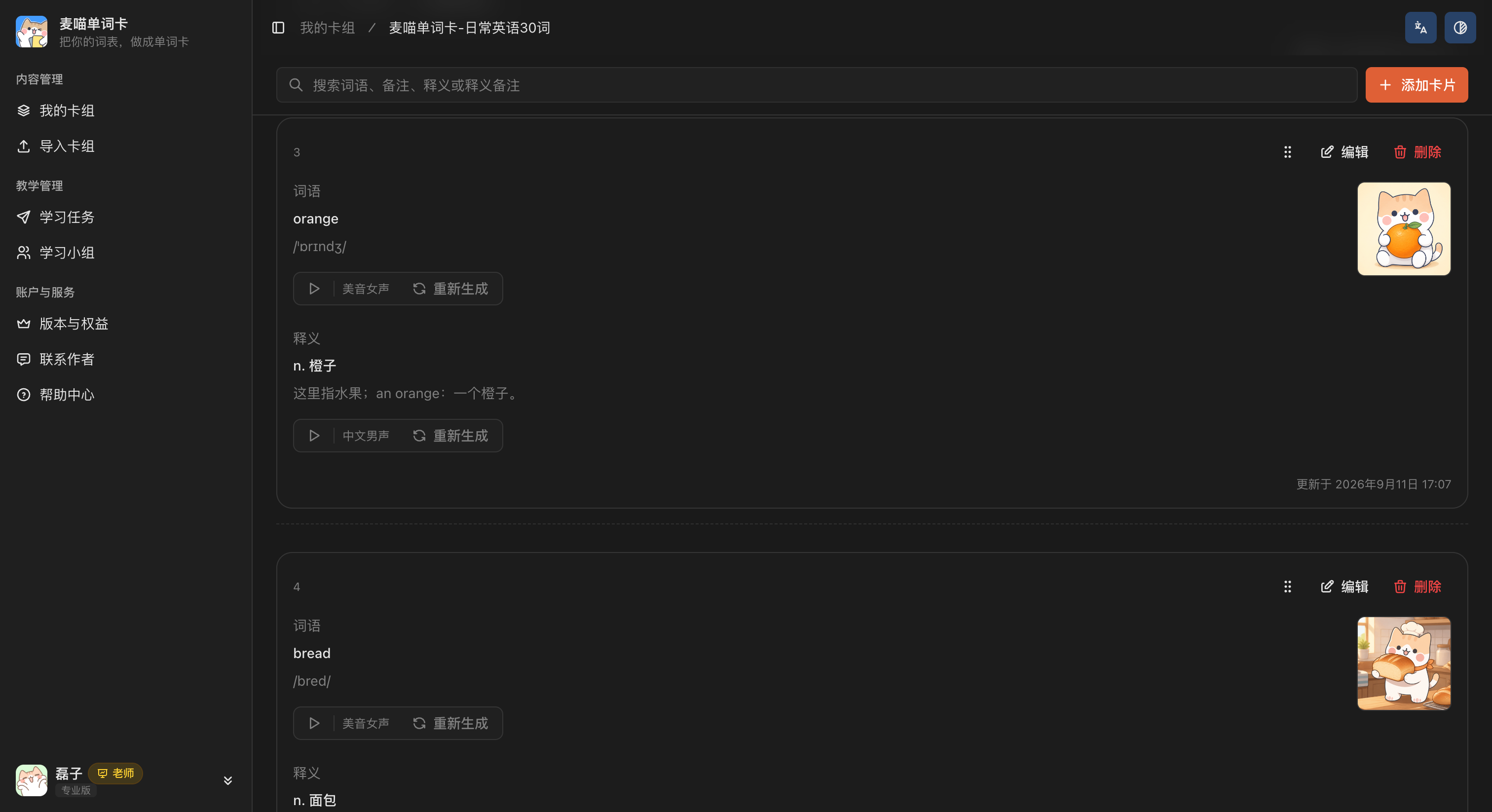
Once the content is ready, open Preview learning page (预览学习页) under Send to students (发给学生). Check it from a student’s perspective: are the text and examples clear, the images appropriate, and the audio working? You can also project the learning page in class to help students recall words and check answers. Check how it looks on the classroom display beforehand.
Share a deck
Share a deck directly when you want students to become familiar with words before a lesson or practise independently afterwards.
Click Send to students on the deck page. Assign learning task (布置学习任务) at the top of the dialog is for choosing words, a deadline, and required exercises. For independent practice, use Student learning link (学生学习链接) below it.
The first time you share, click Generate learning link (生成学习链接). Once generated, its status becomes Active, and you can choose the Web or Mini Program version.
For the Web version, use Preview learning page to check the content, then copy the link or save the QR code to send to students.
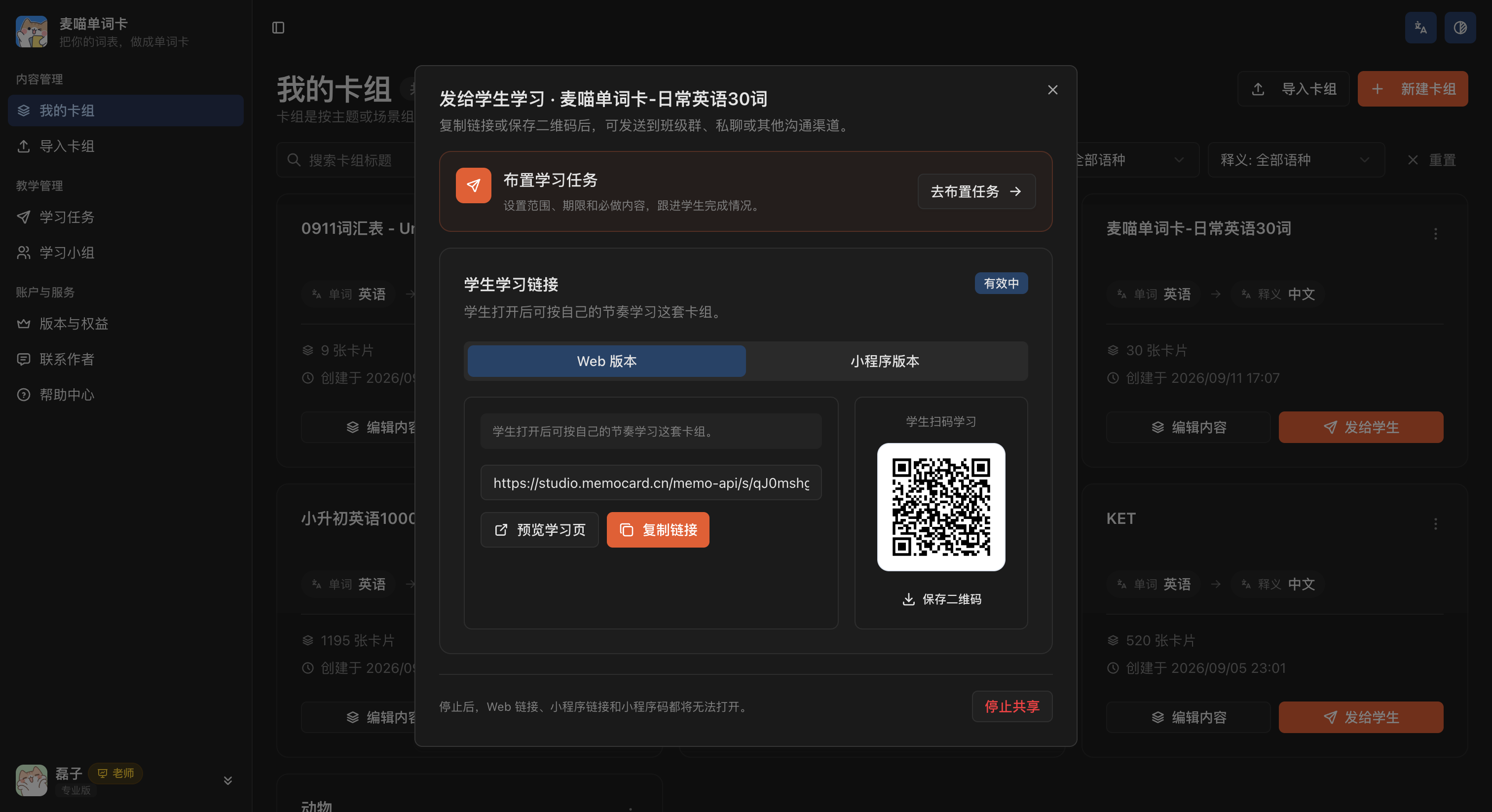
For students using WeChat, switch to the Mini Program version. Copy the Mini Program link into WeChat, or save the Mini Program code for students to scan. Check the page for the link’s expiry date. The Mini Program code itself does not expire, but it will no longer open the deck if you stop sharing.
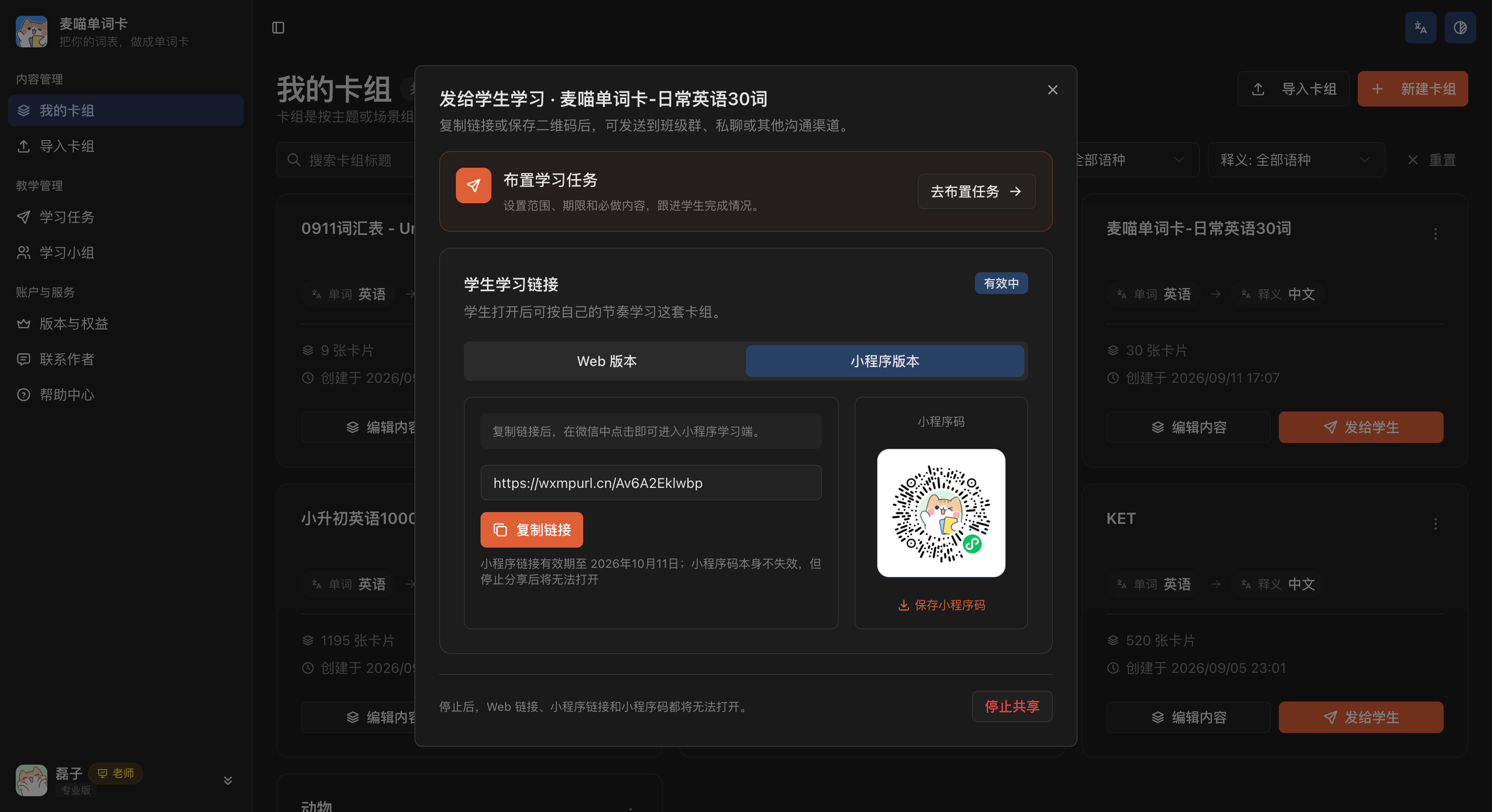
When you no longer want to share the deck, click Stop sharing (停止共享). The Web link, Mini Program link, and Mini Program code will no longer open it through the shared access.
Students who open the shared deck reach its learning page. They can choose recognition practice, matching, dictation, or quizzes. There is no teacher-set deadline or required exercise list here.
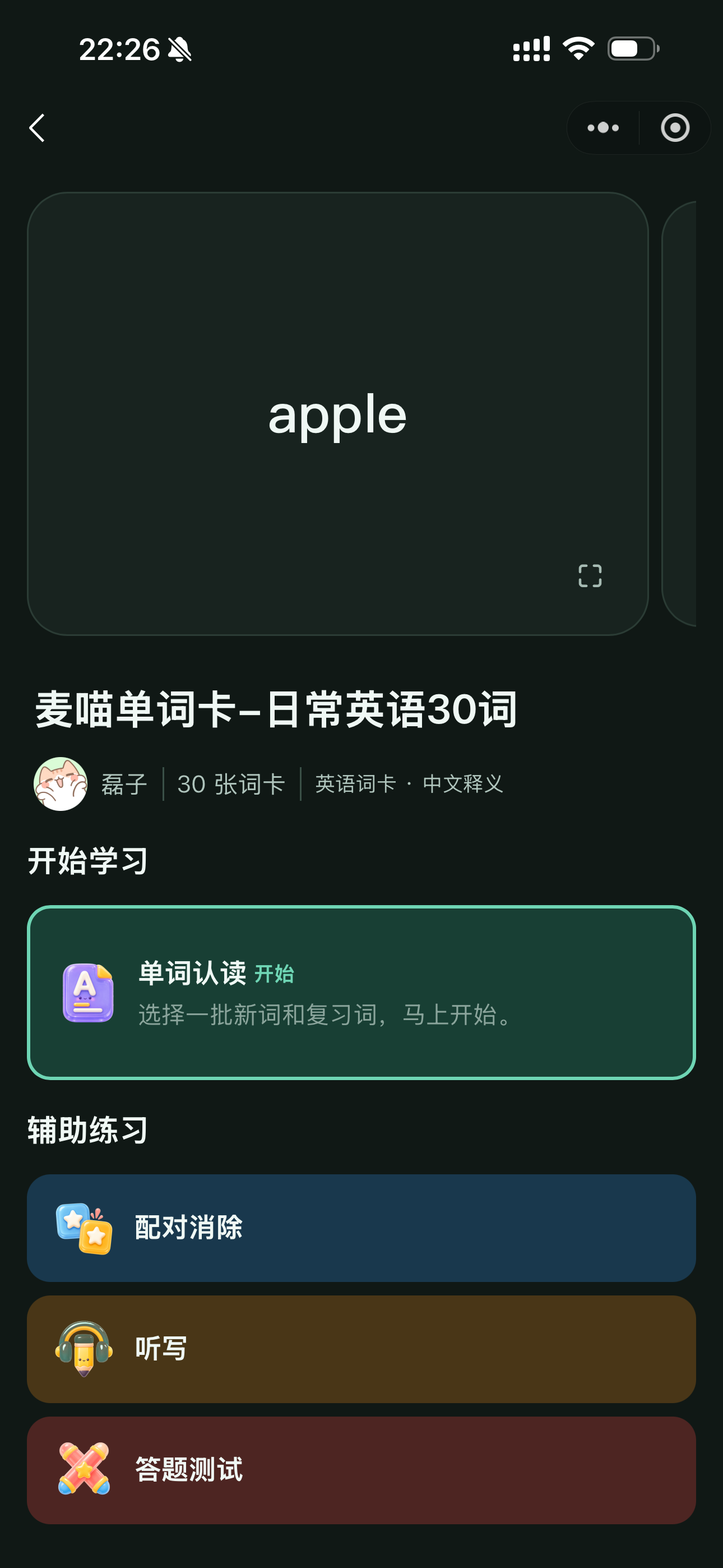
Sharing a deck supports independent learning. After students join, the deck card shows the current “N joined” count; open that count or choose “Independent learning progress (自主学习学情)” from the card menu to see the current learners. This count represents active deck access, not students who have completed a session. Learner pages include direct deck practice and personal learning plans, exclude tasks, and list completed sessions only. When you need a deadline, required exercises, and a clear task-completion status, create a task and share its task link. Tell students: “Use Tasks for homework and Decks for your own review.” Practising the same words independently does not replace the required exercises in a task.
Create a group
A learning group brings together students who regularly learn with you. For example, put your Wednesday students in one group so you can assign tasks or plans to them together. For an occasional assignment, you can share a task directly without creating a group first.
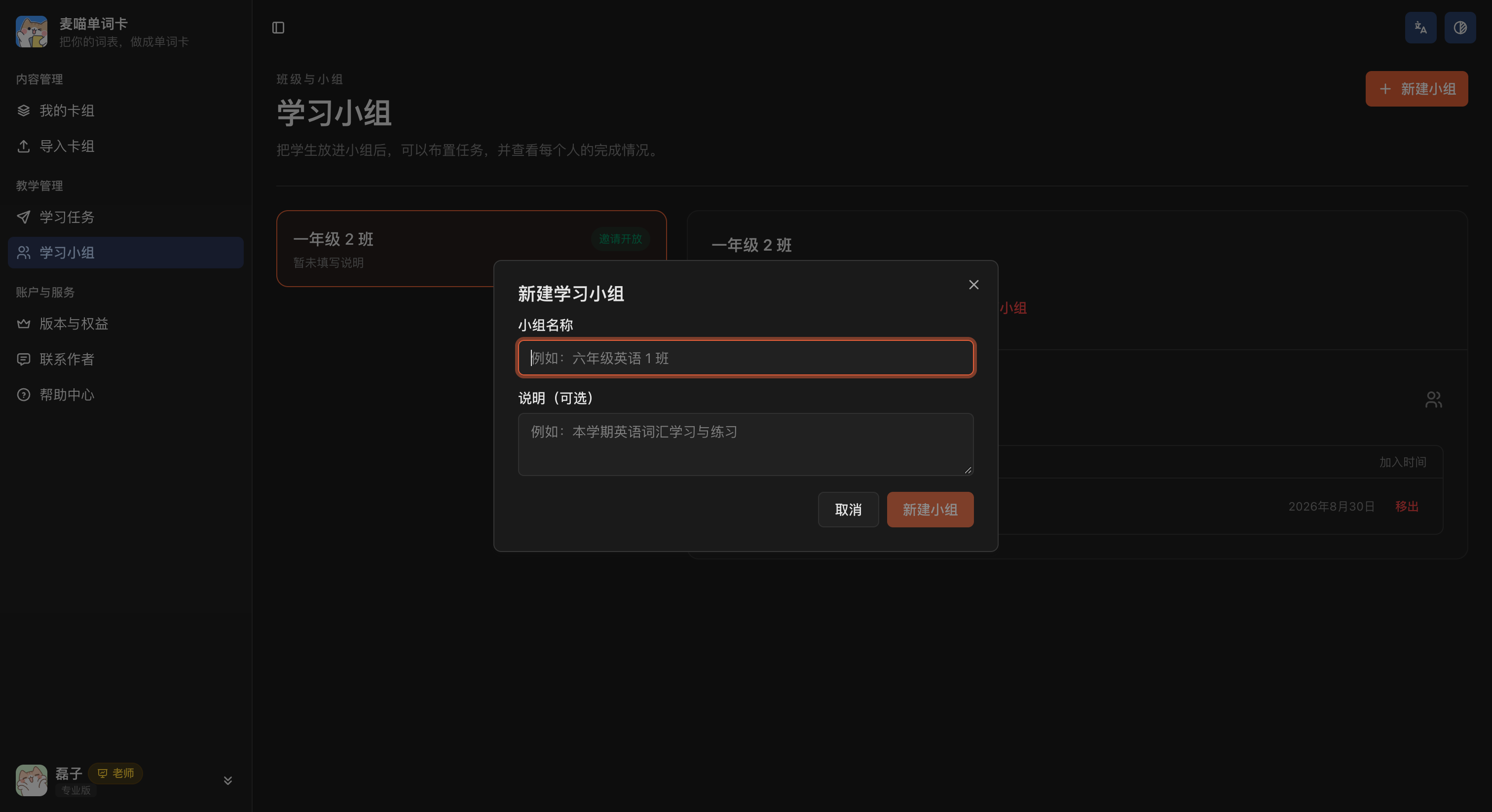
Open Learning groups and click New group (新建小组) in the top-right corner. Use a name students will recognise, such as “Wednesday English” or “Grade 6 English · Class 1”. Add a description if useful, such as “Vocabulary learning and practice for this term”.
Open the group details and click Choose sharing method (选择分享方式). The invitation dialog offers Web and Mini Program versions of the same group invitation. Preview the group page, then copy the link or save the code to send to students.
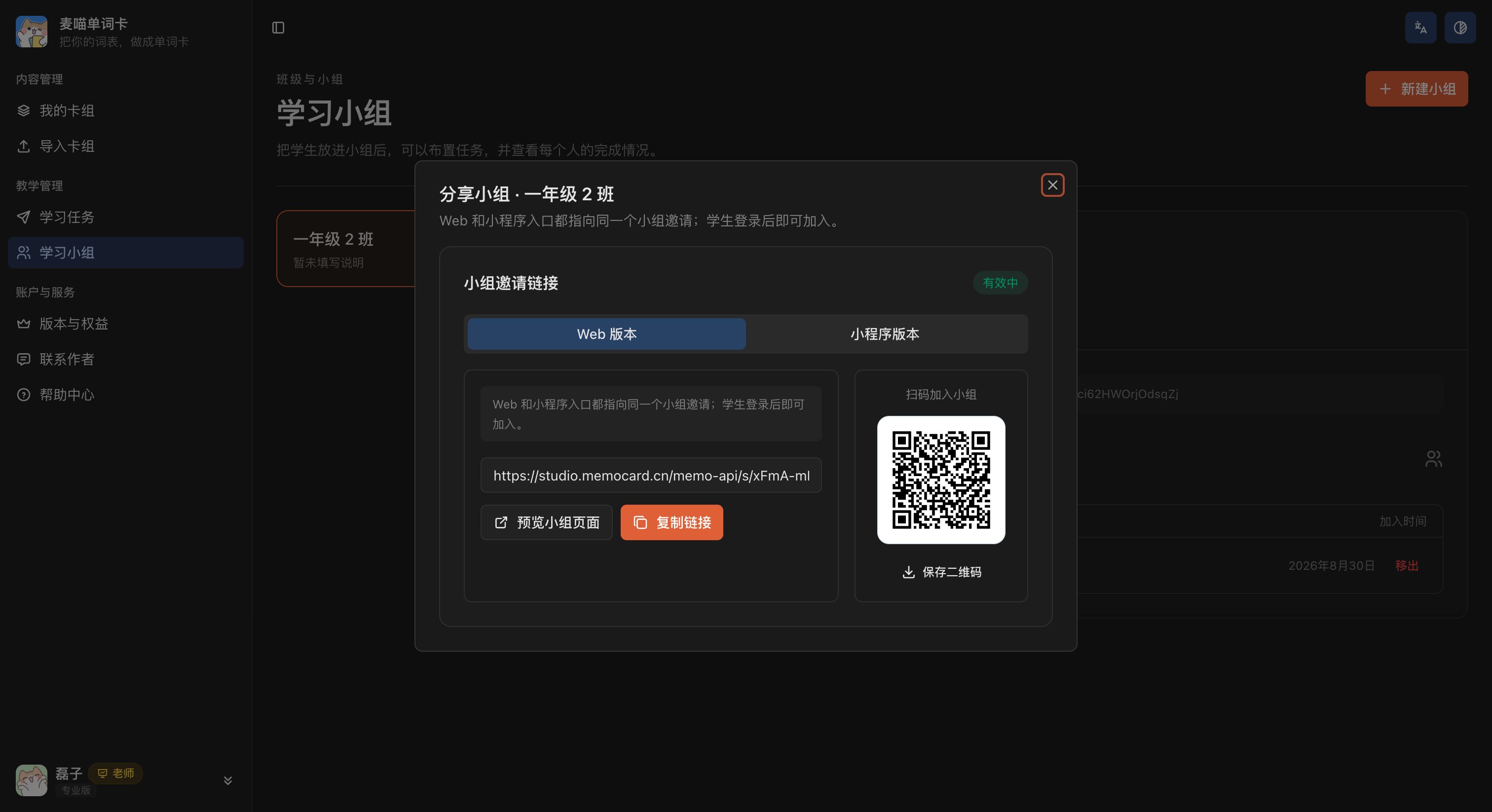
Students open the invitation, sign in, and join. Return to the member list to check that everyone is there. Each student should use their own account and a nickname you recognise, so you can identify their learning records.
After joining, the group page shows Joined (已加入). Students can click View learning tasks (查看学习任务) to find assignments whose deadlines have not passed.
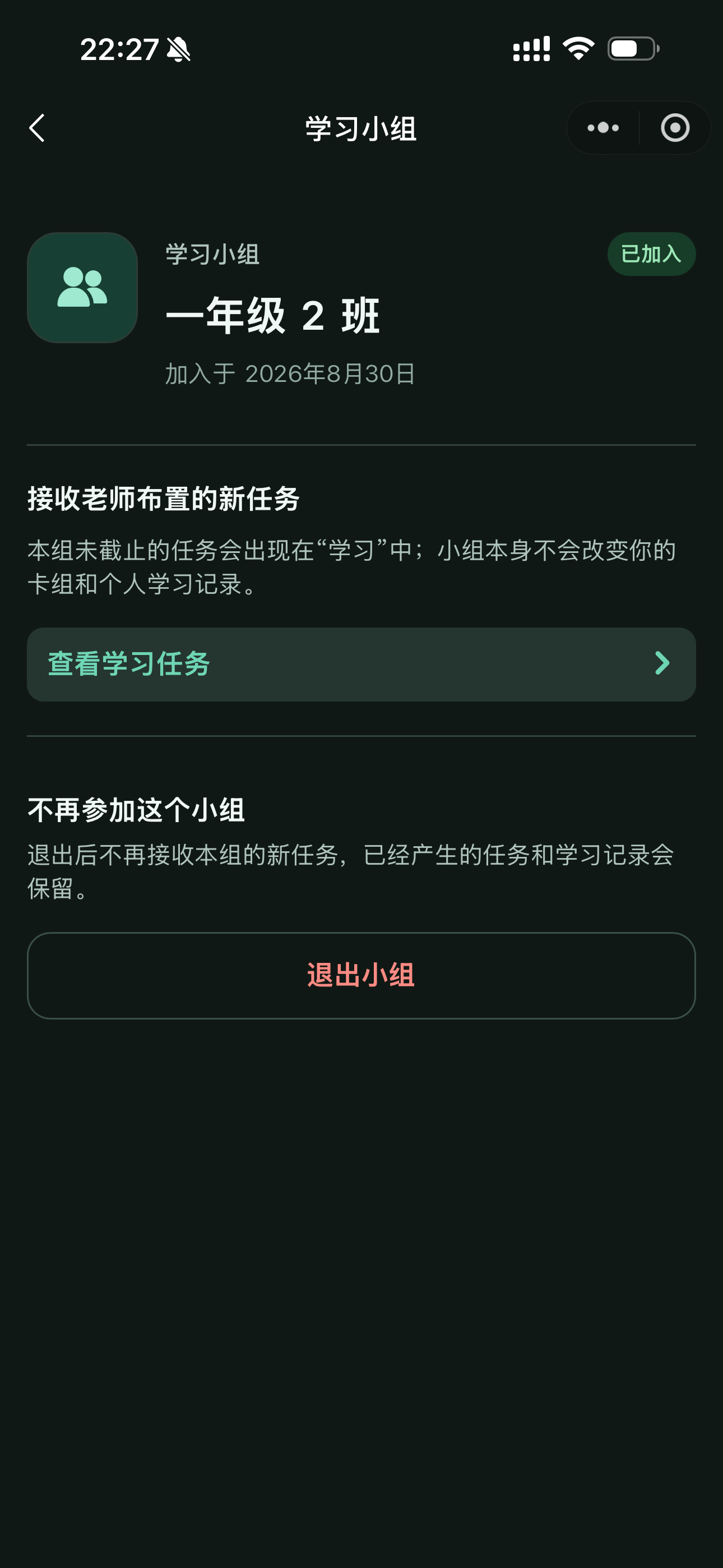
Send the group invitation to students who have not joined; send the task link directly to those who have. Creating a group alone does not create work for students. You still need to choose a deck and assign learning.
Assign learning
Once your deck and students are ready, choose the format that fits your teaching:
| Your aim | Choose | What students receive |
|---|---|---|
| Complete recognition practice and dictation for 10 words after today’s lesson | One-time task | One assignment with selected words and a deadline |
| Study 30 words over 3 sessions, adding 10 each time | Multi-day plan | Automatically created daily tasks on scheduled study days, with review added as it becomes due |
You can share a one-time task directly or assign it to a group. A multi-day plan must go to a learning group. If you have already scheduled the words in a multi-day plan, you do not need to create a duplicate one-time task.
One-time task
A one-time task is a single learning assignment. It specifies which words to learn, which exercises to complete, and when they are due, so you can track completion.
Select words
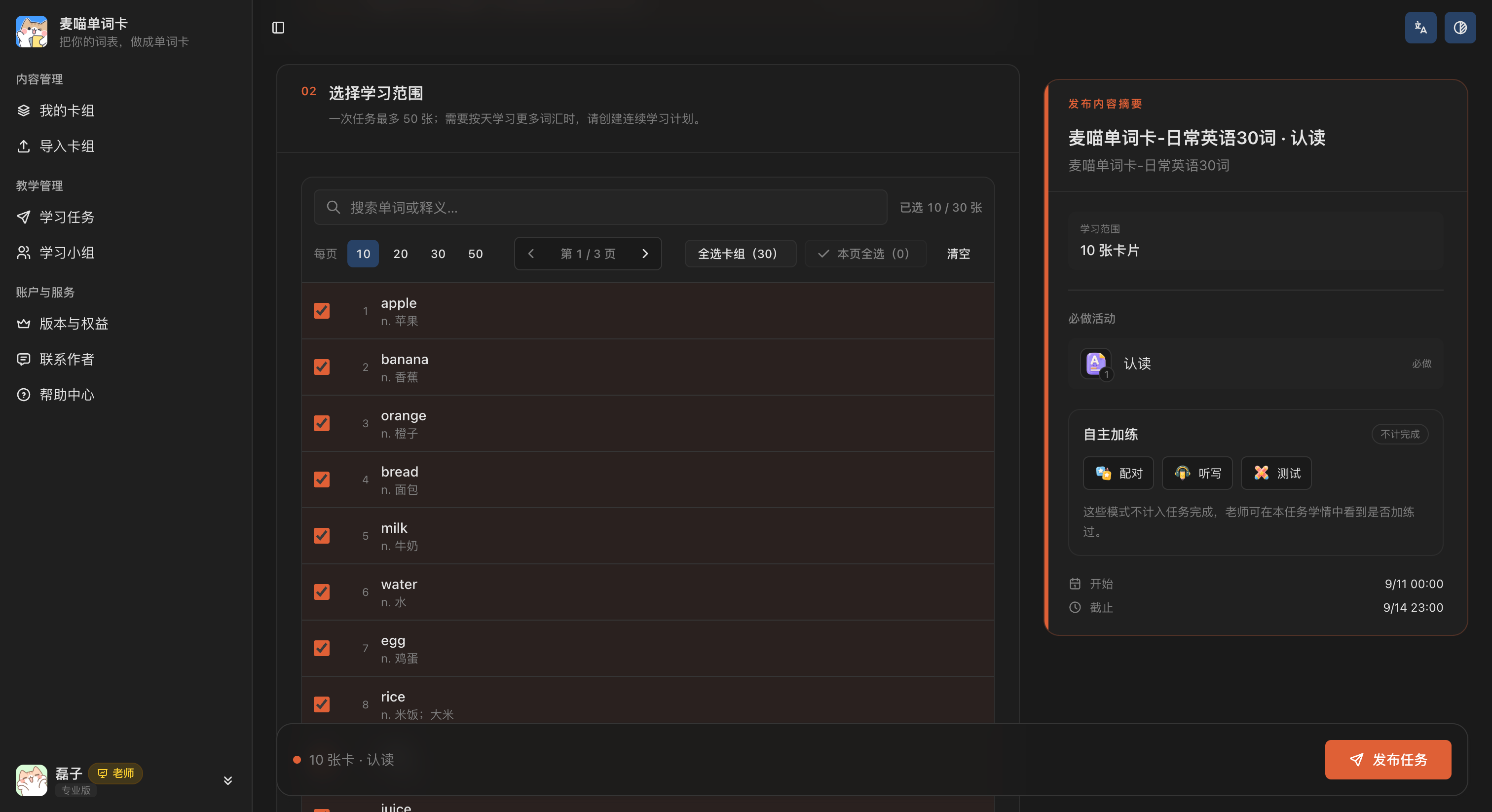
Open Assign task (去布置任务) from a deck and enter a title, such as “10 Food Words · Recognition and Dictation”. Students should be able to tell what they will study from the title.
Select the 10 words and check the selected list. A one-time task can include up to 50 cards. To cover more words across several days, create a multi-day plan.
Set exercises
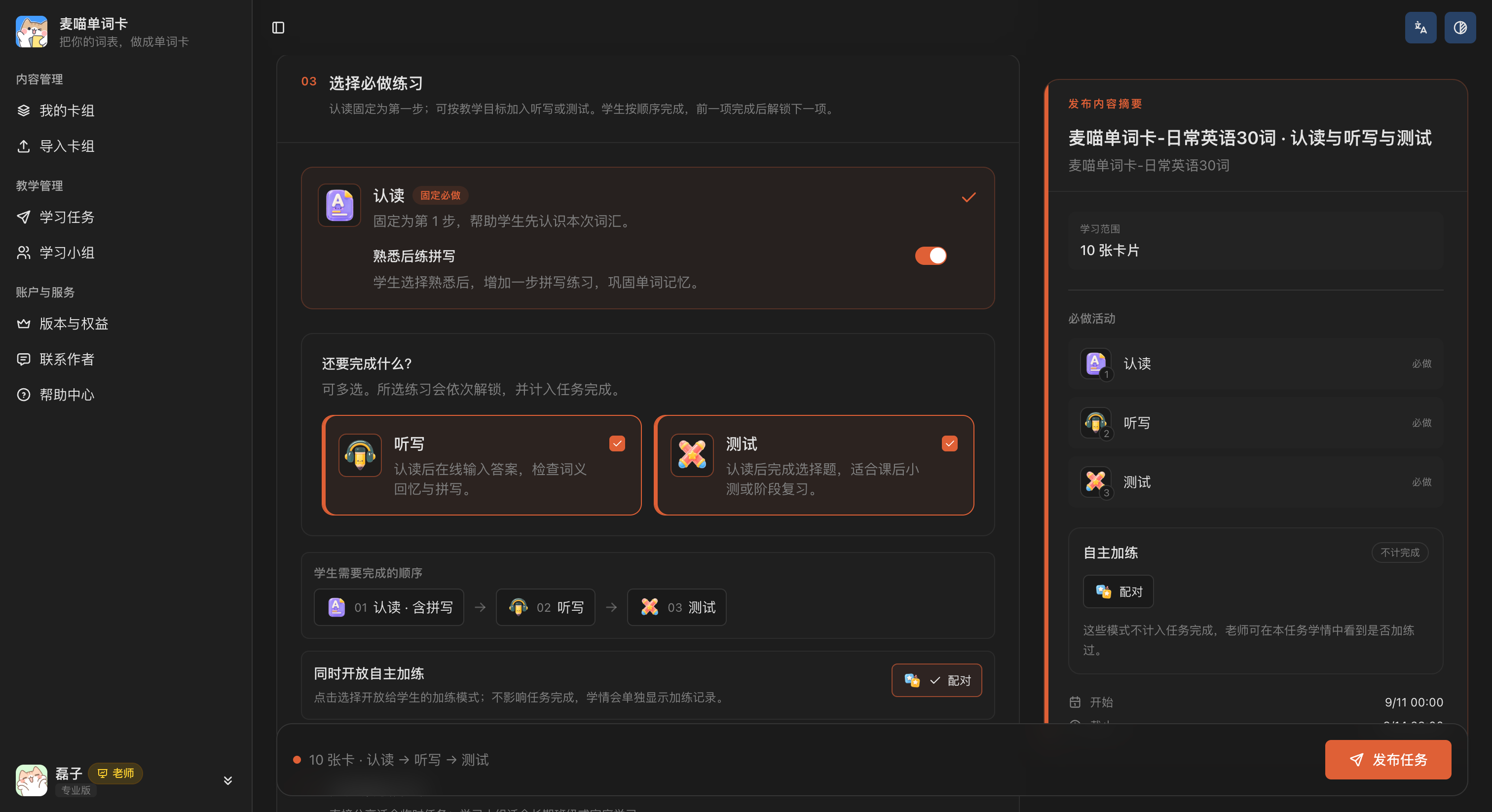
Recognition practice is always first. Add Dictation (听写) to check spelling, or Quiz (测试) to check word meanings. Students complete required exercises in the order shown on the page.
You can enable Spell after recognition (熟悉后练拼写). When students choose Got it right (答对了) during recognition practice, they also spell the word. The task list then labels recognition as including spelling. This reinforces words students have recognised; it is part of recognition practice, not a separate required exercise.
If you want every student to complete a dictation exercise and have it count toward this task, select Dictation separately. You can also enable optional extra practice such as matching. Extra practice does not affect task completion, and you can view its records in the task report. For your first assignment, keep the required work clear and manageable so students know what counts as finished.
Publish and share
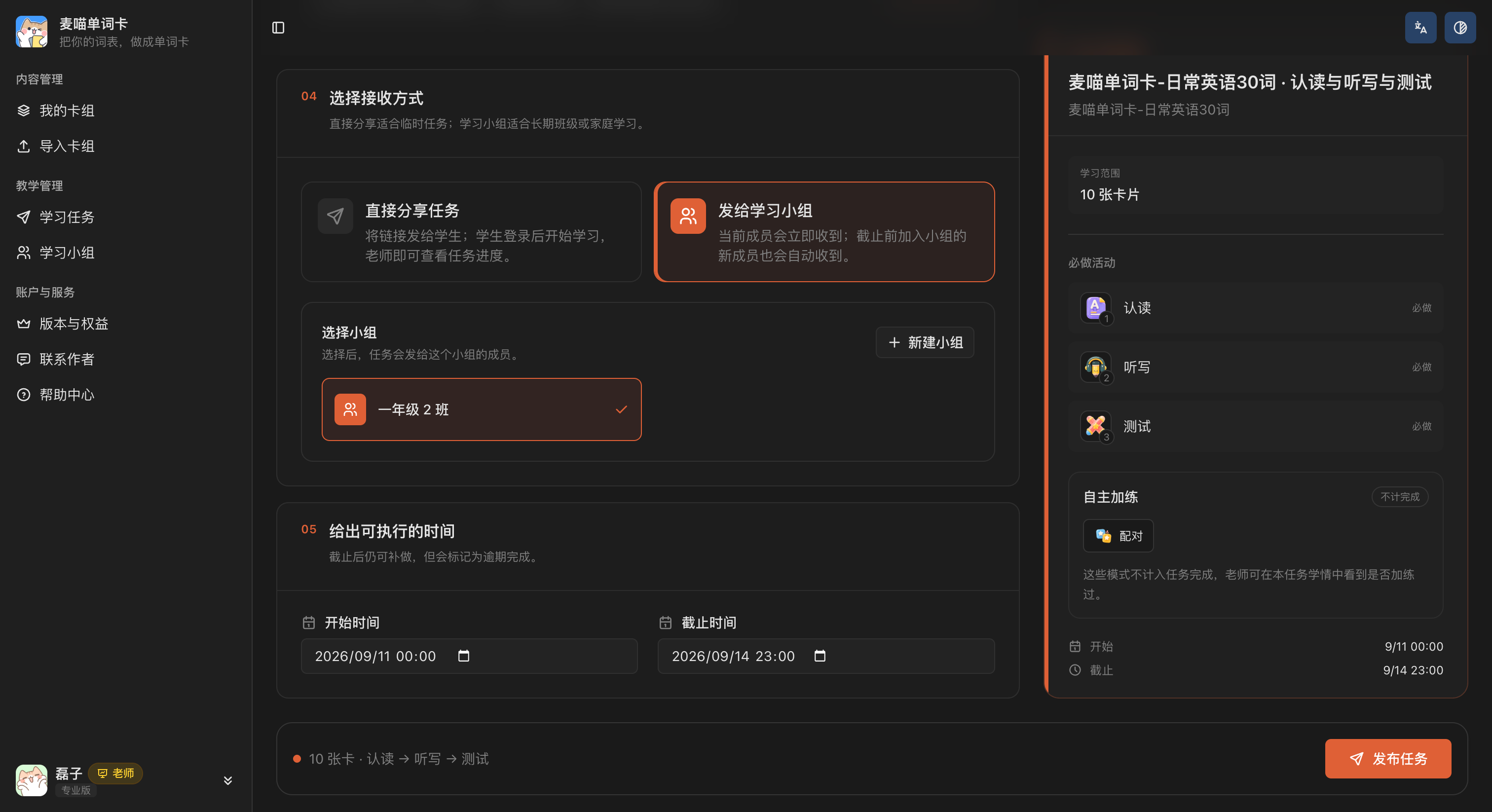
Choose Share task directly (直接分享任务) or Send to learning group (发给学习小组). Direct sharing suits an occasional assignment for one or a few students; use a group for a regular class or ongoing learning group. Then set the start time and deadline.
Before publishing, check the title, words, required exercise order, recipients, and start and end times. When everything is correct, click Publish task (发布任务).
After publishing, choose a sharing method students can open easily. For group tasks, send the task link to existing members. Send the group invitation first to students who have not joined; they can begin during the task’s open period after joining.
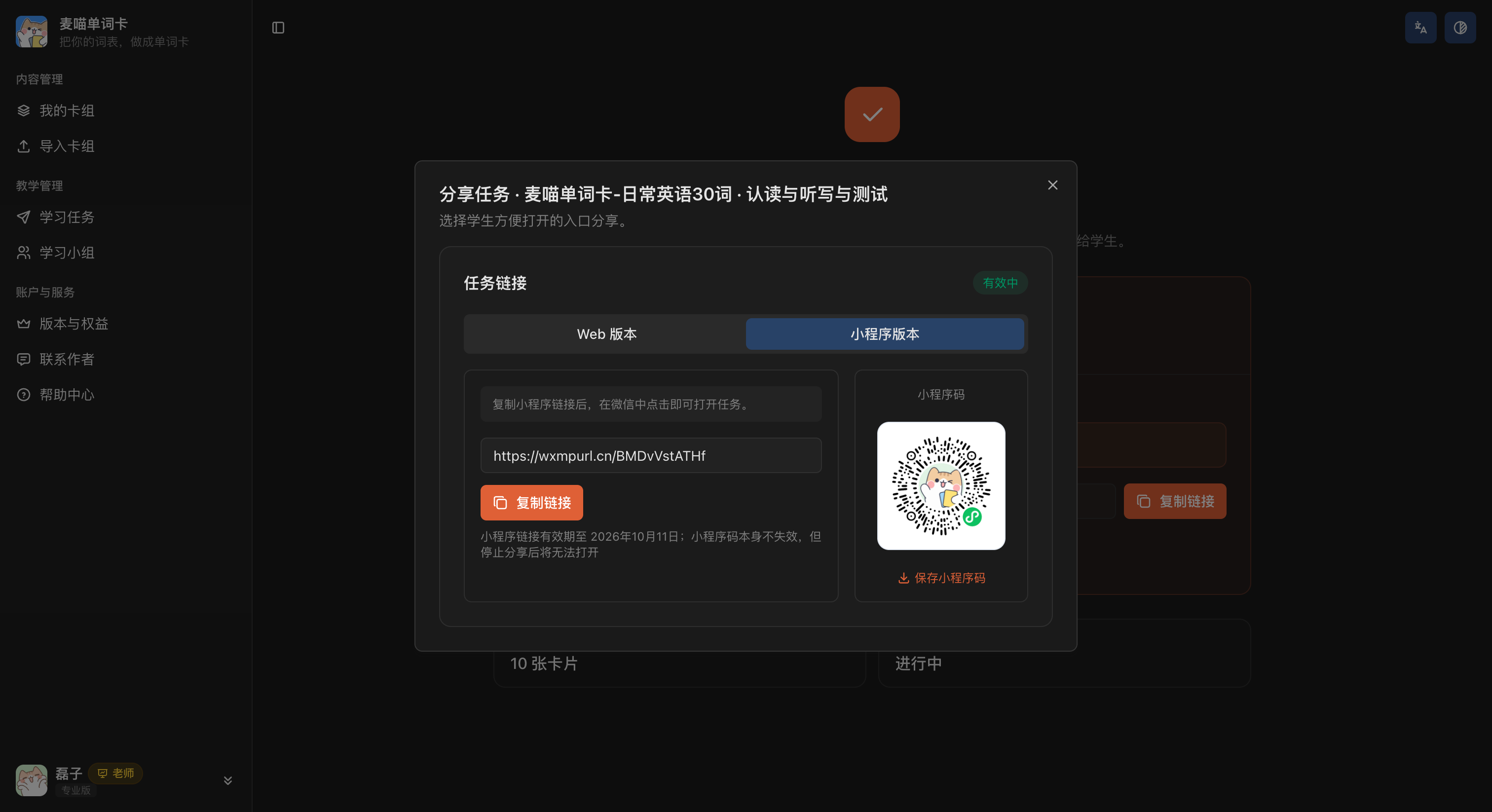
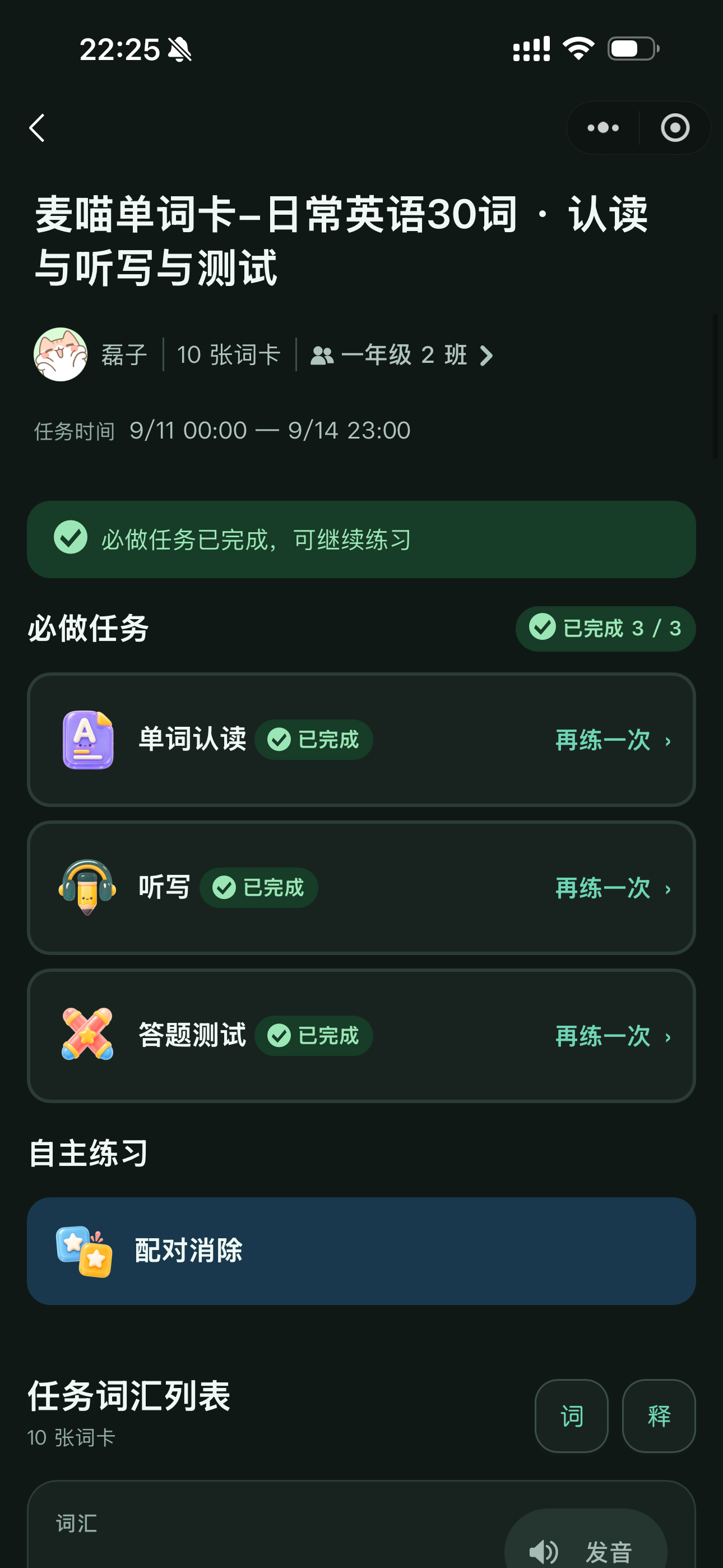
For the three required exercises shown in the screenshots, you could send this message: “Please learn these 10 food words before the deadline. Complete recognition, dictation, and the quiz in order. All three are required to finish the task; matching is optional extra practice.” If you only assign recognition and dictation, remove the quiz from the message.
Keep
Students can complete a task after its deadline; it will be marked as completed late. If you close the task yourself, students can no longer start or continue it. Keep it open if you want them to catch up.
Multi-day plan
A multi-day plan creates daily vocabulary tasks for one learning group. Set the number of new words, study days each week, and daily requirements once. Students then learn new words and review due words through their daily assignments, without you selecting and assigning the words again each day.
Set study days
To spread learning across several days, open Create multi-day learning plan (创建连续学习计划) from the deck. With the same 30-word deck and 10 new words per day, the plan creates 3 study days.
Enter a name students can understand, then choose the vocabulary. Entire deck uses the deck’s card order to divide words across days. To use only part of the deck, choose Select specific words.
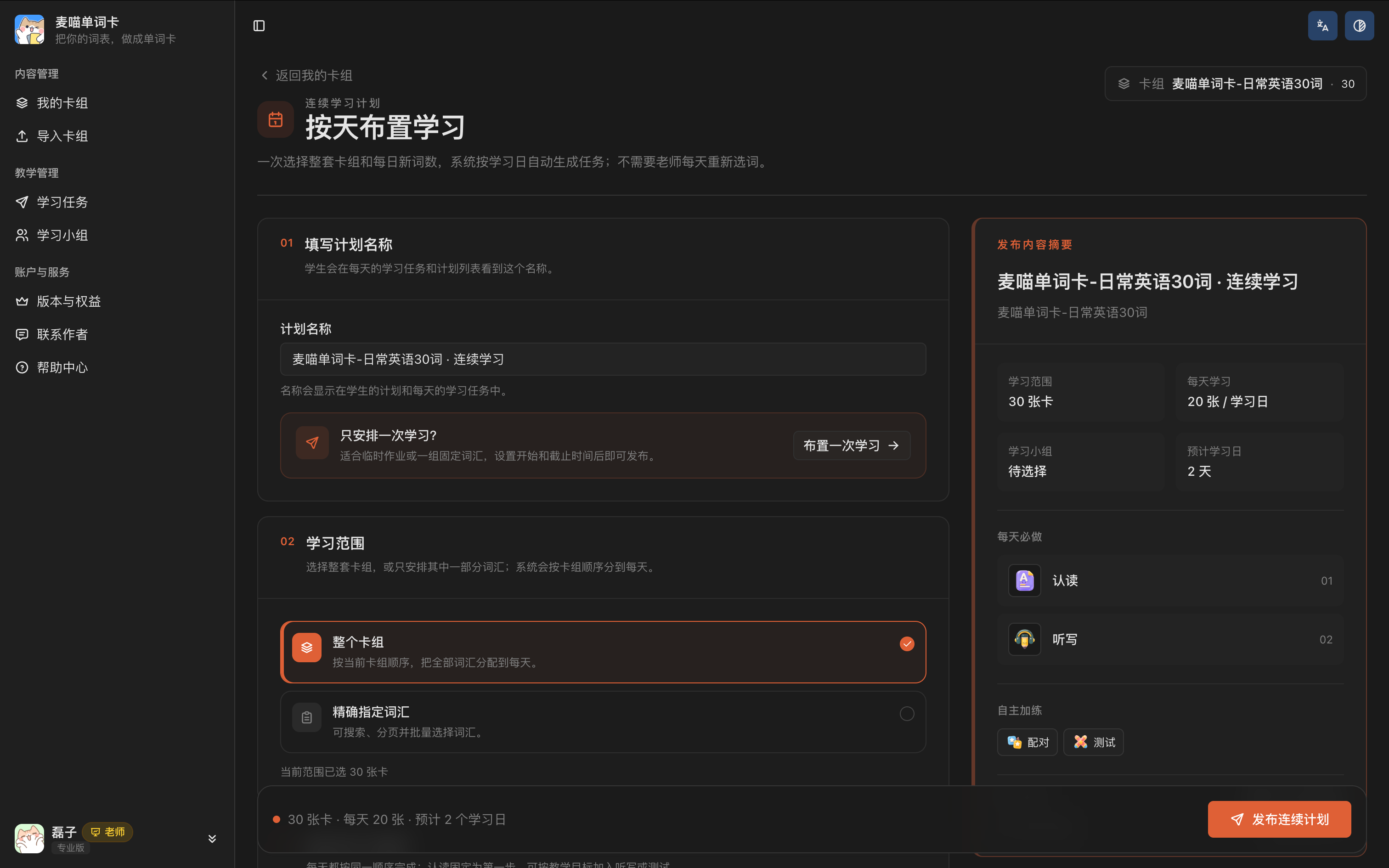
Set the required exercise order once; every study day follows it. Recognition remains first. Add dictation or a quiz if needed, and optionally enable Spell after recognition and extra practice such as matching.
Next, select the learning group. Everyone follows the same dates; joining later does not restart the plan from its first study day. New members who join before the plan ends receive daily tasks whose deadlines have not passed, with the same deadlines as the rest of the group. Tasks already past their deadlines are not assigned to them. To cover earlier words, share a deck separately or create a catch-up task.
Finally, set the number of new words per day, the weekdays for learning, the start date, and the daily opening and deadline times. New study-day tasks are created only on the weekdays you select. Tasks already assigned to a student can still be completed after their deadlines unless closed; they will be marked as completed late. Check the expected number of study days and end date before publishing.
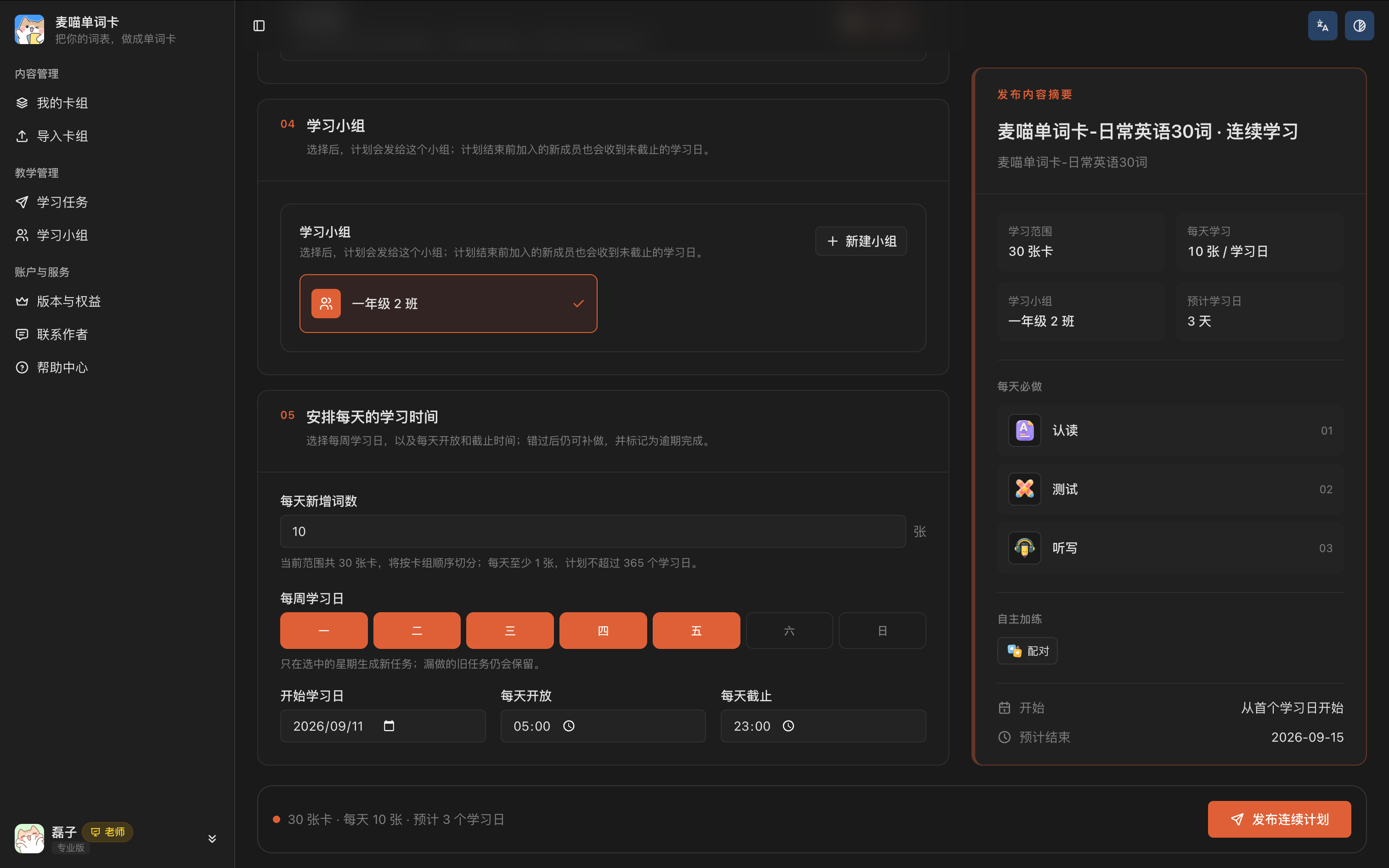
Click Publish plan (发布连续计划) when ready. The plan begins on its first study day and delivers tasks to the group according to your schedule.
New words and review
“10 words per day” means 10 new words. After recognising the day’s new words, students also review previously learned words from this plan that are due for review. The total recognition workload can therefore exceed 10 words.
New words follow the study days and daily amount you set. Due reviews take each student’s learning into account. Allow time for this review when choosing the daily number of new words.
If you enable matching, make sure every study day has enough words, including the last day. Adjust the daily amount or total selection if the page indicates too few words. See Review progress for following up after publication.
How students learn
Open a task
For a one-time task, students open the link or Mini Program code you share, check the title, words, and deadline, then sign in to learn. Group tasks require them to join the relevant group first.
For a multi-day plan, group members see that day’s work under Today in the learner app. You do not need to send a new task link every day.
Both one-time tasks and daily plan tasks begin with recognition practice. Students complete it before moving on to dictation or other later steps. On their first visit, help them check the required list so they know which steps remain.
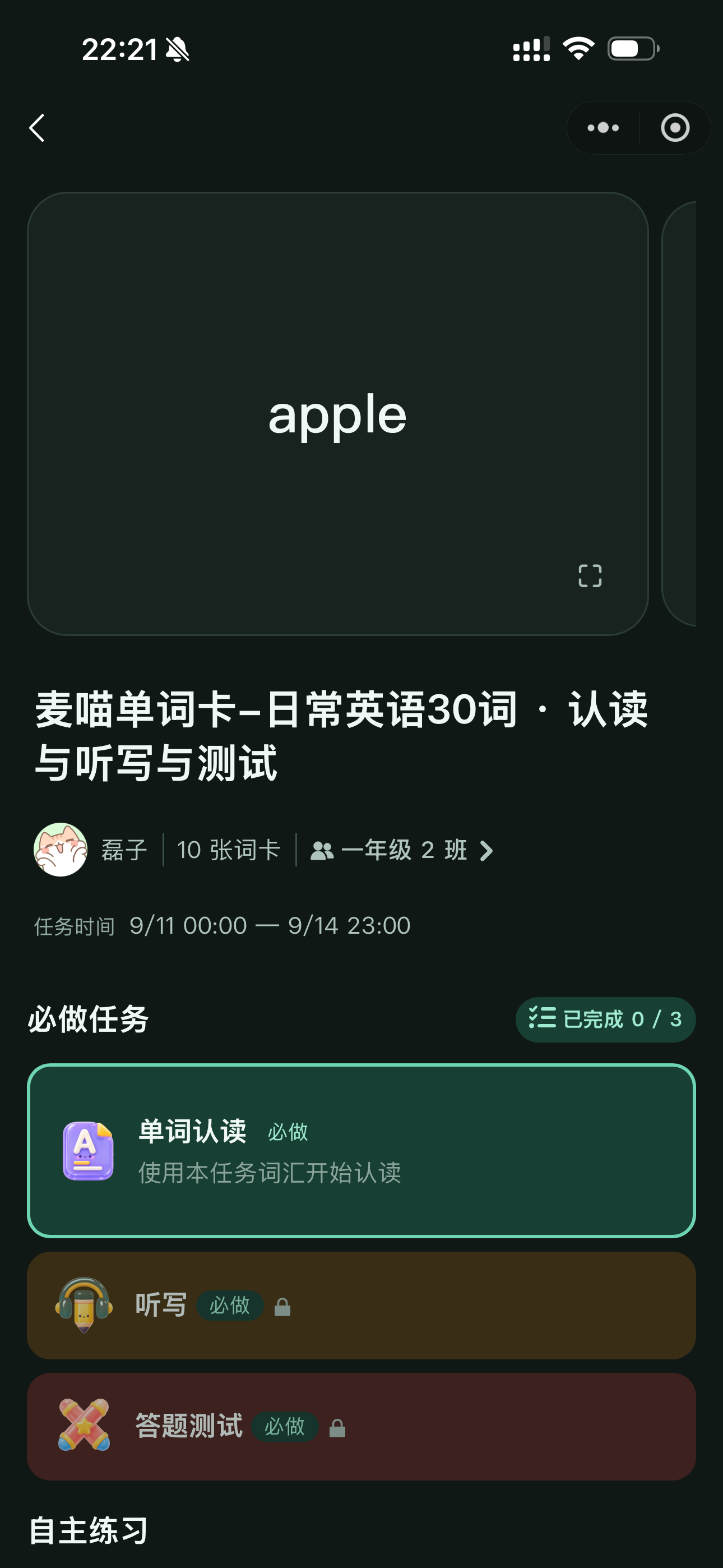
Recall and recognise
Students first look at the word and try to recall its meaning, then tap Show meaning (查看释义) to check. They can play the audio and use images and notes to understand the word.
After checking, students choose Got it wrong (没答对) or Got it right (答对了). Finding an answer familiar after seeing it is different from recalling it independently. Honest responses make later review more useful.
If you enabled Spell after recognition, students who choose Got it right also complete a spelling step before moving to the next card. After finishing recognition practice, they check the results and return to the task page.
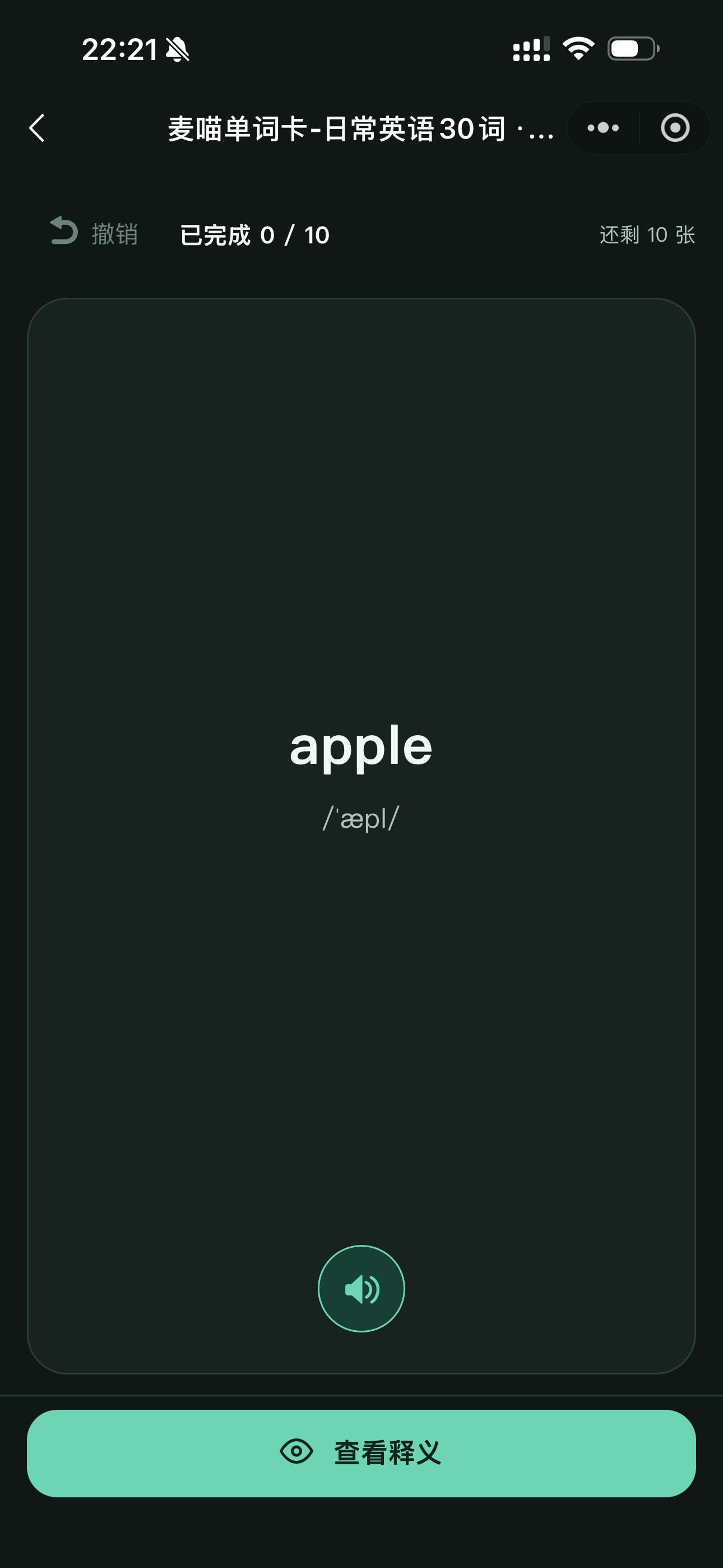
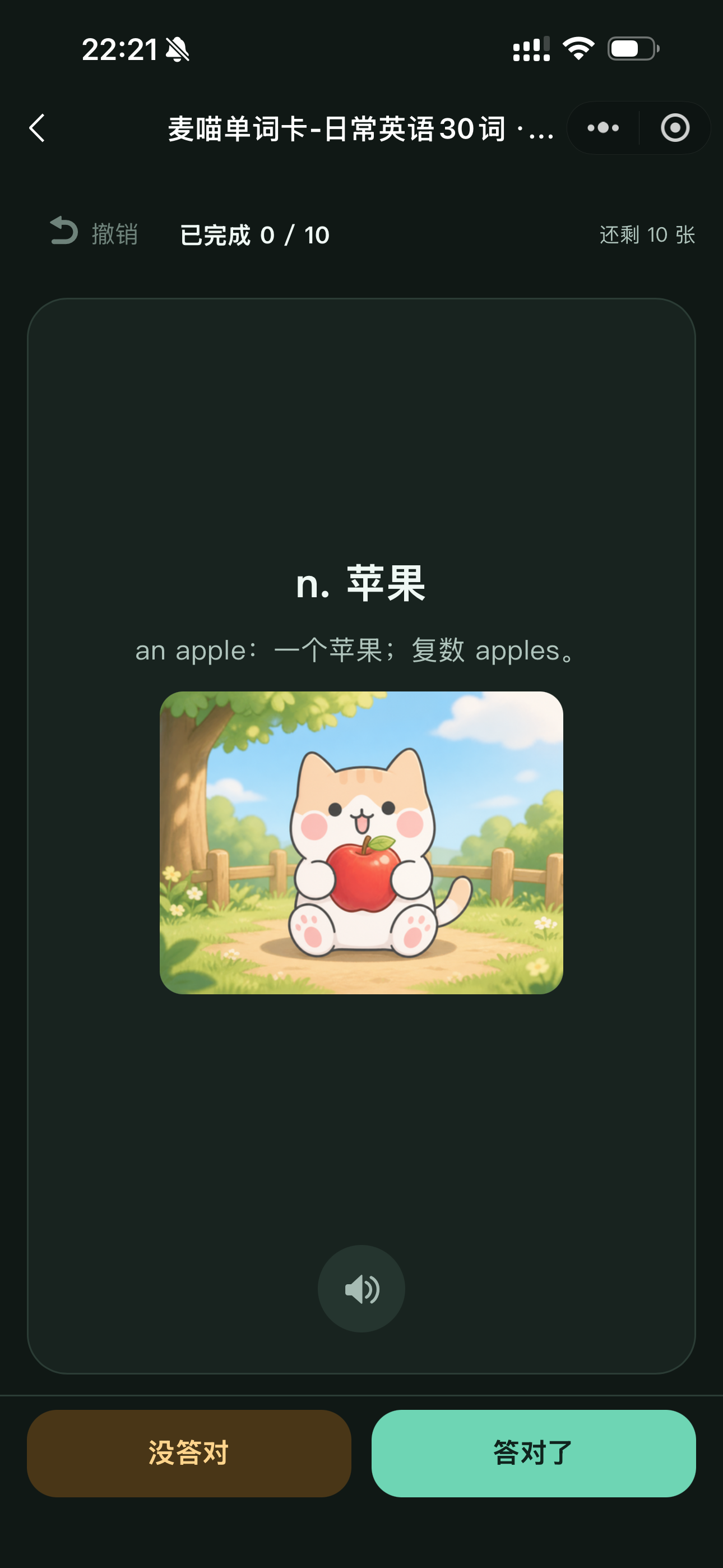
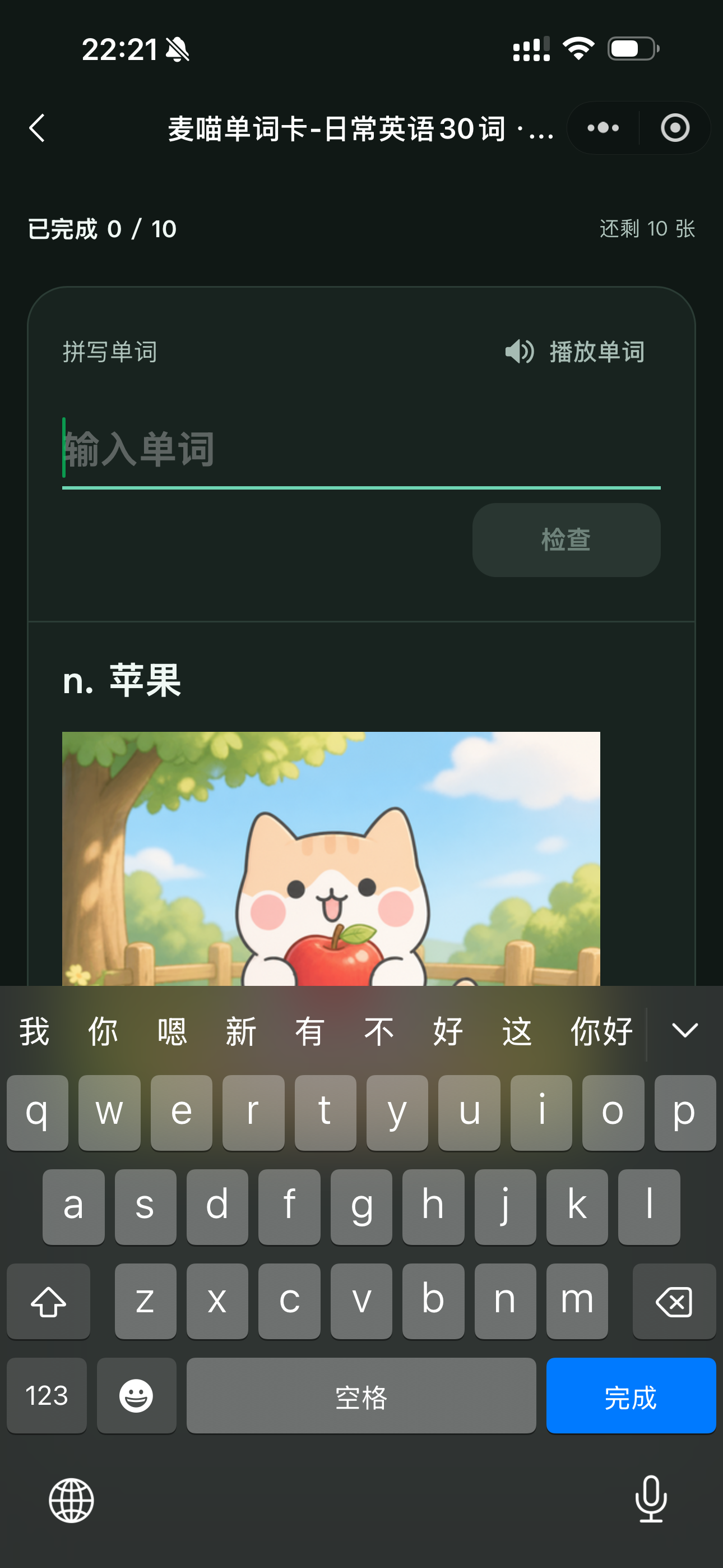
Recall first, reveal the meaning, and answer honestly. With spelling enabled, correctly recalled words also get a typing step.
Practise dictation
When dictation is required, it unlocks after recognition practice. Students listen to the audio, type and submit the word, then use the feedback to check their spelling.
Afterwards, they can compare the correct spelling, their answer, and the meaning in the results. For example, a student who wrote bred instead of bread can see the missing letter and practise that word again.

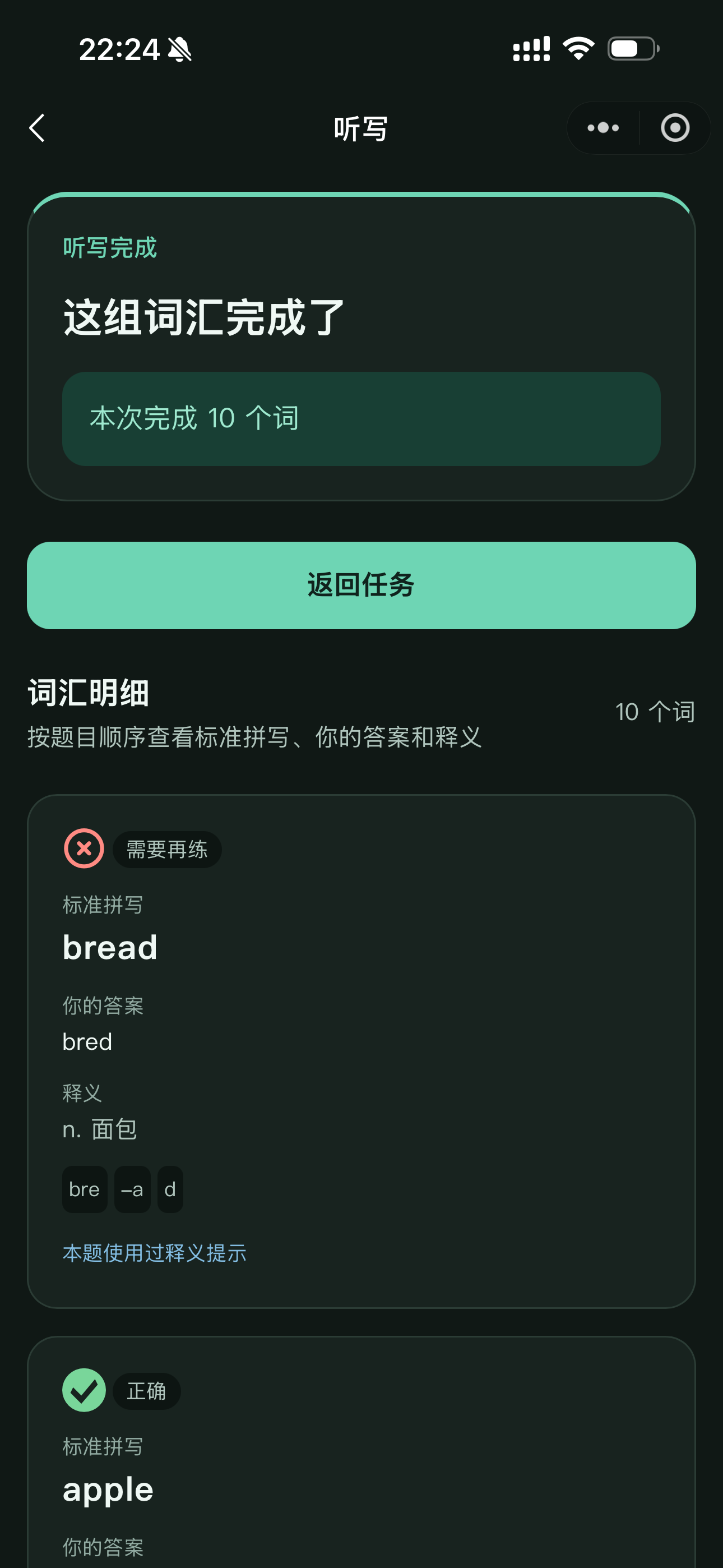
Students type their answers online, then compare them with the correct spellings to find words that need more practice.
Quizzes and extras
Quizzes use multiple-choice questions to check word meanings. When a quiz is required, students complete the earlier steps before starting it. Afterwards, they can review mistakes to find words that need more work.
Matching asks students to pair each word with its correct meaning, helping reinforce words they may confuse. It is optional extra practice and does not affect whether the task is complete.
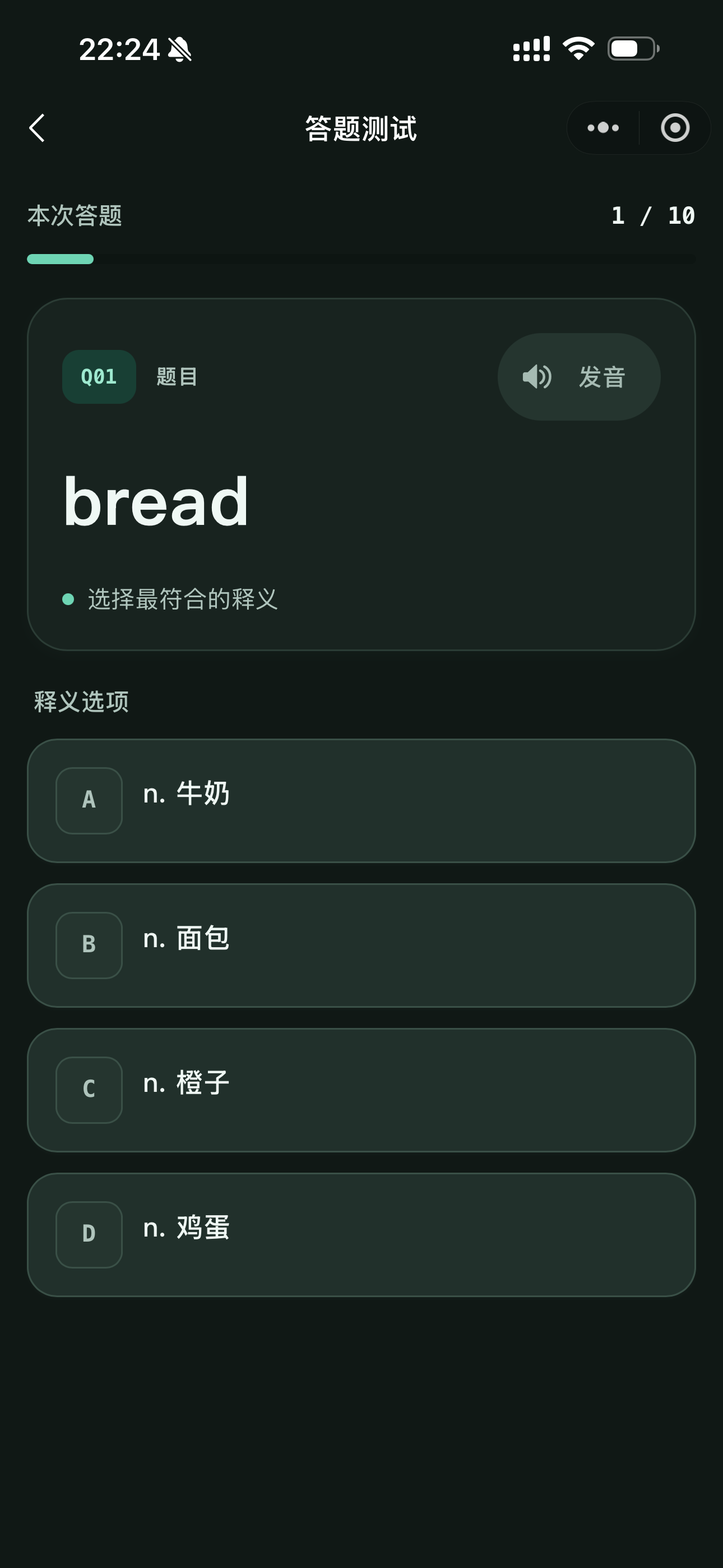
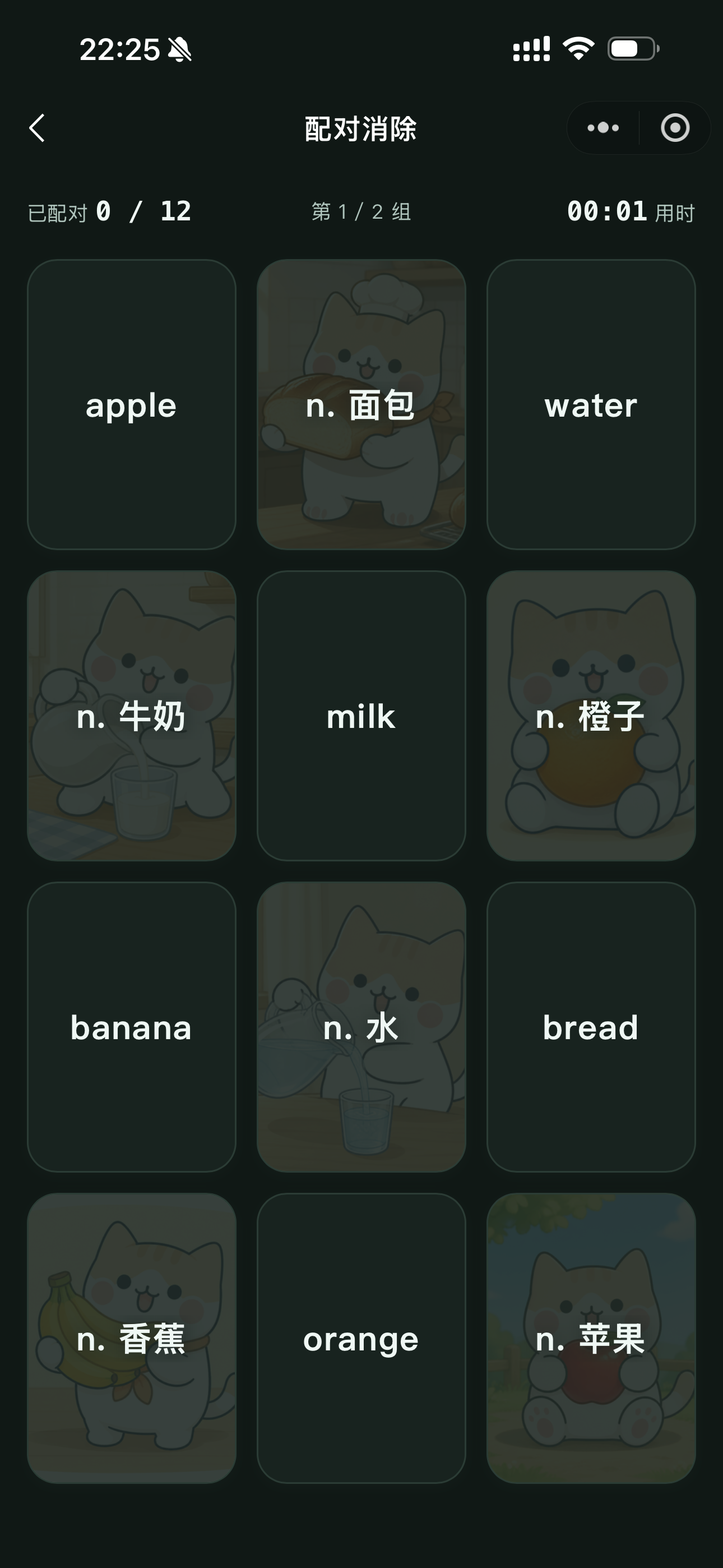
Choose the correct meaning in a quiz; pair words with their meanings in matching practice.
Exercises need enough suitable vocabulary. For example, a task quiz needs at least 2 cards and matching needs at least 6. If an exercise is unavailable, follow the page’s guidance to check the word count and content, then adjust the selection.
Check completion
Make
Return to the task page and check that every exercise marked Required is complete. If you assigned dictation or a quiz, students must finish those steps in order. Optional practice does not affect completion. If results are still saving, wait until saving finishes before checking the task’s progress.
Use
Choose Pen-and-paper dictation (纸笔听写) in the dictation settings for independent deck practice. Students listen and write on paper, then check their work against the answers. To assess their actual written work, you will also need to look at the paper answers.
Pen-and-paper practice does not replace a task’s online dictation requirement. If you assigned online dictation, students still need to complete it through the task.
Keep learning
The learner app has four bottom tabs: Today (今天), Learn (学习), Records (记录), and Me (我的). Today shows current work. Learn holds tasks, decks, and groups. Records lets students revisit practice results. Profile and account actions are under Me.
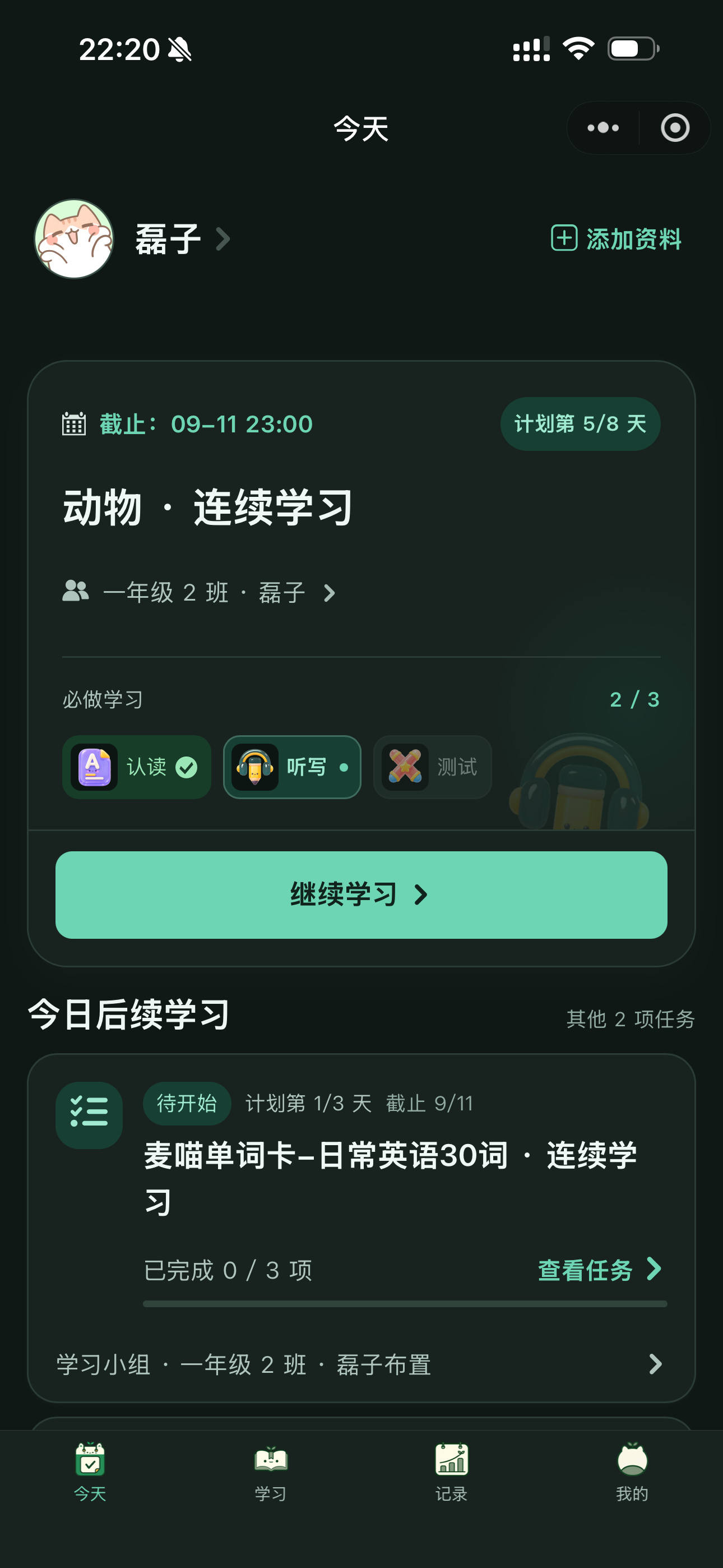
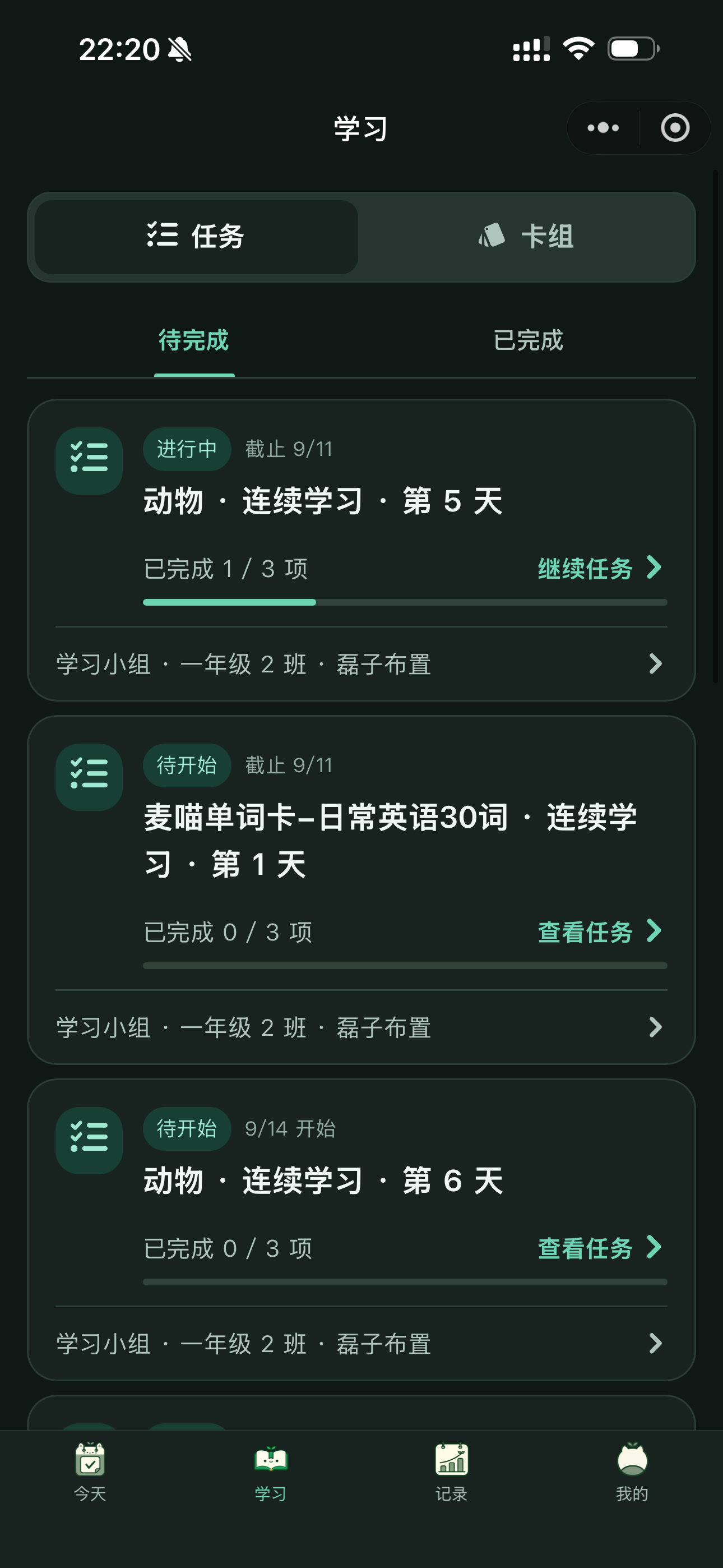
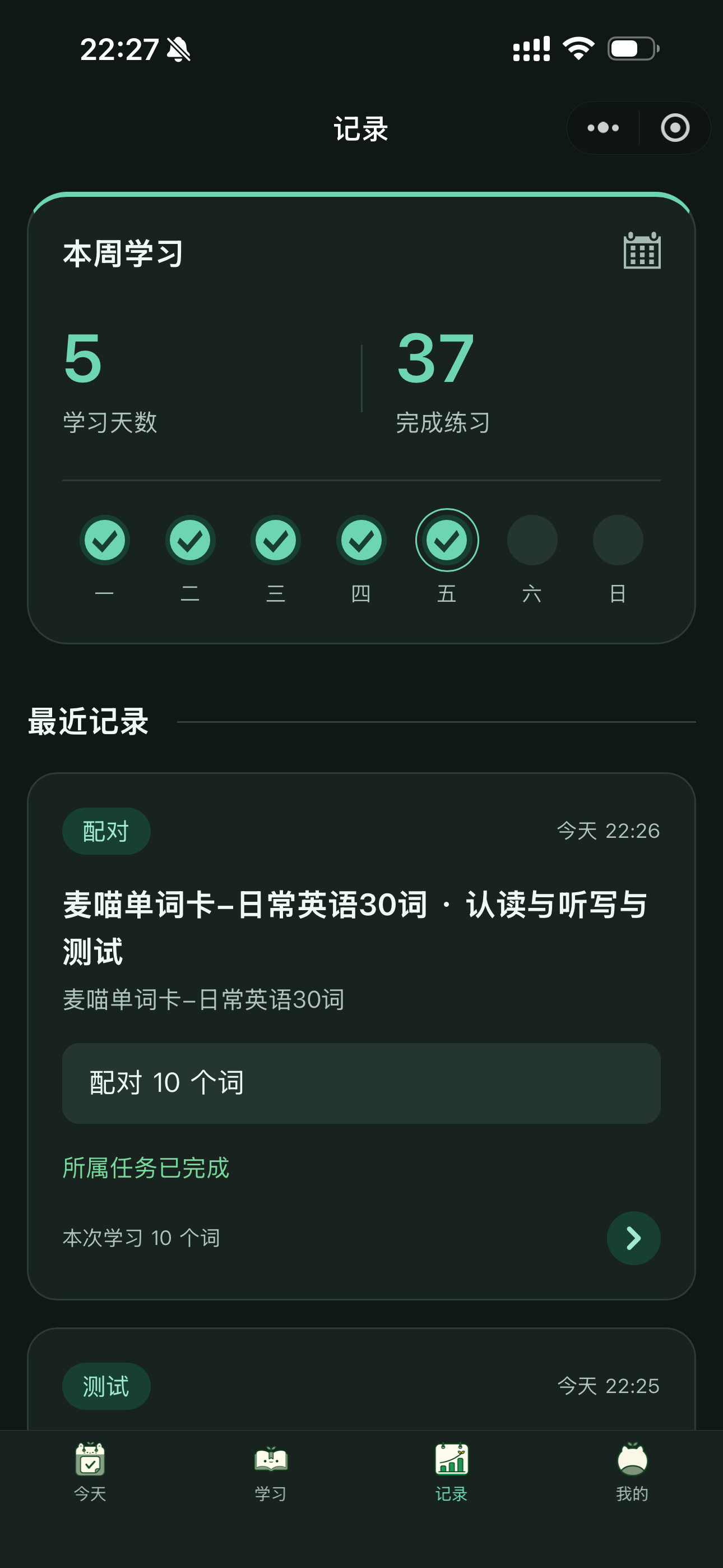
Continue daily work from Today, find tasks and decks in Learn, and revisit completed exercises in Records.
For decks they have joined, students can set a daily new-word amount for each deck or study a batch of words first. Due reviews are scheduled separately and do not use the new-word allowance. Students must still complete teacher-assigned requirements through the task; their personal daily amount does not change those requirements.
Review progress
After students practise, return to the creator app to review results. Open Independent learning progress (自主学习学情) from the deck for direct practice. Open a one-time task directly for task results. For a multi-day plan, check the overall progress before opening a specific study day.
Review independent deck learning
In My decks, each deck card shows the number of people who currently have active access to it. Click “N joined”, or choose Independent learning progress (自主学习学情) from the card menu, to open the separate learner list.
This count is based on active deck access and does not mean that every learner has completed a session. The list includes learners who have not completed a session and can include the creator, marked as “You”. If a learner removes the deck, they no longer count, appear in the list, or remain accessible through the creator’s learning report.
Open a learner to see their independent learning for this deck: the last seven days of completed activity, the latest completed result for recognition, matching, dictation, and quiz, and a paginated list of completed sessions. Direct deck practice and personal learning plans appear here; task learning does not.
Open a completed session to see its words, meanings, and word-level results. A session that is still in progress or was closed before completion is not included. If there is no completed record, the page says so; the learner may still have active access to the deck.
Review multi-day plan progress
For multi-day learning, start with the whole plan, then look at individual days. Using “Animals · Multi-day Learning” as an example, open the plan details to see who is on schedule, who has not started, and who needs follow-up.
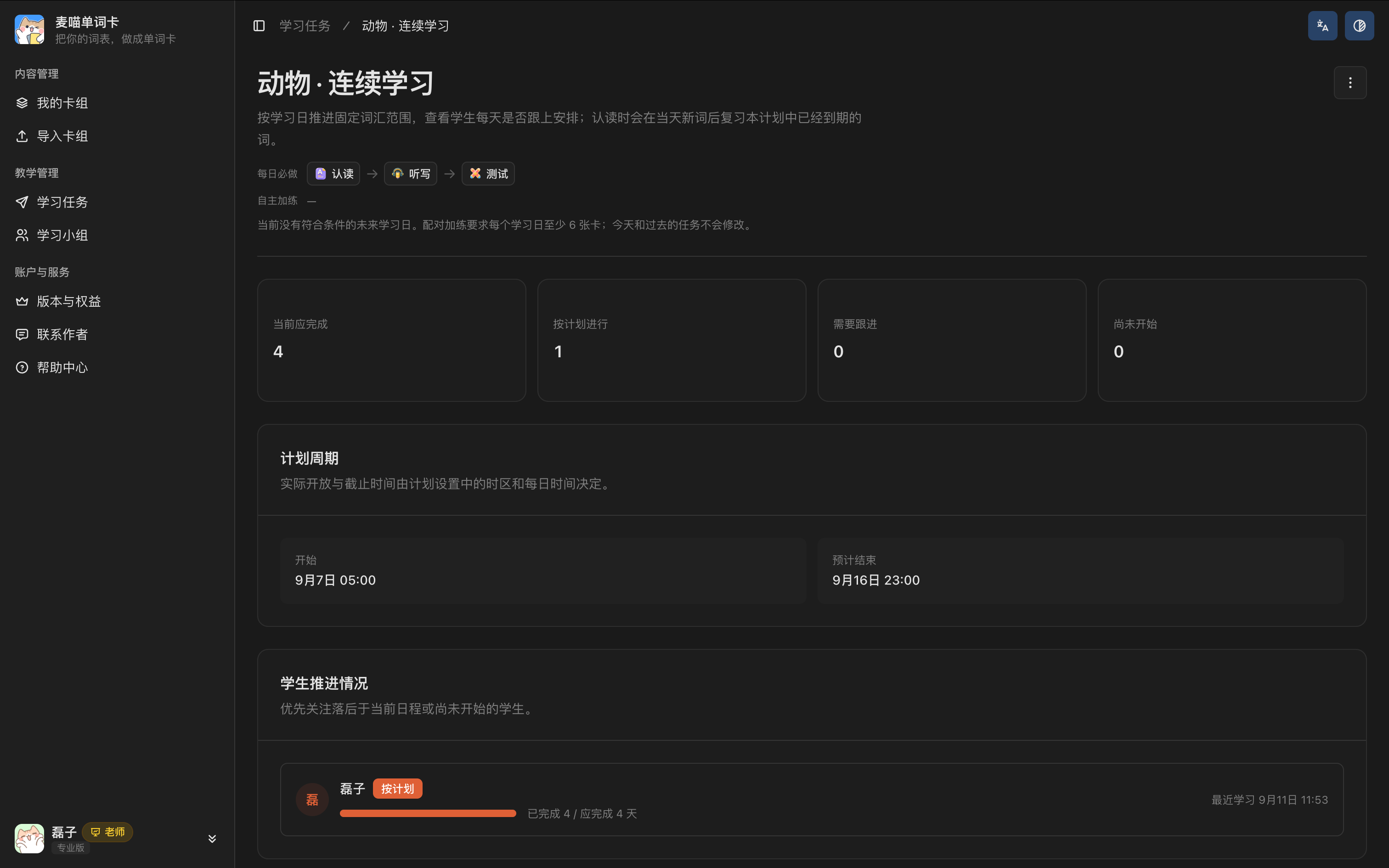
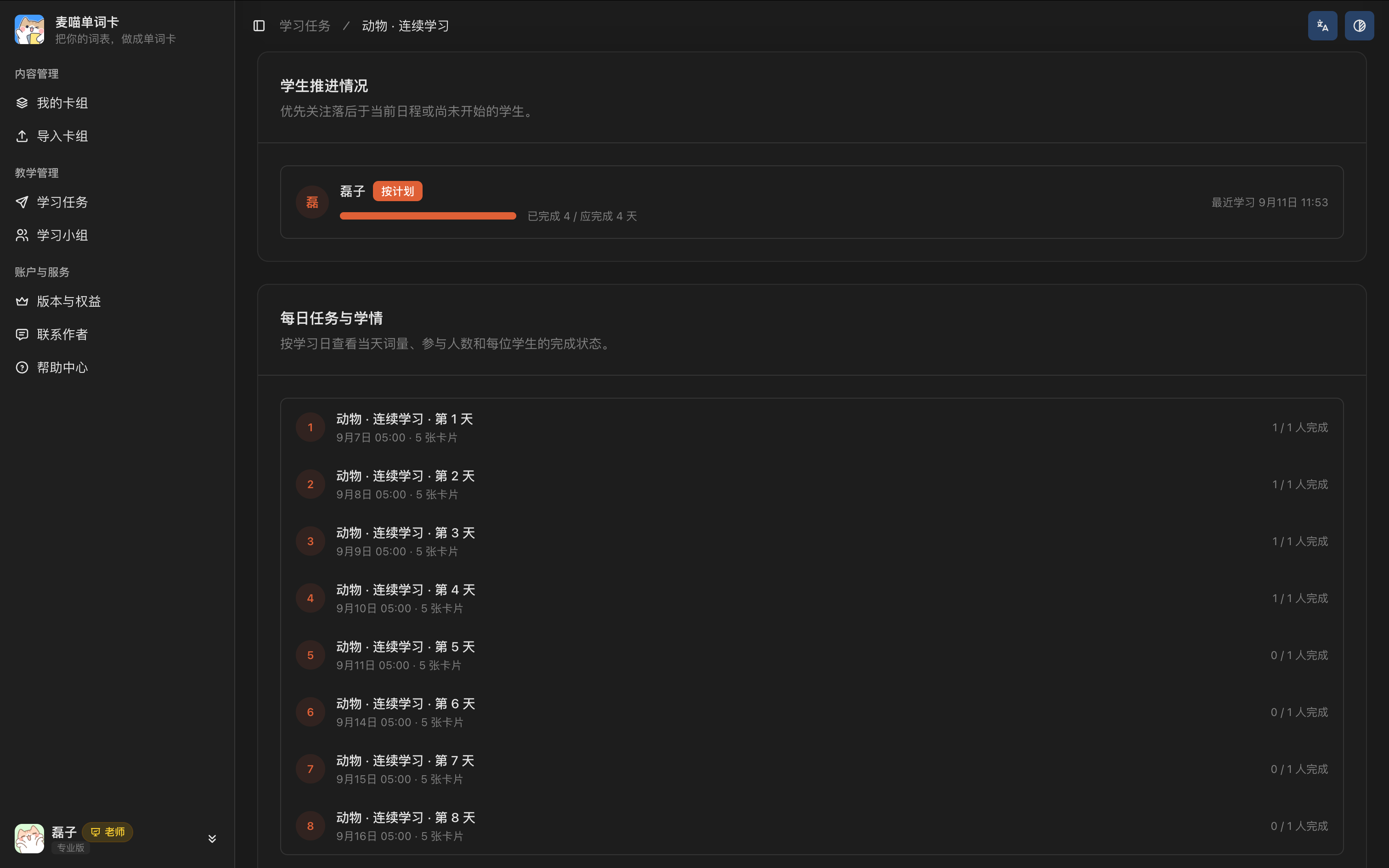
The lower part of the plan details lists the word count and completion status for each study day. Open a day to view its progress, exercise summaries, and student records.
Review task completion
Find one-time tasks under Learning tasks in the creator app. For a multi-day plan, open the plan and then the relevant study day. Both show student completion status and practice results.
Check who has not started, who is in progress, and who has finished. Then look for overdue tasks or late completions. Before reminding students who have not started, check that they received the correct link and joined the group if required.
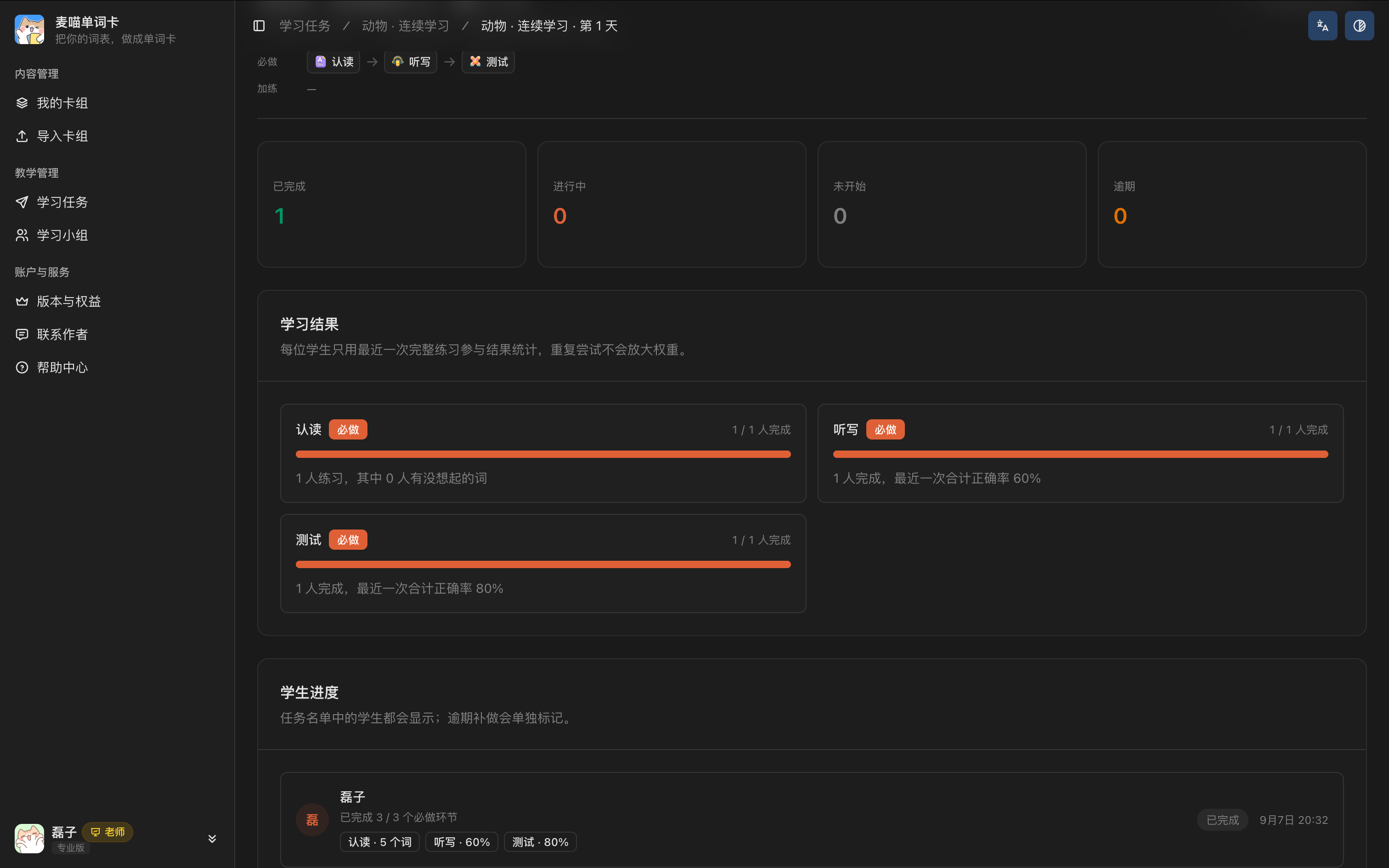
For a directly shared open task, the list shows students who joined the task, not everyone in a chat who received its link. Use a learning group when you need to follow up with a fixed list of students.
Review task practice results
Next, review each exercise. Words students could not recall, incorrect matches, dictation answers, and quiz results can all help you plan the next lesson.
Report summaries use each student’s most recent completed practice session. A student who practises repeatedly is not counted as multiple people in the summary.
Open a student to see their completed practice records for this task, then open a session to inspect the words, answers, and results. In the screenshot, the dictation word is horse, but the student entered foxx. Check whether they heard the word clearly and understood its meaning before deciding what to practise next.
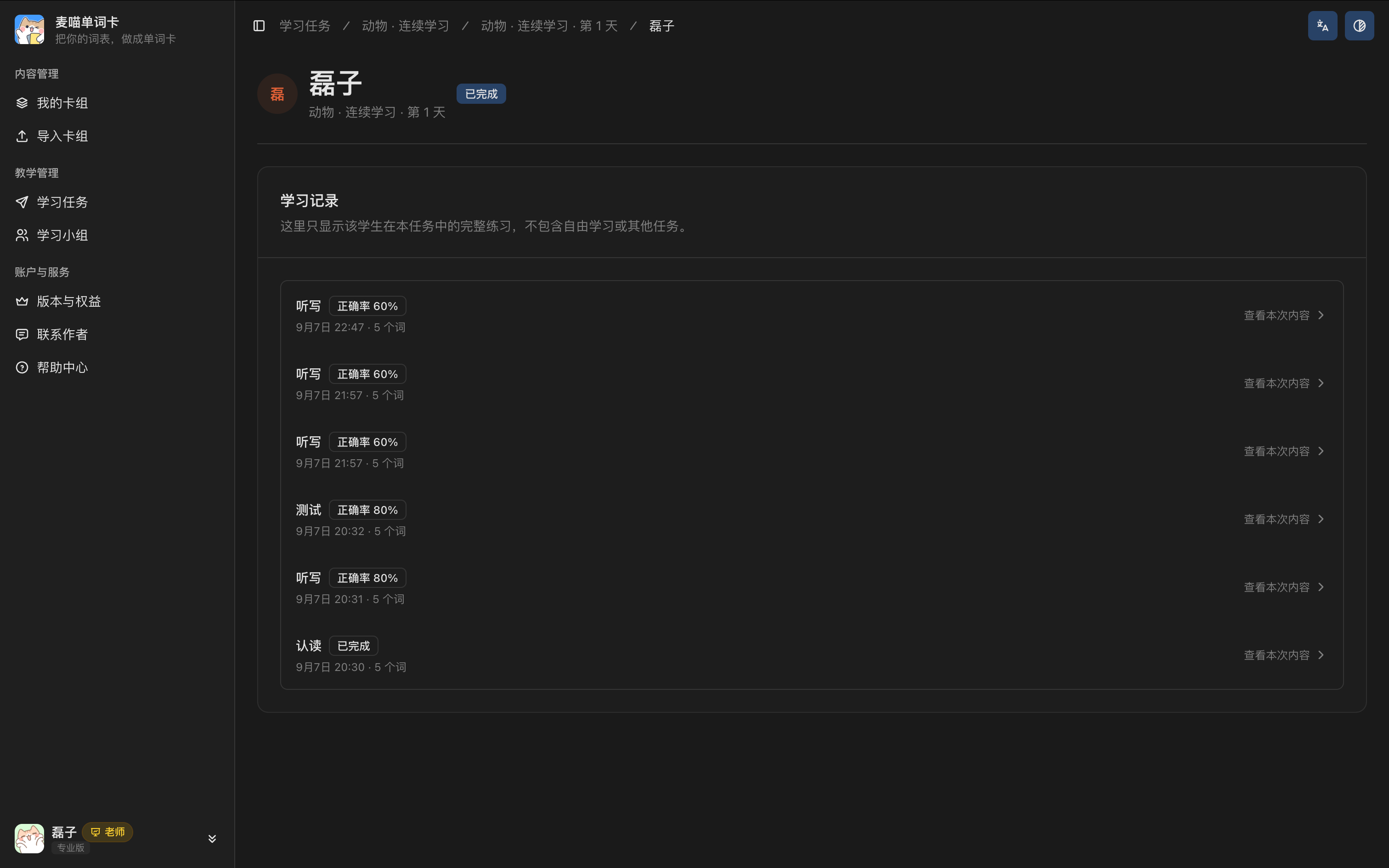
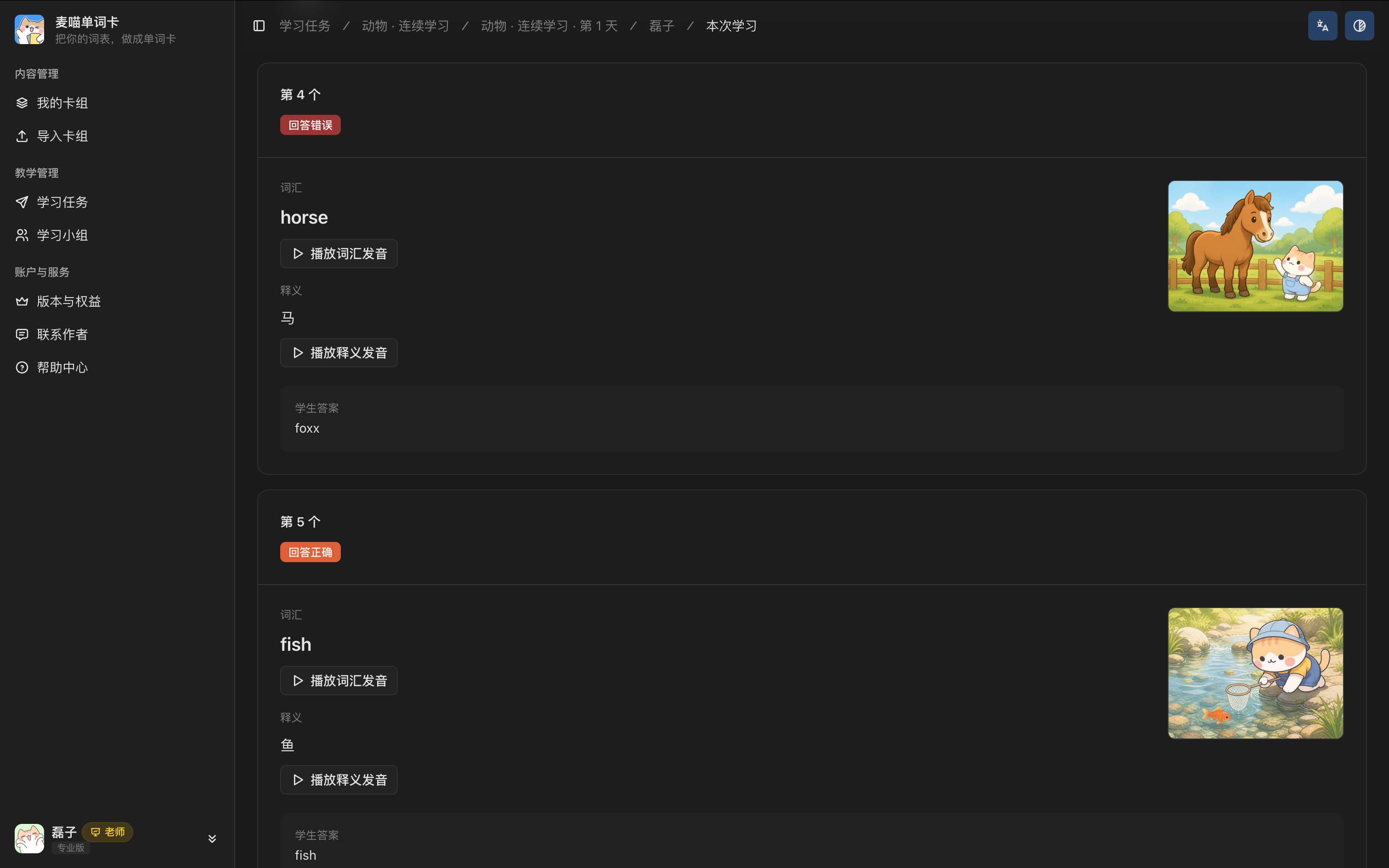
This report contains learning records for the current task. It does not combine records from other tasks or independent deck practice; direct deck records are available under Independent learning progress for that deck.
Interpret the results in light of the exercise. Recognition includes student self-reporting, while dictation and multiple-choice questions check different abilities. Finishing once does not mean a word is remembered long term. Help students who have not started get into the task, remind those with one step left to continue, and provide targeted explanations and practice for those who have finished but still need support.
Reuse and adjust
Reuse your decks
Use a deck across multiple lessons. Next time, select a different batch of words for the same group or use the deck with another group, without preparing all the content again.
If a meaning, example, or image needs correcting, edit the deck and save it. Listen again to any affected audio. When viewing an older practice record, watch for a notice that the card has changed: the content students saw then may differ from what is on the card now.
Adjust assignments
You can edit a published task’s title. If students need more time and the task has not reached its deadline, you can extend the deadline where editing is available. You cannot bring it forward or change it after it has passed.
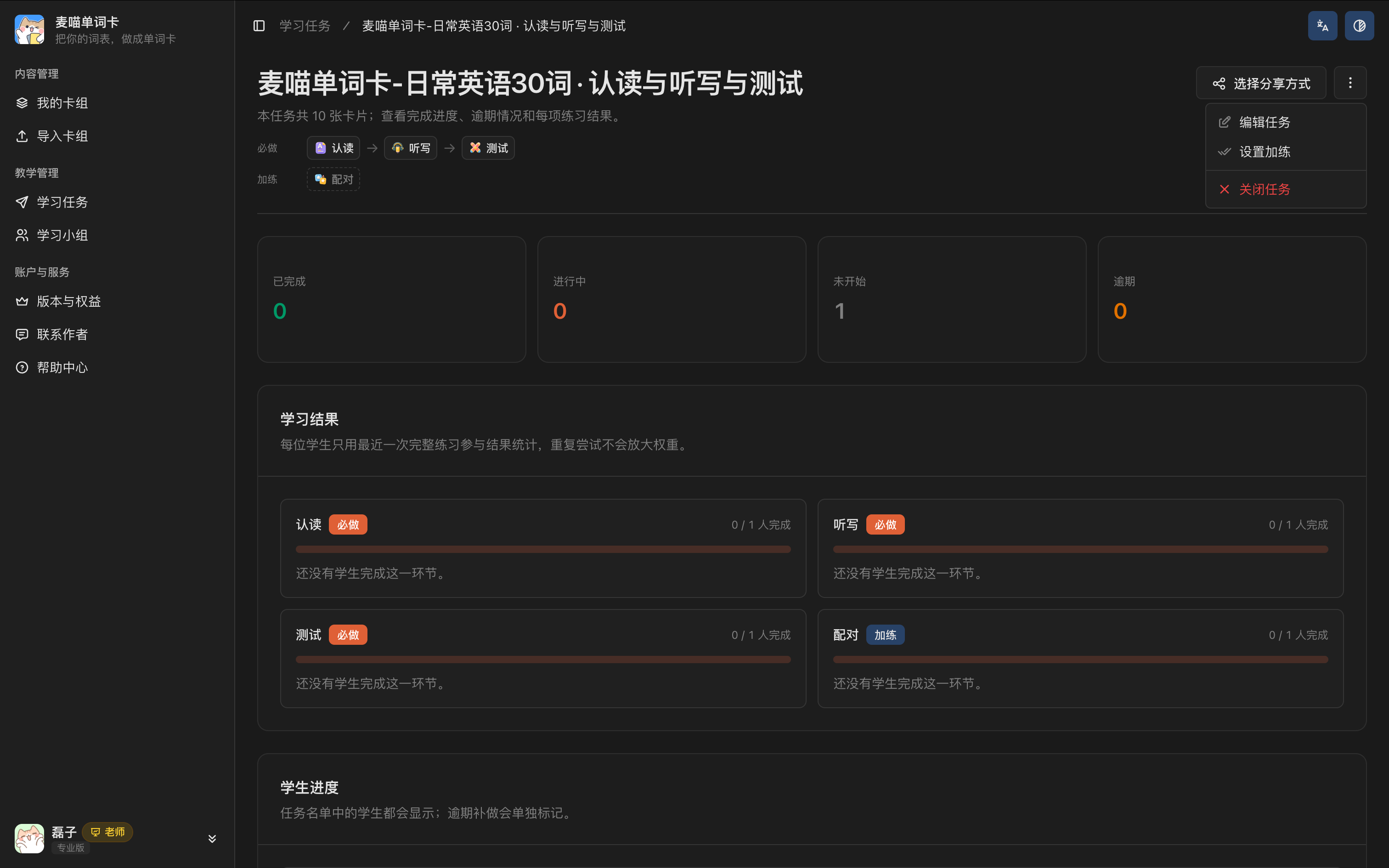
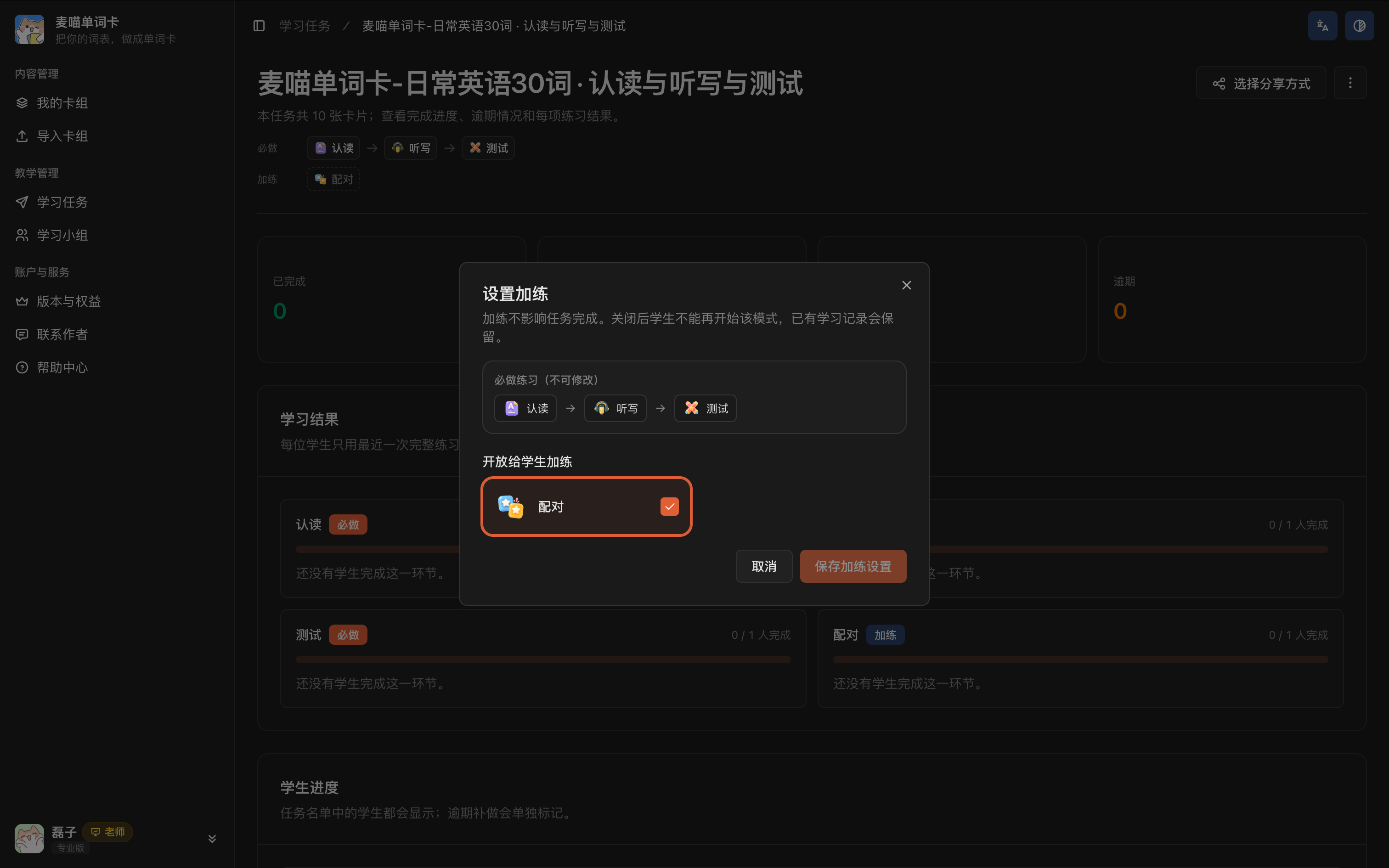
The selected words and required exercises cannot be changed after publication. Create a new task if those requirements need to change. You can adjust optional extra practice from the task report; existing records are retained.
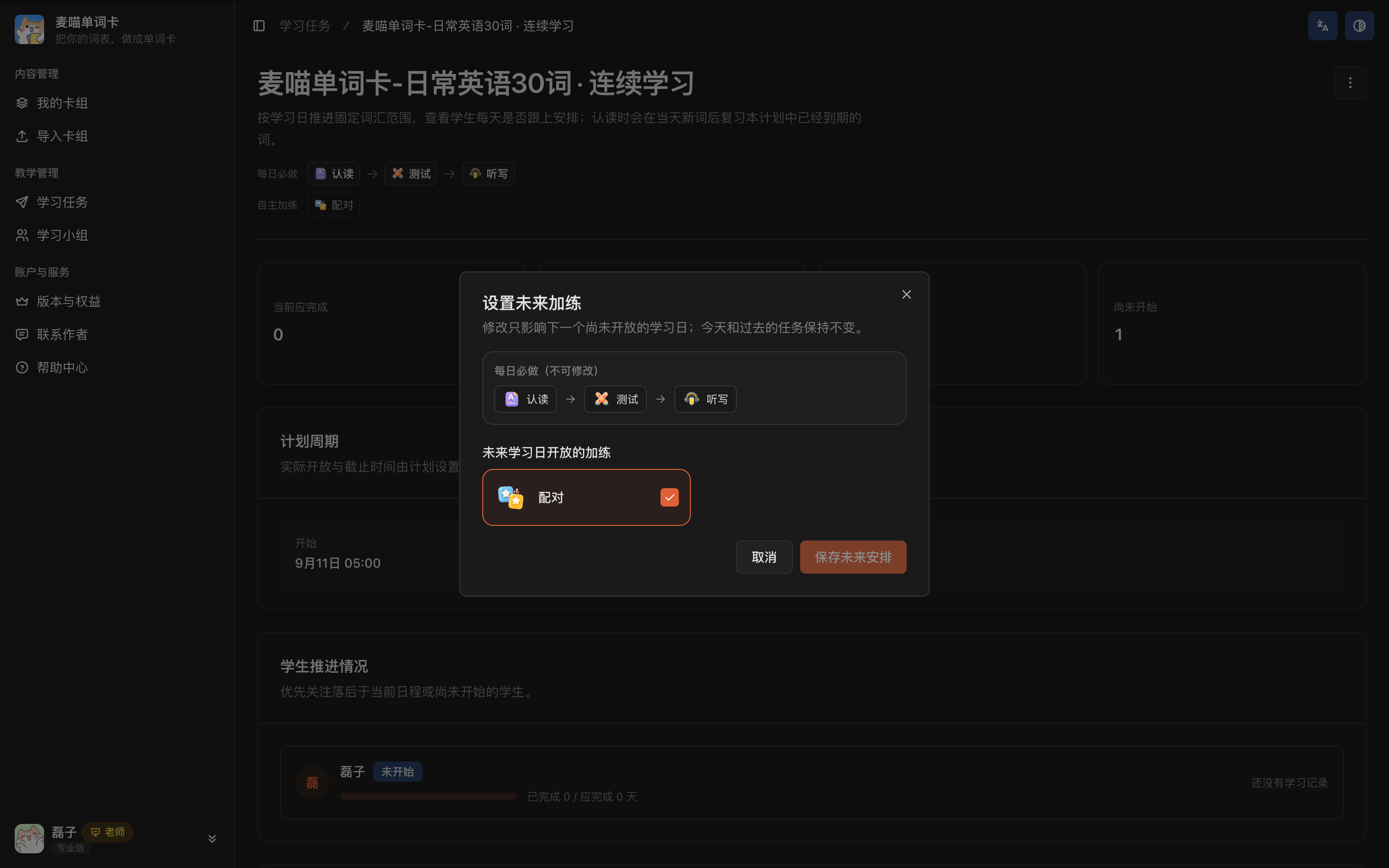
For a multi-day plan, you can change its name and configure future extra practice. Check the scope before saving: changing future extras does not alter today’s or past tasks. To change daily vocabulary or the schedule, create a new plan. Use Close future schedule (关闭未来安排) to stop study days in the original plan that have not yet opened.
Close and organise
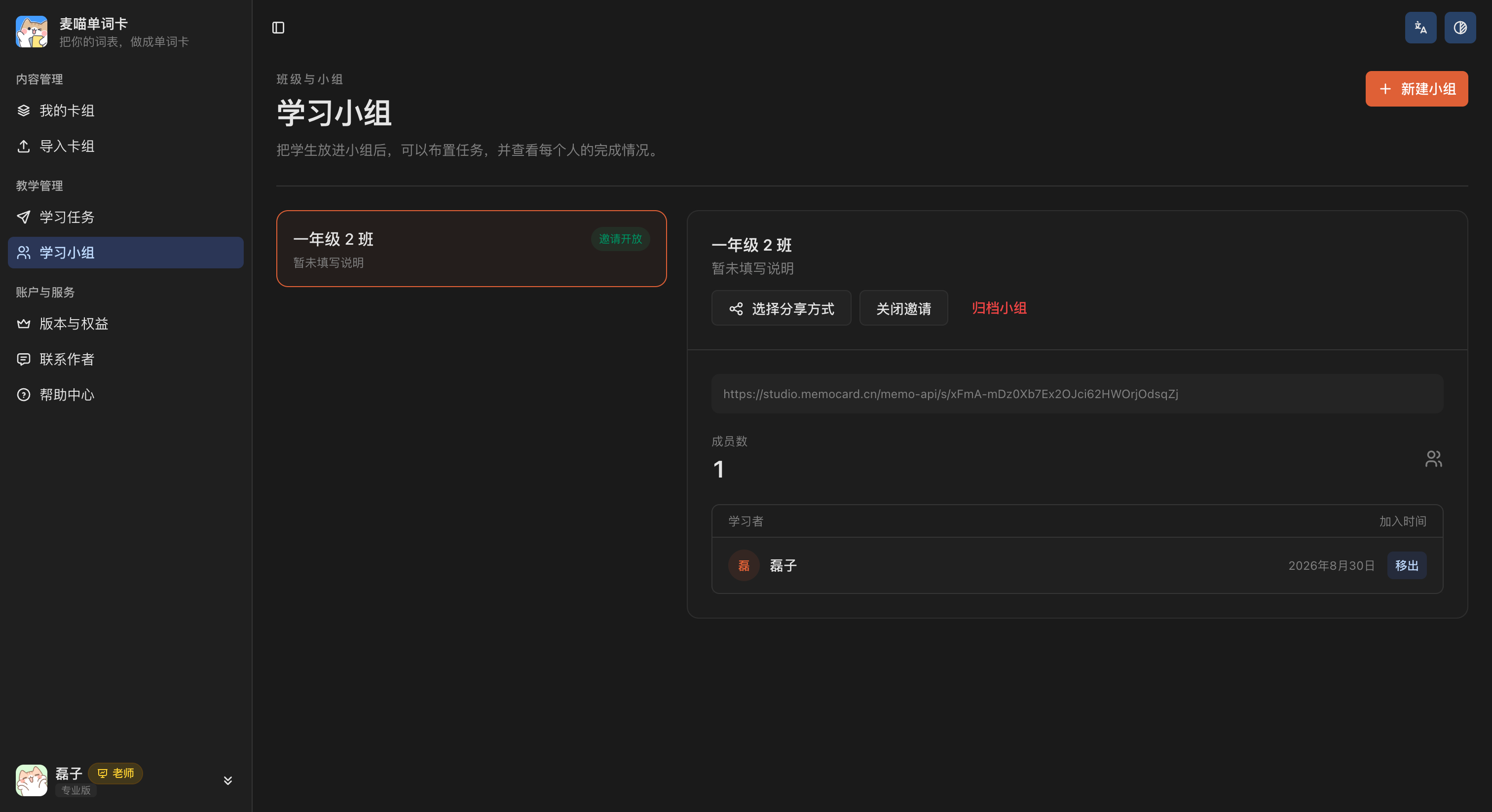
Stopping deck sharing disables the shared access, but learners who have already saved the content can continue studying it. Closing a task prevents students from continuing that task while keeping existing answers. Closing a group invitation prevents new members from joining through it.
Remove group members when needed, or archive a group after a course ends. Removing members or archiving a group does not also erase existing tasks and learning records. Read the confirmation message and choose the action that matches your intention.
Plans and benefits
Students do not need a separate creator membership to complete the core learning you assign. You can start with the free tier and invite one or two students to try the whole process, then choose a tier based on your content, student numbers, and import frequency.
The free tier allows 3 decks with up to 50 cards per deck, 1 Excel AI import in total, and a managed learner capacity of 2.
The professional tier has no deck count limit, allows up to 2,000 cards per deck, includes 20 Excel AI imports per calendar month, and has a managed learner capacity of 300.

Learner capacity is shared across your account, not allocated separately to each group. It is not simply the number of times a shared link is opened. Check your actual usage under Plans and benefits before inviting a full class or importing more content.
When you are ready to subscribe, review the available products, prices, and service periods on that page, then follow the instructions to pay by scanning with WeChat. If you have a redemption code, use the redemption option. After paying or redeeming, check that your benefits have updated before continuing. The purchase page shows the applicable product details.
Common questions
Import fails
Check that the file is .xlsx and no larger than 25 MB. Save older .xls files as .xlsx, and put vocabulary from Word, PDF, or images into a spreadsheet first. Also check that you have an AI import allowance remaining.
Saving is incomplete
After processing, review and save the cards. If you see a partial-save or capacity message, check how many cards were actually saved before handling the rest. Do not leave the page or replace the source material with unsaved cards remaining.
A task will not open
Check whether you sent a task link or a group invitation. Students must join the group before accessing a group task, and tasks only open at their start time. Then check whether the student is signed in and whether the task has been closed. If a Mini Program link has expired, return to the sharing panel to get a usable link.
If the task was published but generating its share link failed, retry link generation on the current page. You do not need to create the task again.
Work is not marked done
Ask the student to return to the task page and check every required exercise. Extra practice alone, or independent practice of the same words in a deck, does not replace the task requirements. Also confirm that results saved successfully and that the student is using the account they joined the task with.
Audio will not play
Check the device volume first, then try the relevant card. In the creator app, check the language, content, and voice, and whether audio generation has finished. Retry missing or failed audio. After editing content, regenerate and listen again as needed.
Records look wrong
Ask the student to check their account and nickname under Me and confirm they are using the account they joined the deck or task with. Direct practice records appear under the deck’s Independent learning progress; task records appear in the task report. Each student should use their own account so their records do not get mixed with someone else’s.
Capacity is full
Check deck, card, import, and learner usage under Plans and benefits. Then reduce the content you are adding or choose a suitable tier. Before saving, pay particular attention to any notice that only some cards can be kept.
Start with one lesson
You do not need to organise a whole term’s vocabulary first. Choose a small list from a current lesson, check and save it as a deck, invite one or two students, then share the deck directly or assign recognition practice and dictation. When they finish, open the deck’s Independent learning progress or the task report and consider what you could adjust in the next lesson.
As Maimiao’s developer, I would like to hear how it works in your teaching: which content is easy to prepare, where students need help, and which feedback helps you plan lessons.
For questions or suggestions, use the contact option in the creator app. Tell me what you wanted to do, where you got stuck, and the message on the page. If you include screenshots, cover student names, accounts, and other personal information.
Put your teaching material to use with students, then improve it through each round of learning. Start with the few words you will teach in your next lesson.