
Students: complete a learning task
Start
Open the link or Mini Program code shared by your teacher or parent. Check the task name, deadline, and required exercises before starting. Use your own account each time to keep your learning records together.
This guide takes you through a task. To prepare your own vocabulary and study without a teacher’s assignment, see Study on your own.
Understand the link
You may receive a task, a deck, or a group invitation. Each has a different purpose:
| What you see | What to do next |
|---|---|
| A deadline and required tasks | Start with the first exercise and complete them in order |
| A deck name and practice options, without required exercises | Practise as needed. If your teacher also sent a task, open that task separately |
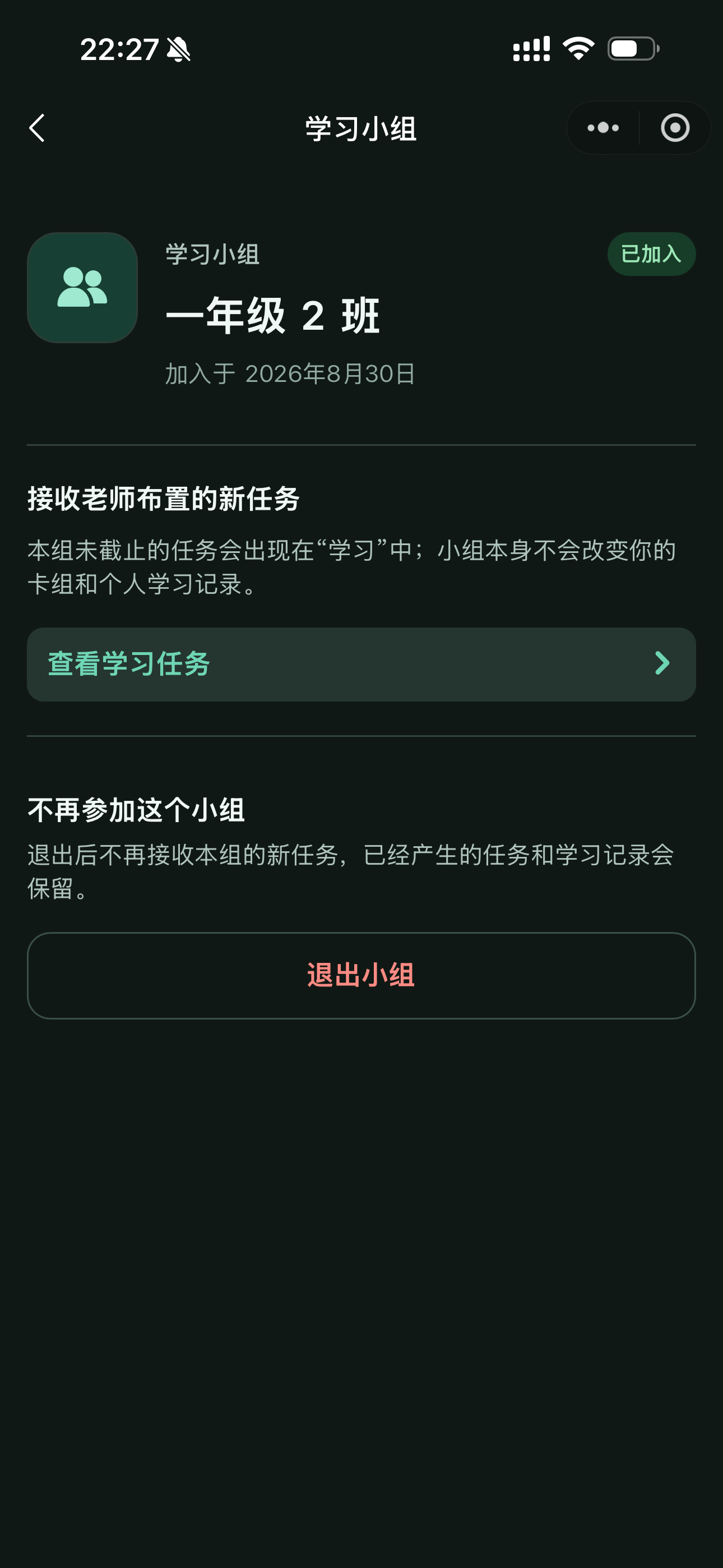
| A group name and an option to join | Sign in and join, then find the teacher’s tasks |
In WeChat, open the shared Mini Program link or scan its code. You can also open a web link in a browser.
If you received a group invitation, join and check that the page shows Joined (已加入), then tap View learning tasks (查看学习任务). Use your own account and a nickname your teacher recognises. Do not take turns completing tasks with a classmate’s account.
When you open a deck directly, its creator can see the active access relationship and completed independent-study records in the creator app. Task learning is recorded separately under the task. Sessions that are not completed do not appear in the creator’s completed records.
Start the task
Open the task and check its name, word count, and deadline. The page lists required exercises and any optional extra practice.
Begin with Word recognition (单词认读). If dictation or the quiz cannot be opened yet, complete the earlier required steps to unlock them. If the task has not started, return at the time shown on the page.
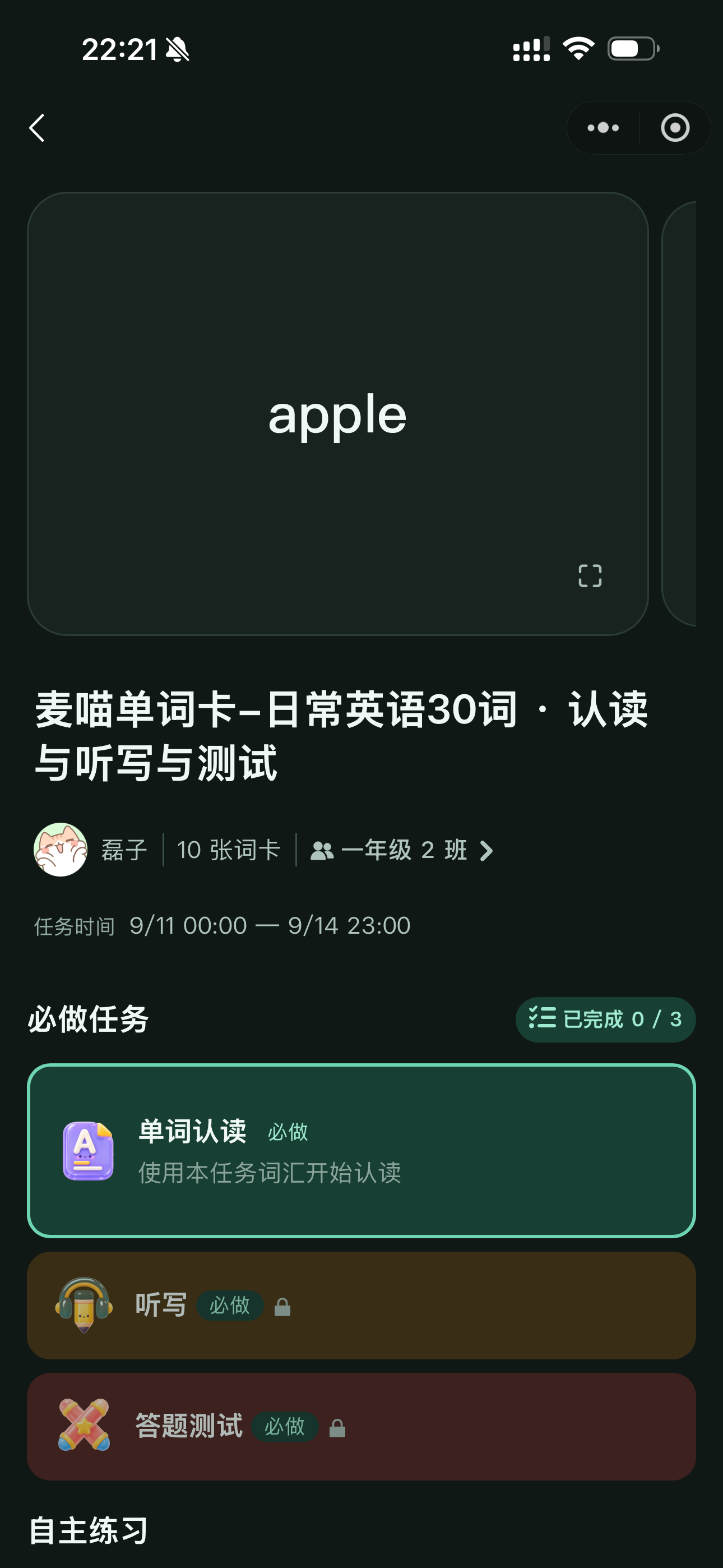
A one-time task is usually opened from your teacher’s link. Multi-day plans provide daily tasks: after joining the group, find that day’s work under Today (今天). You do not need to wait for a new link every day.
Recall the words
Look at the word and try to recall its meaning before tapping Show meaning (查看释义). Play the audio if needed and use the image and notes to understand the word.
Choose Got it right (答对了) if you remembered it, or Got it wrong (没答对) if you could not recall it or recalled the wrong meaning. If it only looks familiar after you see the answer, you did not recall it that time. Answer honestly.
If your teacher enabled Spell after recognition (熟悉后练拼写), choosing Got it right also opens a spelling step. Type the word using the prompts, then continue to the next card.
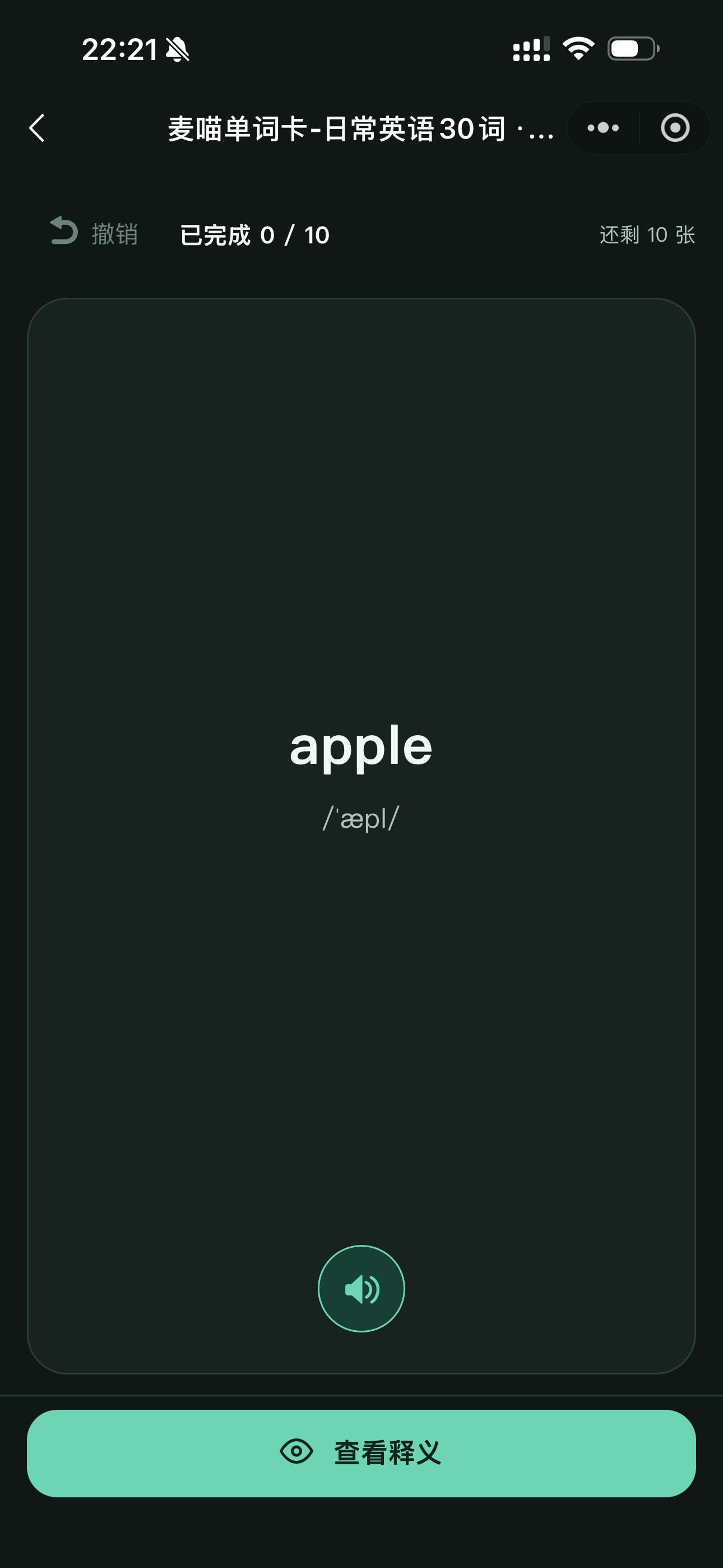
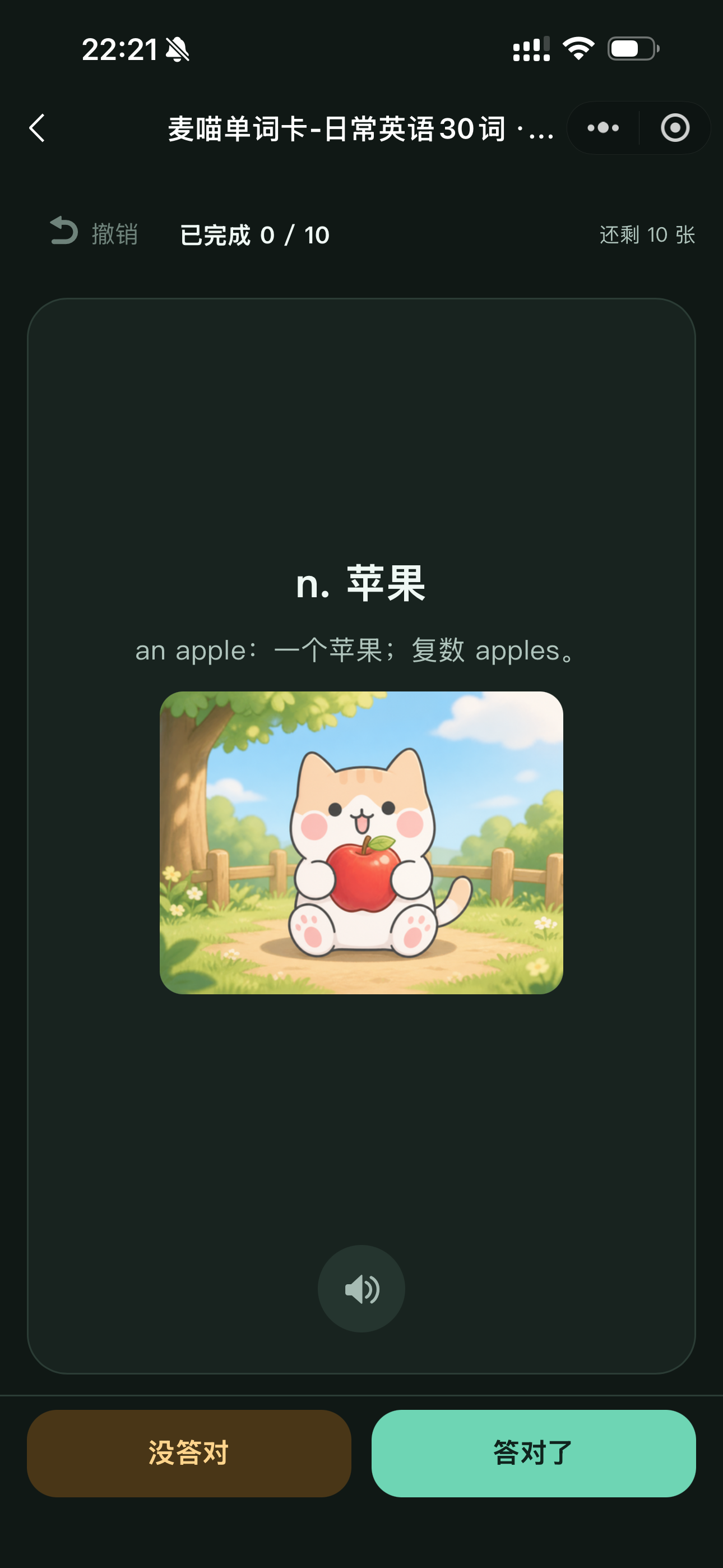
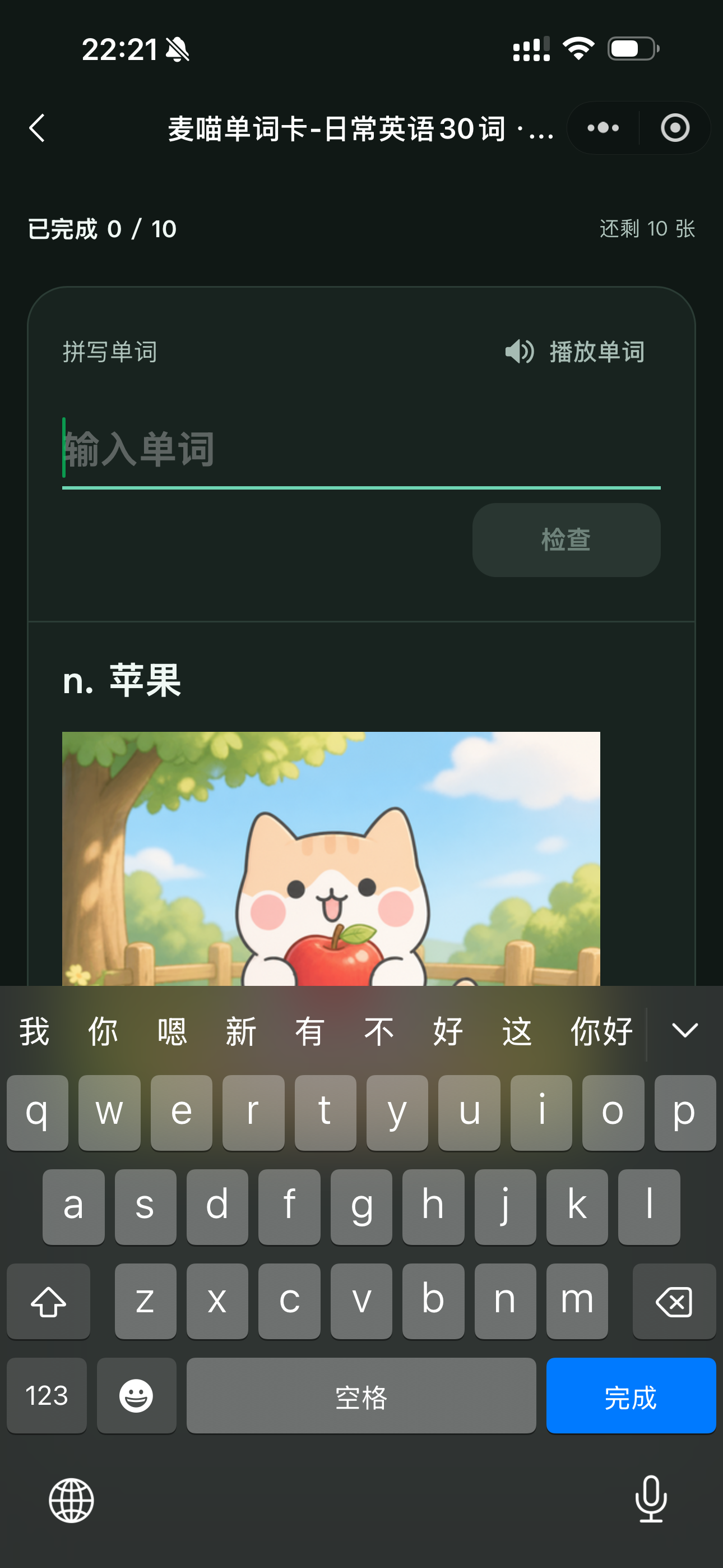
Recall first, reveal the meaning, and answer honestly. With spelling enabled, correctly recalled words also get a typing step.
After recognition practice, check your results and return to the task page. Finishing recognition does not necessarily finish the whole task. If dictation or a quiz is required, continue with those steps.
Practise dictation
If the task requires dictation, open Dictation (听写) after finishing recognition. Listen to the word, type and submit its spelling, then check the feedback. If you did not hear clearly, use the play button to listen again.
Afterwards, compare the correct spelling with your answer. For example, if you wrote bred instead of bread, spot the missing a and practise the word again.
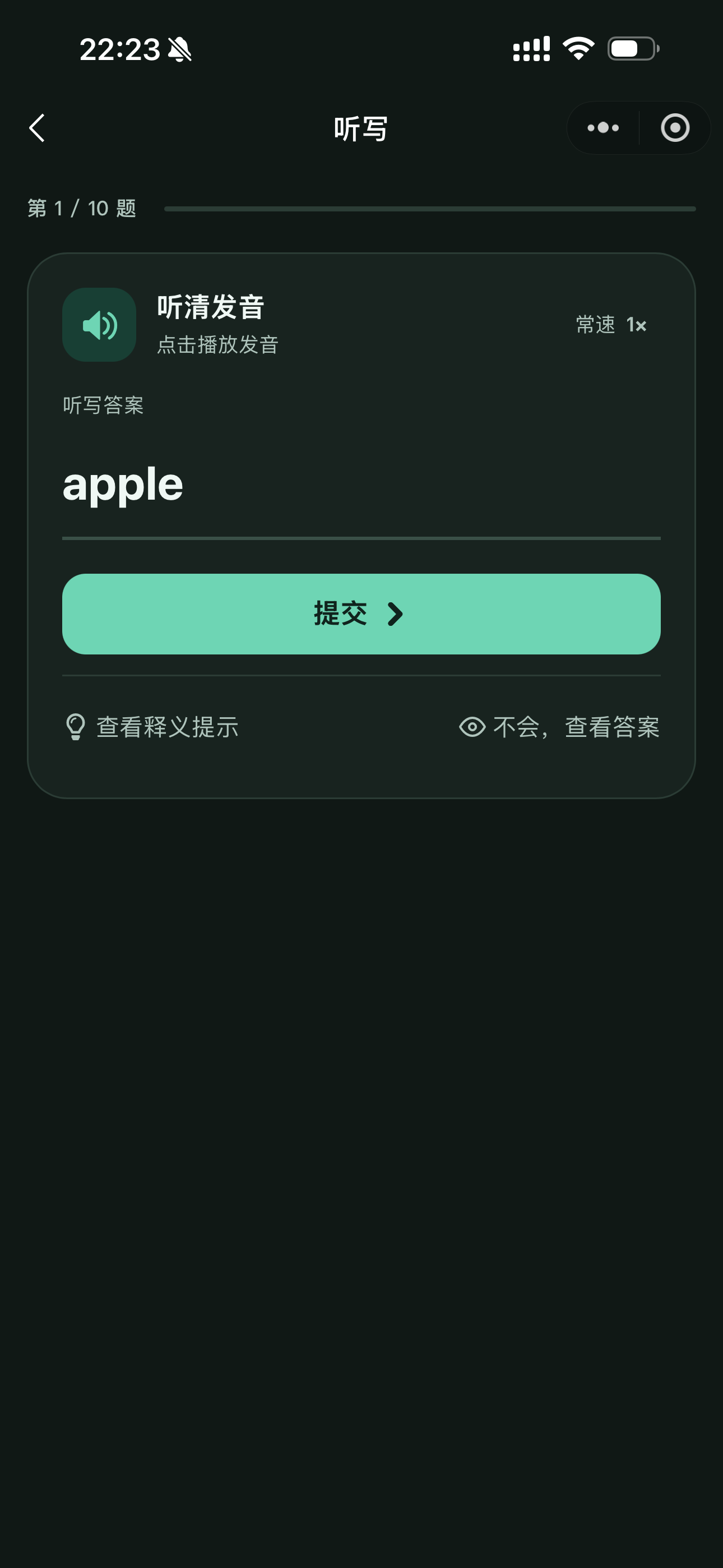
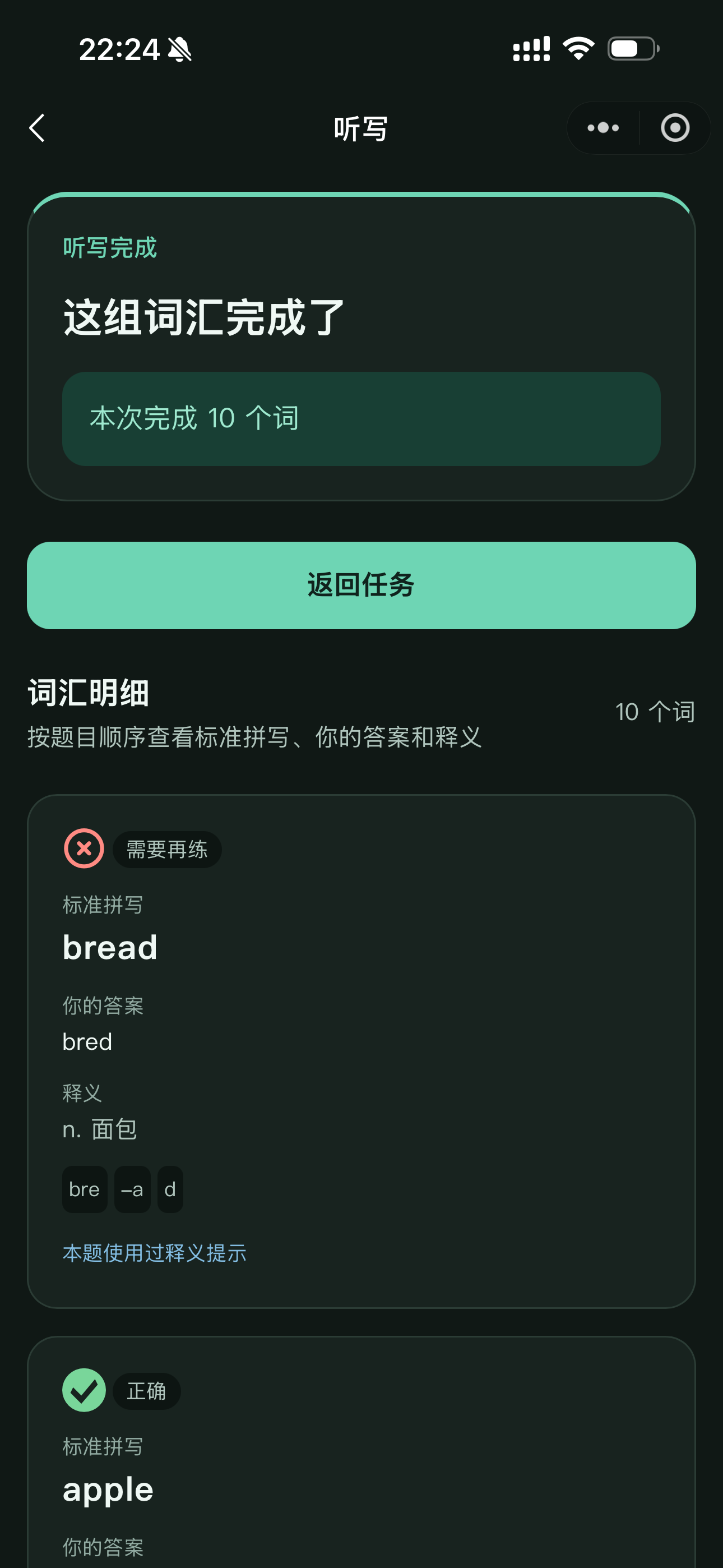
Students type their answers online, then compare them with the correct spellings to find words that need more practice.
Quizzes and extras
Quiz (答题测试) asks you to choose the correct meaning from the options. If it is marked Required (必做), you need to finish it to complete the task.
Matching (配对消除) asks you to pair words with their meanings. It is optional extra practice; you can do it if you want more practice, but it does not affect required task completion.
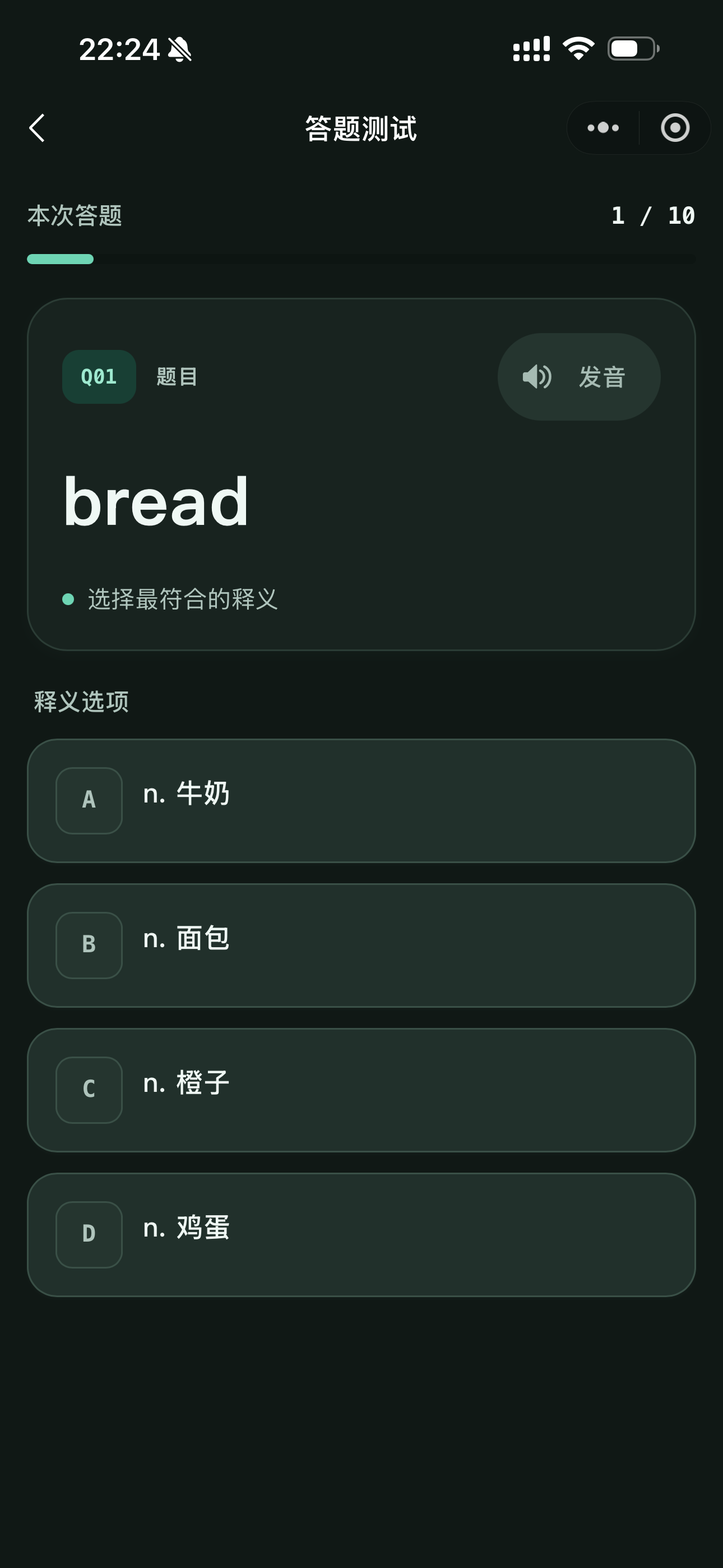
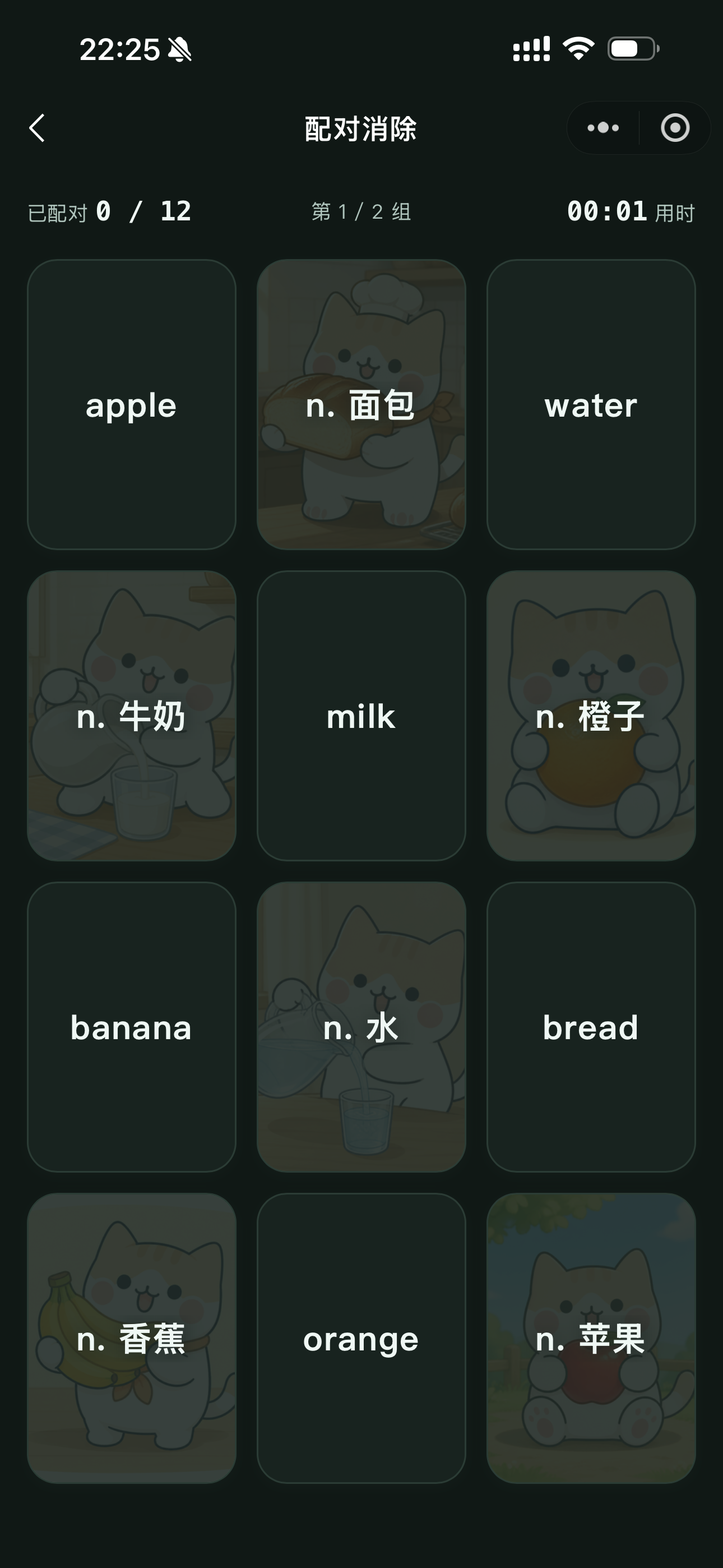
Choose the correct meaning in a quiz; pair words with their meanings in matching practice.
If you are unsure what to do next, return to the task page and look for a required exercise that is not yet complete.
Check completion
After the last exercise, return to the task page and check that all required steps show as complete. In the screenshot, recognition, dictation, and the quiz are finished; matching is still available.
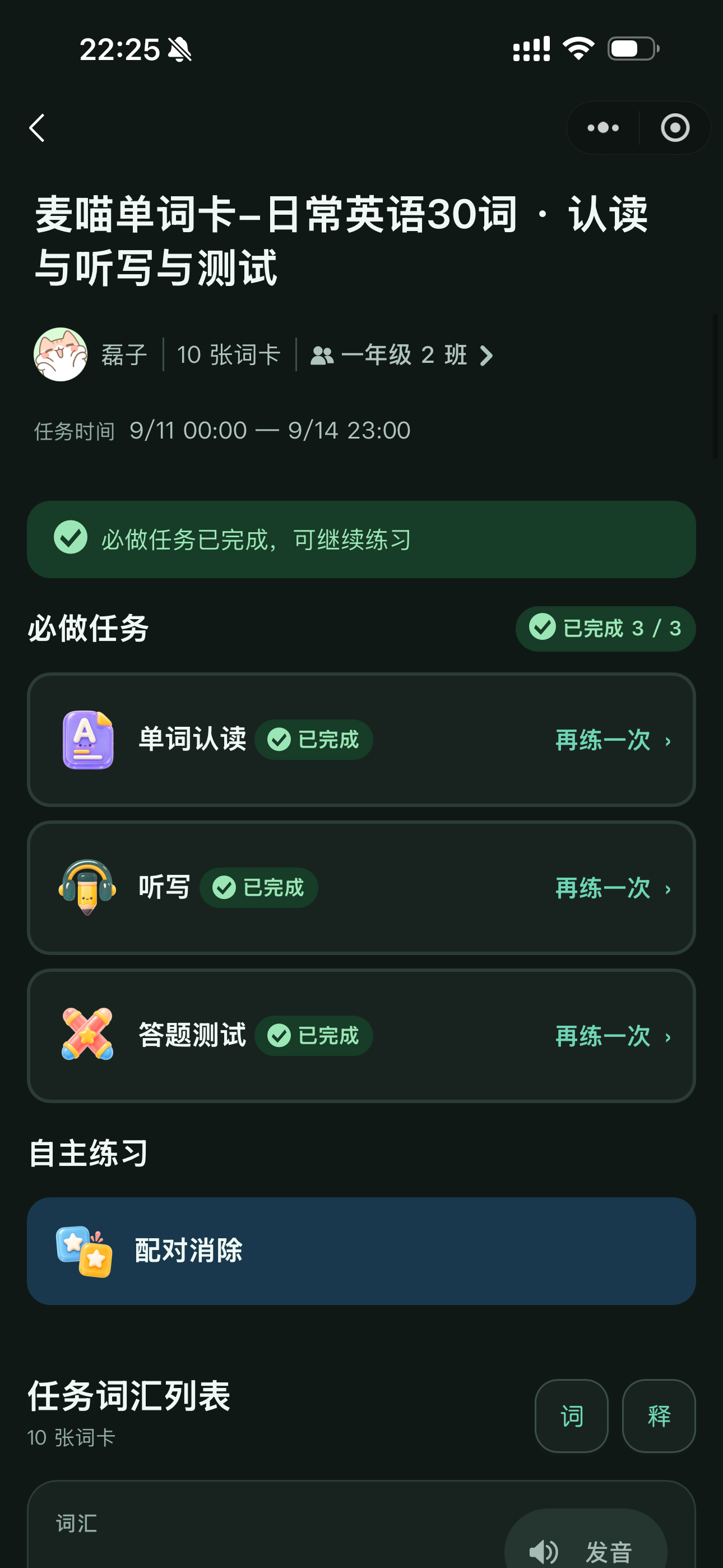
Practising
Independent deck practice or matching alone does not replace required exercises. Open the task itself and wait for results to finish saving before leaving.
If you miss the deadline, you can still catch up as long as the teacher has not closed the task. Your result will be marked as completed late. If the task is closed or you cannot find it, contact the teacher or parent who assigned it.
Continue next time
Remember these three common tabs at the bottom of the learner app:
- Today (今天): find today’s work and continue learning.
- Learn (学习): find your tasks, decks, and groups.
- Records (记录): revisit completed practice and detailed results.
Check your account and nickname under Me (我的). When you return, look for unfinished tasks first, then practise independently if you want to.
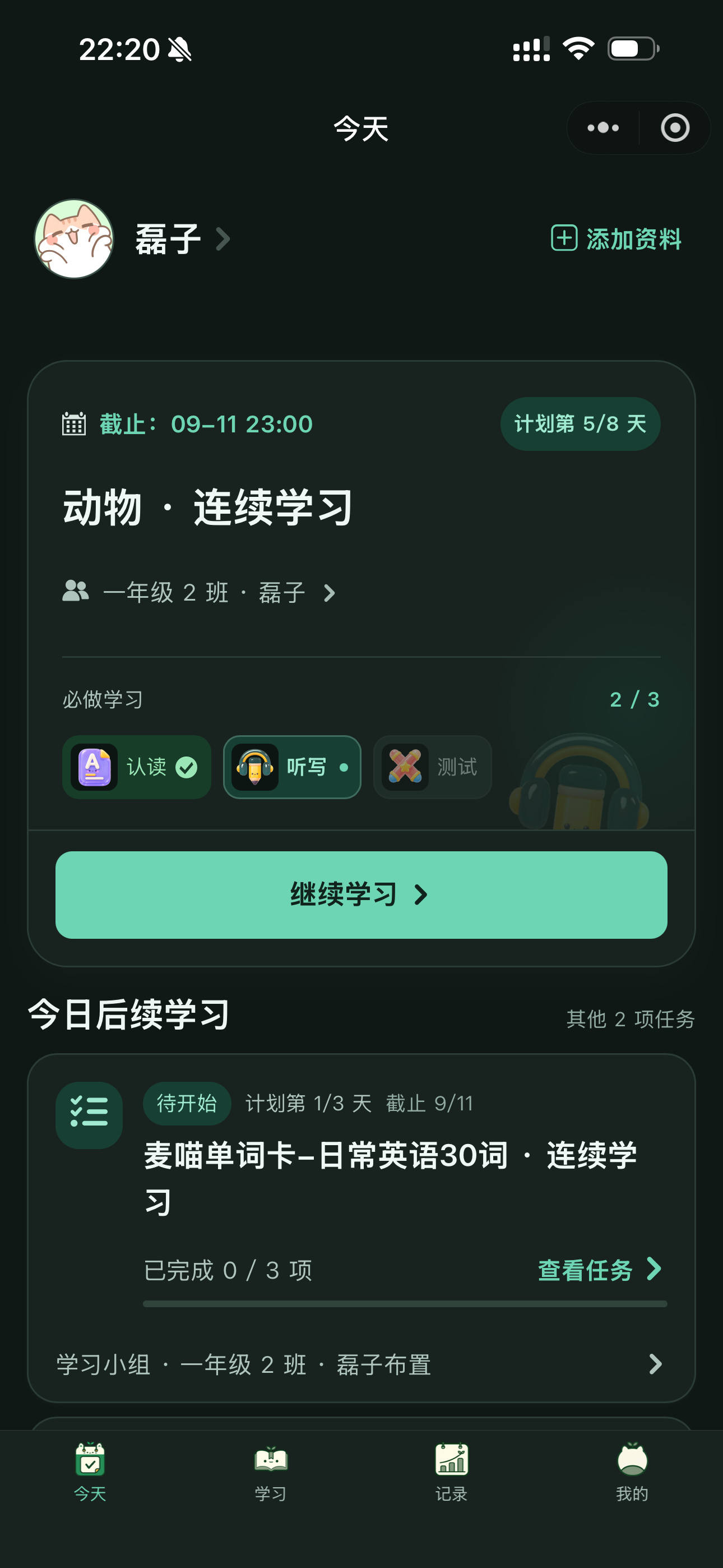
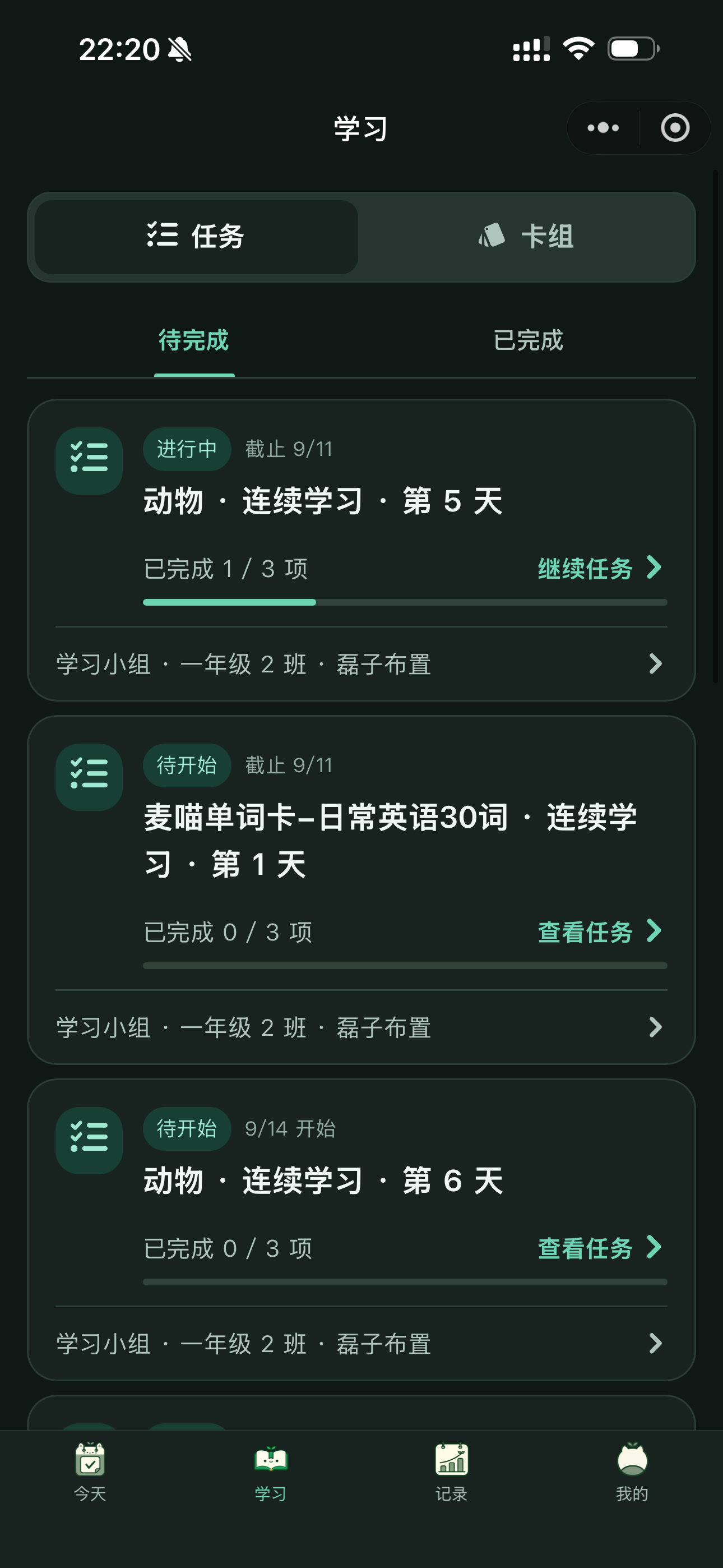
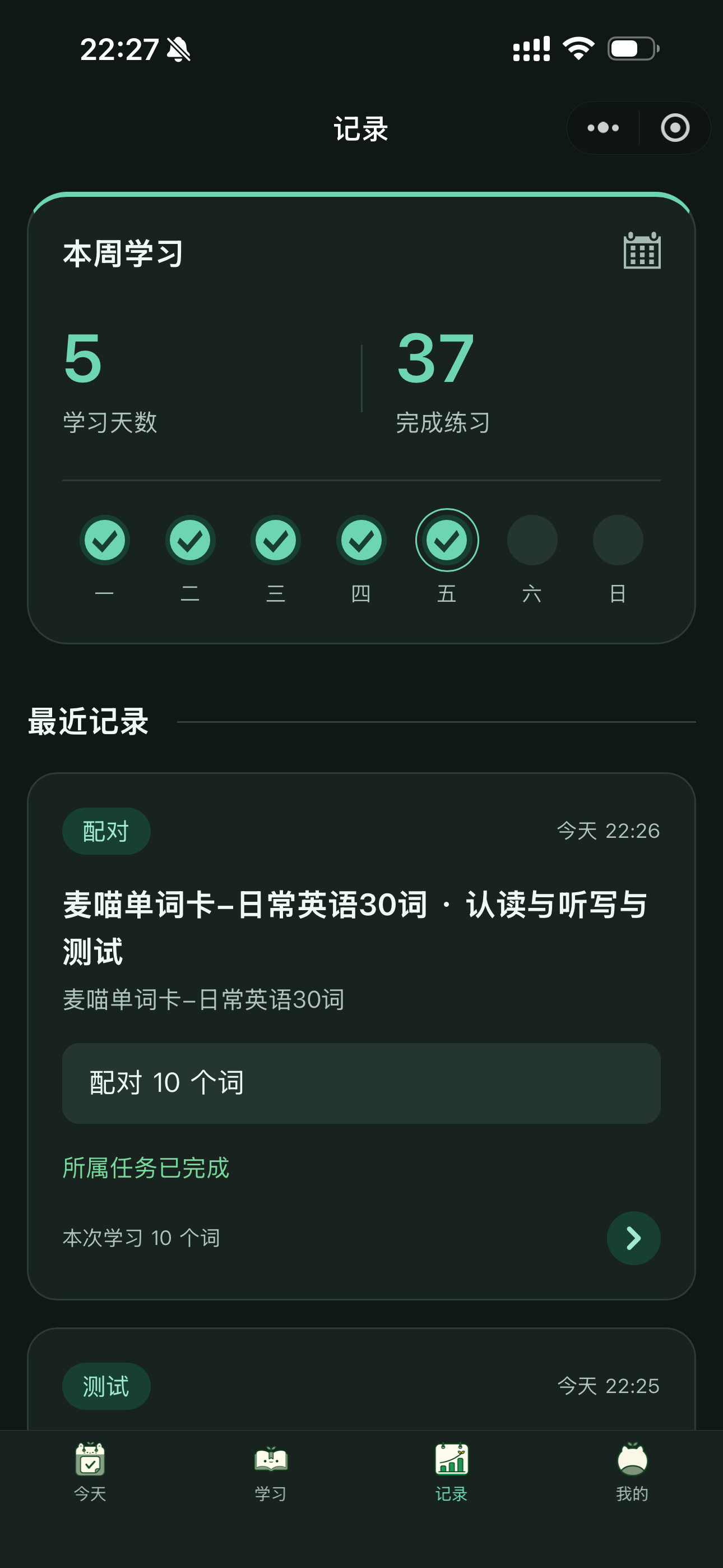
Continue daily work from Today, find tasks and decks in Learn, and revisit completed exercises in Records.
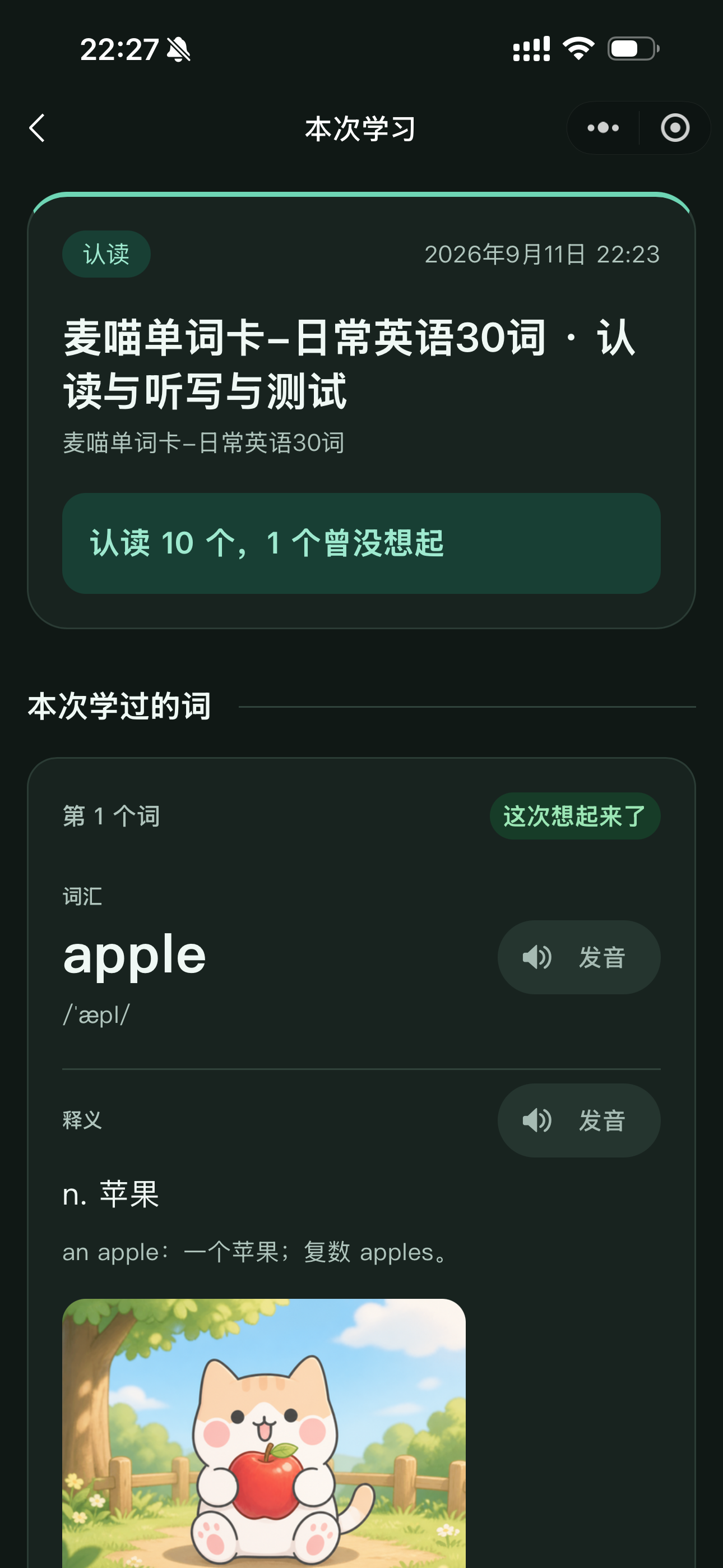
Open a practice session in Records to see the words you studied and their results. Focus first on words you could not recall or answered incorrectly: listen again and try to remember them. You may still need later review after finishing a session.
Common questions
Why is it unfinished?
Check every required exercise on the task page. Make sure you did not practise from the independent deck page or only complete extra practice. Also check that results have saved and that you are using the account you joined the task with.
Why can’t I start?
Check the start time first. For a group task, make sure you joined the right group. Then check your sign-in status and whether the task is closed. Ask your teacher for a new link if the shared link no longer works.
Why is there no sound?
Check your device volume and try playing the audio again. If only one card has no sound, tell your teacher the word and any message on the page so they can check its audio.
Where are my records?
Check your account under Me and make sure it is the one you used last time. Records from different accounts do not automatically merge. Avoid repeatedly switching accounts to try to recover them.
Do I need a membership?
You do not need a separate creator membership to complete the core learning assigned by your teacher. If you see a capacity or access message, show the exact message to your teacher or parent rather than assuming you need to buy something.