
Parents: learning and review with your child
You can help your child complete a teacher’s assignments, or be a creator yourself: make decks for your child, arrange practice, and review results. Maimiao’s creation tools are available to parents as well as teachers.
Choose your role
| Your role right now | Where to start | What to do |
|---|---|---|
| Support your child’s learning | Your child’s learner app | Open the teacher’s task or deck, clarify the requirements, and review results together |
| Create content for your child | Your creator app | Collect words from textbooks, picture books, or mistakes, create cards, then share or assign them |
You can use both approaches: help your child complete teacher assignments and prepare additional home practice when needed.
- The teacher has shared content: start with Help with a task. You do not need to recreate the deck.
- You want to make your own cards: go to Create a deck for your child, then continue through sharing, arranging practice, and reviewing results.
Prepare
When creating cards, sign in to the creator app with your account. Your child uses their own account in the learner app. You can help with the controls, but practice should be recorded on the child’s account so progress stays separate and they can continue later.
Help with a task
Check the account
Open the teacher’s link or Mini Program code. If it is a group invitation, sign in and join before opening the task. Each child should have their own learning account and a nickname the teacher recognises.
Even when you are helping with the screen, check that it is your child’s usual learning account. On a shared device, check the account before another child uses it to avoid mixing their records.
Check the requirements
Read the task name, word count, deadline, and Required list with your child. Explain what comes first and what follows, so they do not assume recognition practice is the whole assignment.
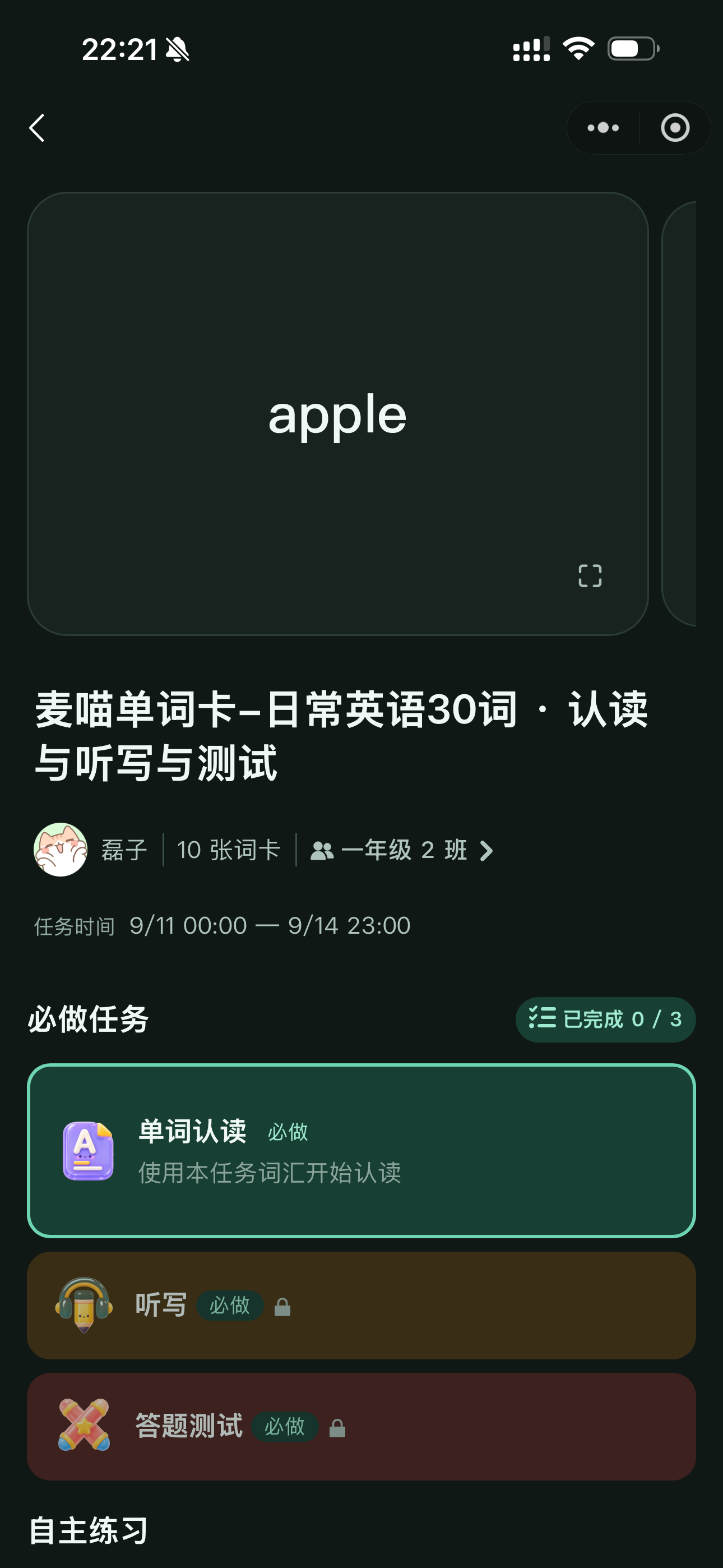
For a teacher’s multi-day plan, find the day’s task under Today. If your child misses a day, look for the unfinished study day. As long as the task has not been closed, it can still be completed and will be marked late.
Let your child recall
During recognition practice, ask what the word means and allow time to think before your child reveals the answer. Avoid supplying the meaning as soon as a word appears.
Choose Got it wrong (没答对) when the child did not recall it, and Got it right (答对了) when they did. If a spelling step appears, let them type the answer using the prompts. During dictation, let them listen and write first, then look together at what needs correcting.
Feedback that reflects what your child actually did makes it easier to identify words needing support later.
Check the final status
Let your child return to the task page and check that each required exercise is complete. If results are still saving, wait before leaving. Extra practice is optional; they do not need to open every exercise to make the task show as finished.
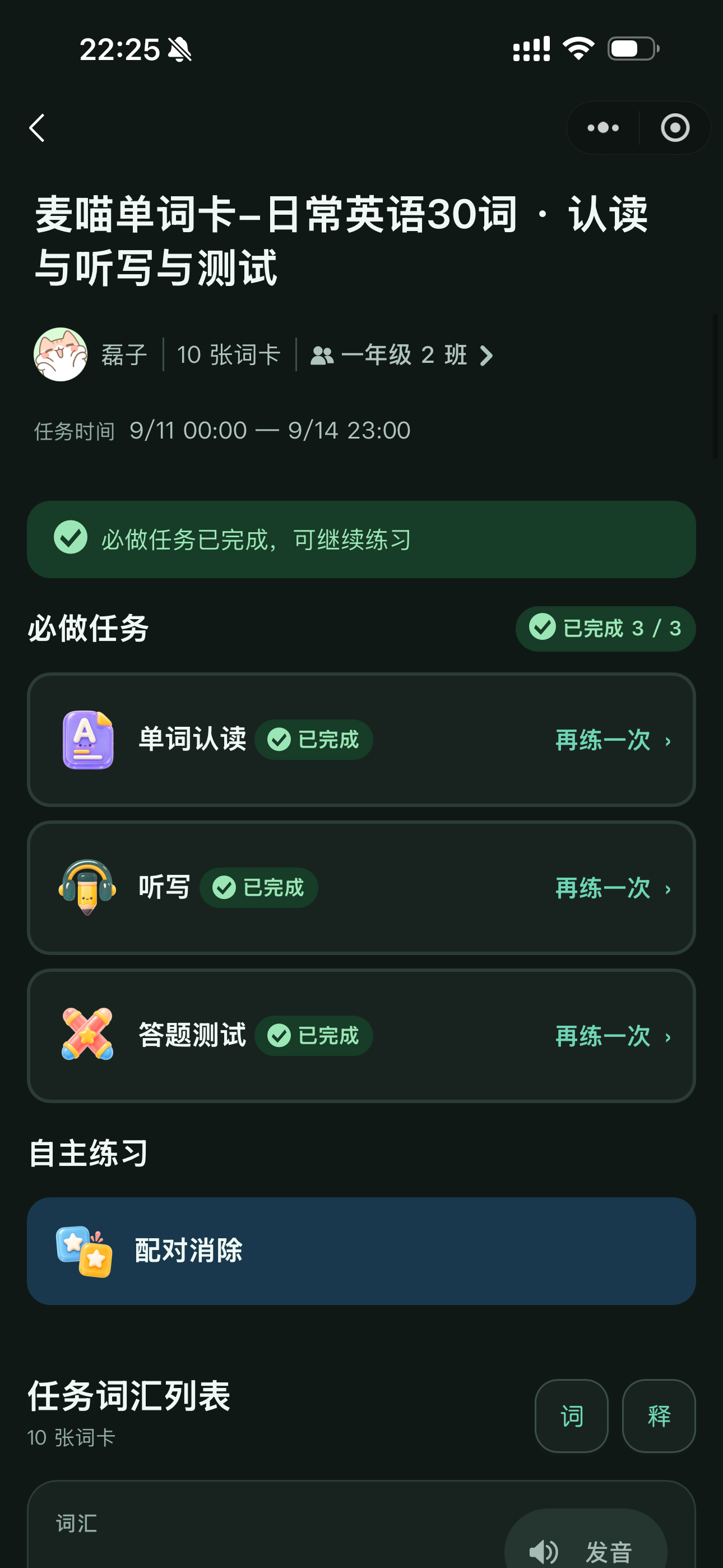
If the task is still unfinished, check for a missing required step or whether your child practised the words independently in the deck. See Why is it unfinished? for troubleshooting.
Create a deck for your child
The process is simple: you prepare the cards, your child practises, and you use the results to improve the content. Start with something like “This Week’s Picture Book · 10 Words” and add more later, rather than organising a whole term at once.
Create or import
Open the creator app with your account. Go to My decks (我的卡组), click New deck (新建卡组), and give it a recognisable name. Select the languages of the words and meanings, then click Add card (添加卡片) in the new deck.
For a few words, add cards manually: enter the word and the meaning your child needs now, then add pronunciation notes, phrases, or images if useful. You do not need to put several unfamiliar meanings on one card at once.
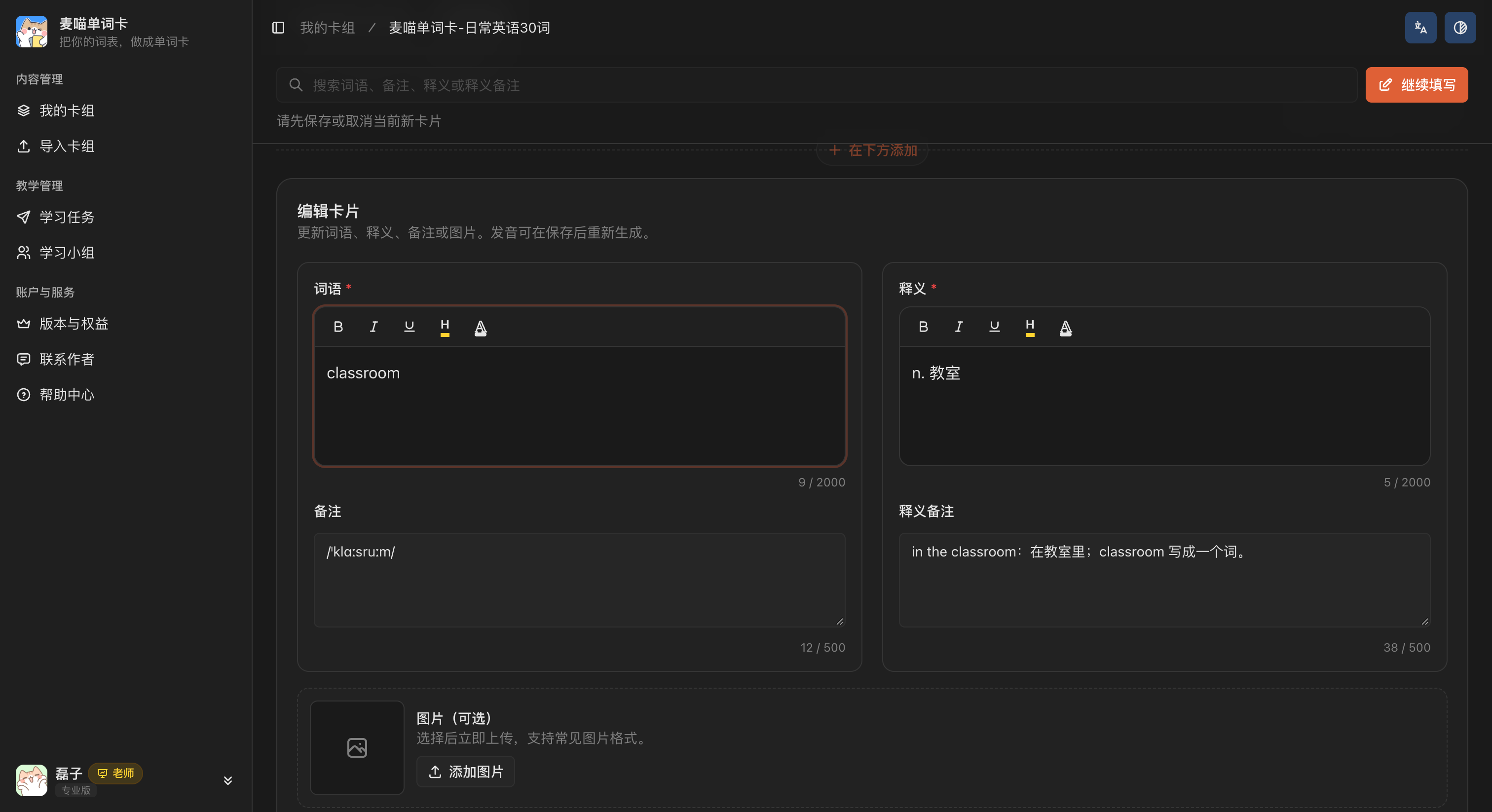
If you have an Excel word list, import an .xlsx file up to 25 MB. Maimiao identifies the columns, but you still need to review and save the cards. For now, vocabulary from Word, PDF, or images should be put into a spreadsheet first.
Parents use the same creation tools as teachers. See Import a word list, Add cards manually, and Audio and images for detailed steps.
If you do not have a spreadsheet, download the Everyday English sample and replace the content with words your child needs.
Check after saving
After saving, check that words and meanings match, images are appropriate, and the audio sounds right. Open Send to students (发给学生), generate the learning link, then click Preview learning page (预览学习页) to see what your child will see.
“Students” here also includes your own child. You use the same card creation and assignment tools as teachers; there is no separate parent creation workflow to find.
Hand over the practice
Practise freely
To let your child choose recognition, dictation, or matching, click Send to students on the deck, generate its learning link, and open it with your child’s learning account. See Share a deck.
Independent practice has no teacher-set deadline or required exercise list. Agree with your child what to practise this time, then begin.
Assign one session
To specify the words and required exercises and review the result in your creator app, create a one-time task. For example, select 10 words studied this week, require recognition and dictation, and allow enough time to finish.
For an occasional assignment to one child, choose Share task directly (直接分享任务); you do not need a group first. Give the task link or Mini Program code to your child and have them open and complete it with their own account.
Spread it across days
To spread a word list over several days, create a learning group, such as “Family English Review”, invite your child, then create a multi-day plan. Set new words per day and study days. Your child finds each day’s task under Today.
Start by sharing a small deck or assigning one task. Move to multi-day learning once familiar with the process; you do not need to set up every option at once.
Follow up on results
When your child completes your task, sign in to the creator app with your account and open Learning tasks (学习任务). Open the task, check completion, then open your child’s records to see individual exercises. For a multi-day plan, open the plan and then the study day. See Review progress for details.
If you only shared a deck for independent practice, open that deck’s Independent learning progress (自主学习学情) in the creator app to see current learners and completed independent-study records. Open a record to see its words and results. Create a task when you need a deadline, required exercises, and a clear task-completion status. Deck progress and task progress are separate reports.
Look beyond a single accuracy score. If your child wrote bred instead of bread, find the missing a together. If they repeatedly cannot recall a word, revisit it in a textbook sentence or with an image.
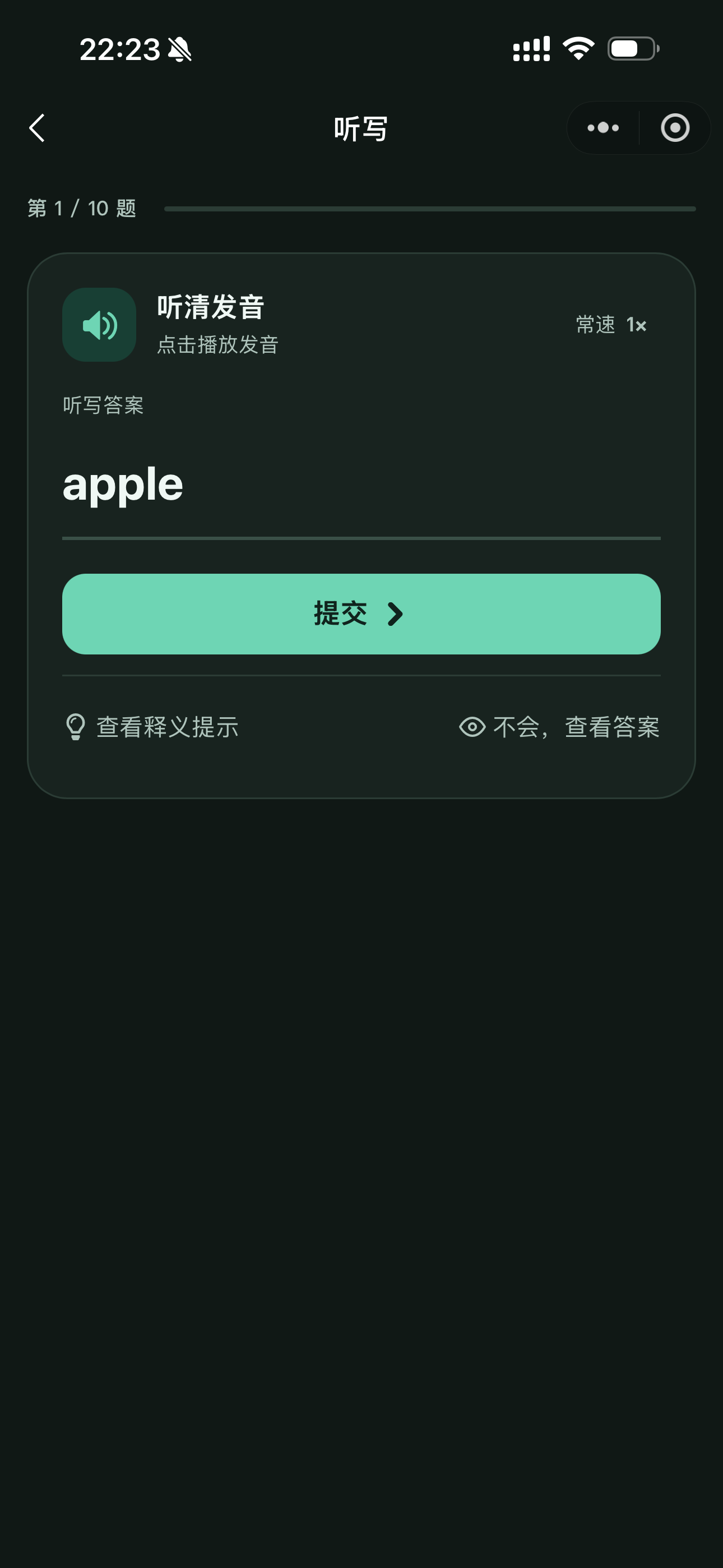
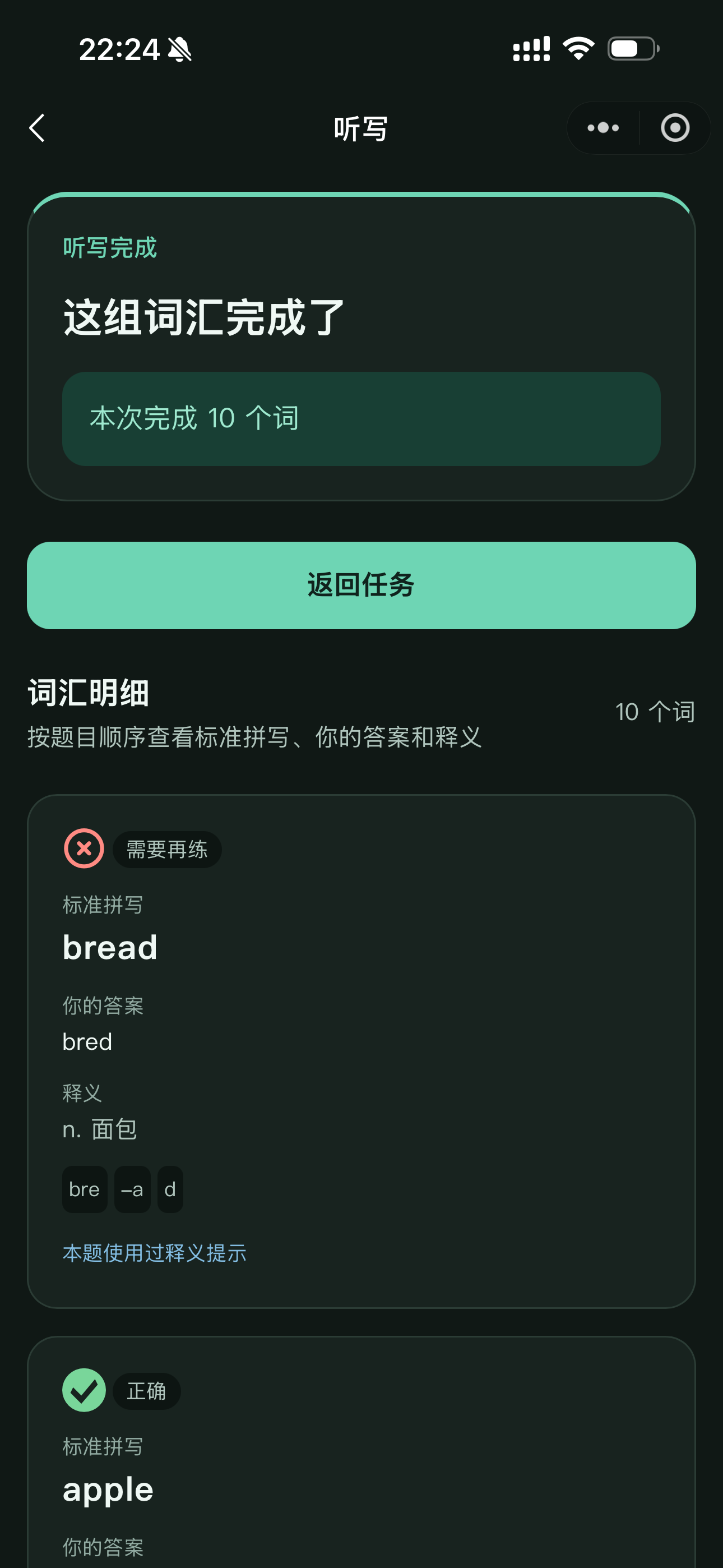
Students type their answers online, then compare them with the correct spellings to find words that need more practice.
Completing a word once does not mean it will never be forgotten. Next time, ask about a few previously difficult words before introducing new ones; you do not need to restart the whole list every time.
Check
Your creator app shows results for tasks you assigned. For a teacher’s task, look together at your child’s task page or learning records. Contact the teacher when you need their feedback.
Common questions
Do parents need to pay?
Your child does not need a separate creator membership to complete core teacher-assigned learning. Creating your own decks, importing material, and managing learners uses your creator allowance. See Plans and benefits.
What about two children?
Use a separate learning account and recognisable nickname for each child. Even with the same deck, each should practise on their own account so you can view their results separately.
Can we use paper?
Choose Pen-and-paper dictation (纸笔听写) in the settings for independent dictation practice. Your child listens, writes on paper, and checks the answers with you afterwards. This does not replace online dictation required in a teacher’s task.
What if content is wrong?
For your own cards, edit and save them in the creator app, then check any affected audio. If a teacher’s shared content seems wrong, tell the teacher the specific word and issue, and check it before practising further.
Guide home · Complete a task · Full card creation and assignment guide