
Study on your own: from word list to review
Start
Make a deck from words you could not understand while reading, words you often get wrong in exams, or expressions you use at work. Start with a small batch, then keep reviewing at your own pace.
Studying on your own has two main steps: prepare content in the creator app, then learn and review in the learner app. You do not need to create a group or assign yourself a teacher’s task first. If you are here to complete a teacher’s assignment, see Complete a task.
Build your own deck
Choose the vocabulary
Use a name you will recognise later, such as “This Week’s Reading”, “Interview Expressions”, or “Unit 1 Mistakes”. A deck built around one topic is easier to maintain than a single collection of every word you encounter.
Prioritise the meaning you actually encountered, with a phrase or example that helps you recall it. Remembering where you saw a word and how it is used makes reviewing easier than collecting many definitions alone.
Import or add cards
Open the creator app. For an existing word list, use Import deck (导入卡组) to upload an .xlsx file up to 25 MB. For a few words, create a deck in My decks (我的卡组) and add cards manually.
AI can identify columns such as words, meanings, phonetic transcriptions, and notes without a fixed template. Check the mappings, remove unnecessary content, and save. For now, put vocabulary from Word, PDF, or images into Excel first.
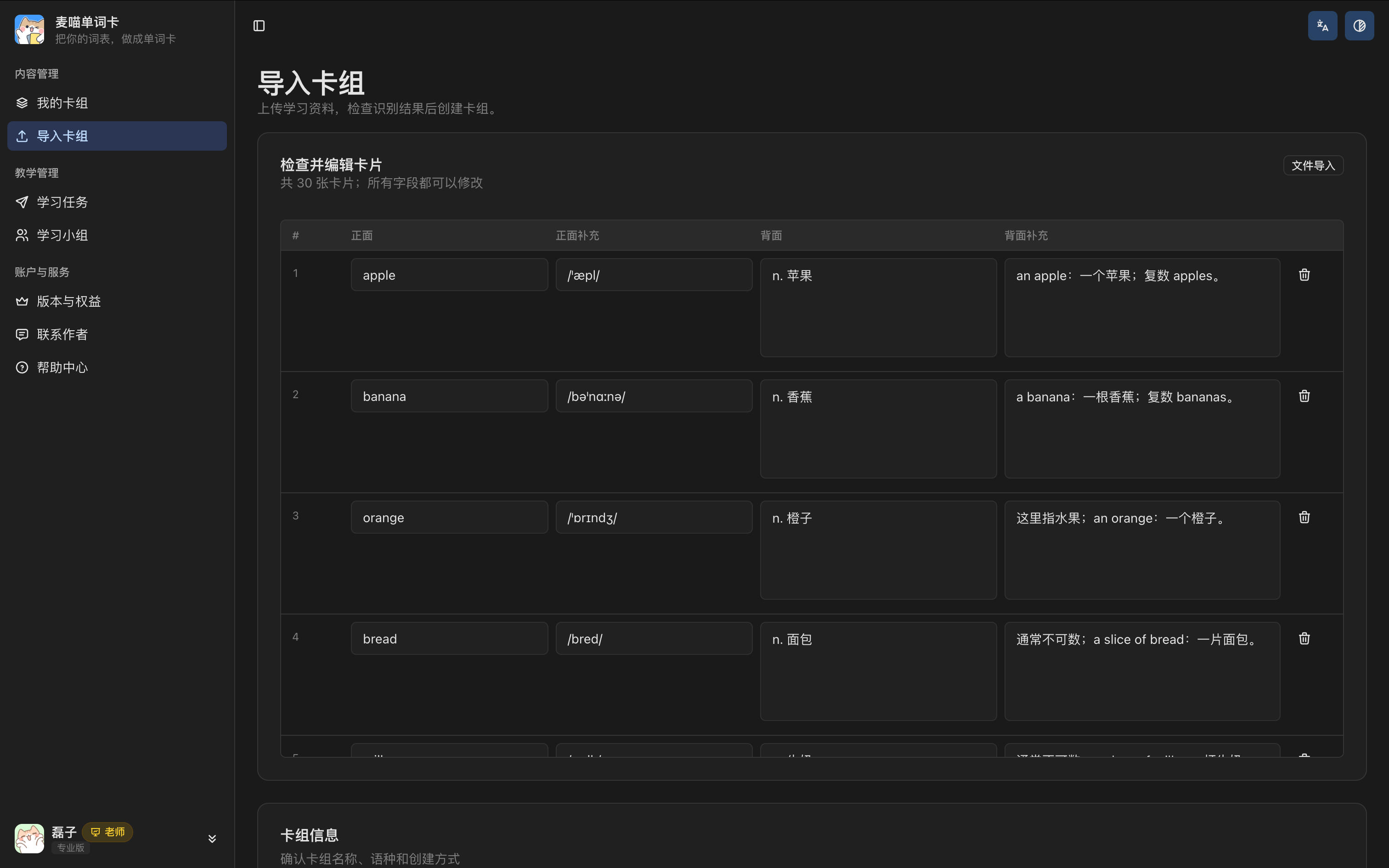
See Import a word list and Add cards manually for the steps. To try it first, download the Everyday English sample.
Check audio and images
Listen to the audio after saving, especially for words you intend to practise through dictation. Select a different voice and regenerate if needed. Images should help you remember the intended meaning; leave them out if they do not fit.
See Audio and images for settings. If an example or meaning needs changing later, edit the same deck rather than creating another copy.
Open the deck to learn
In the creator app, open Send to students (发给学生) on your deck and generate a learning link. Open Preview learning page (预览学习页), or send the link to the device you study on. Although the control says Send to students, it also opens your own deck for personal study.
Sign in to your account in the learner app, then choose Word recognition (单词认读) on the deck page. Use matching, dictation, and quizzes as needed.
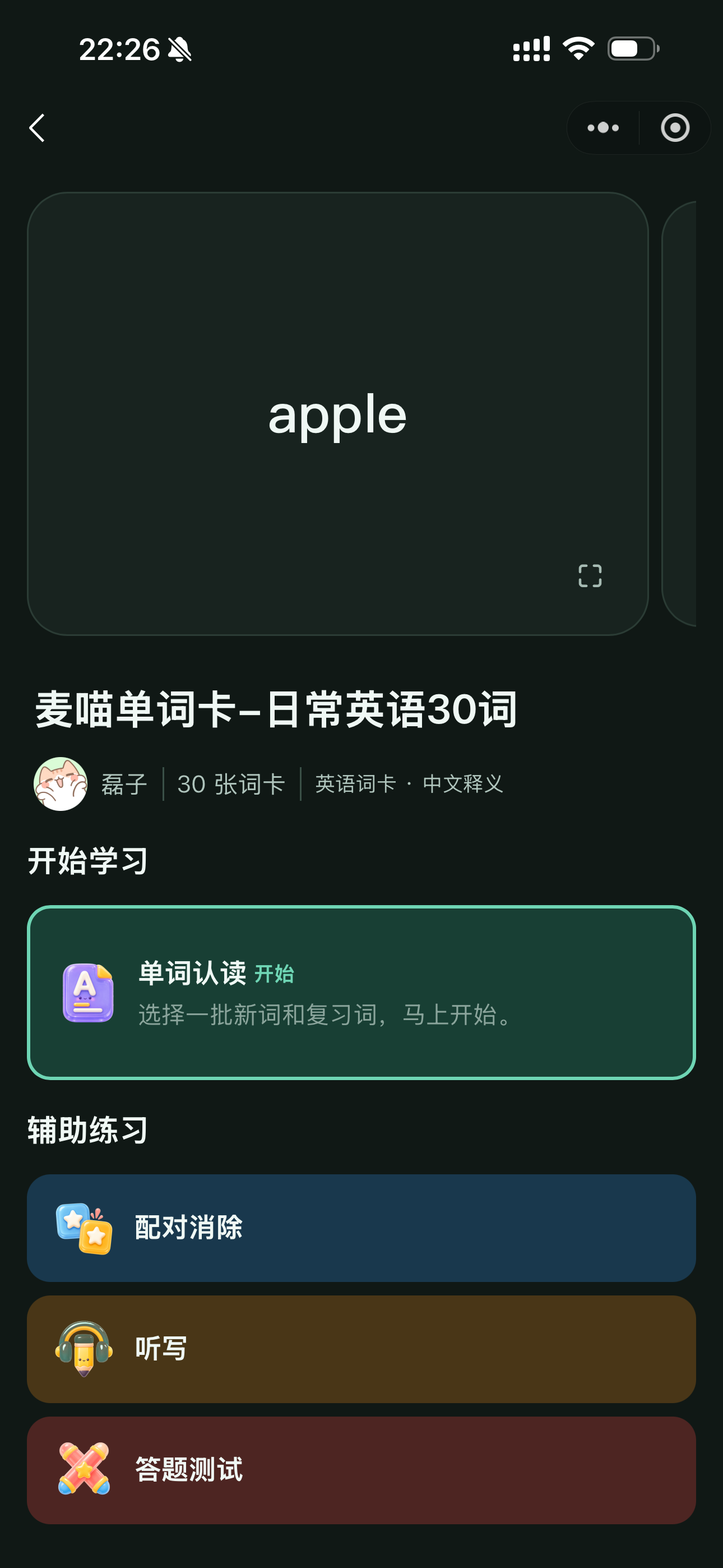
Later, find the deck under Learn (学习) in the learner app to continue. Keep using the same learning account so your progress and records stay together.
Direct
If someone else shared the deck with you, completed independent-study sessions may appear in that creator’s Independent learning progress (自主学习学情). Task learning is recorded separately under its task. Sessions that are not completed do not appear in the creator’s completed records.
Set your pace
After opening recognition practice, you can set daily new words or simply study one batch. Choose based on how you want to continue:
| How you want to study | Choose | What happens next |
|---|---|---|
| A little each day with this deck | Set a daily pace | New words follow your setting, with due reviews added |
| Try it out or study one batch now | Study a batch without a daily plan | Select this batch’s new-word count; due reviews are also included |
A little each day
Set the maximum number of new words per day, then click Save plan and start recognition (保存计划并开始认读). If unsure, start small and see whether the combined new words and reviews feel manageable.
Daily new words are not the total daily workload. Due reviews are added separately and do not use the new-word allowance. More new words usually mean more review later.
To change the amount, open Adjust daily new words (调整每日新词). Existing records are kept. If you have already started answering today, the new amount takes effect on the next study day. Missing a day does not keep adding that day’s new-word allowance to a backlog; return and continue with the current day’s work.
Study one batch
Choose Study a batch without a daily plan (先学一批(不设每日计划)), then select how many new words to study. This only arranges the current batch. Due words are included too; when Review due words only (只复习到期词) is available, you can focus on review first.
Check the new-word count, review count, and total before starting. Choose an amount you can manage now. You can set a daily pace later if you want to continue regularly.
Your
This setting controls recognition practice in your own deck. A teacher’s multi-day plan creates group tasks. Adjusting your personal daily new words does not replace required work in those tasks.
Recall, then check
Look at the word and try to recall the meaning, then tap Show meaning (查看释义). Check using the audio, image, and notes. Choose Got it right (答对了) if you recalled it, or Got it wrong (没答对) if you did not or recalled it incorrectly.
Do not mark a word correct simply because the revealed answer looks familiar. Your responses help inform later recognition reviews.
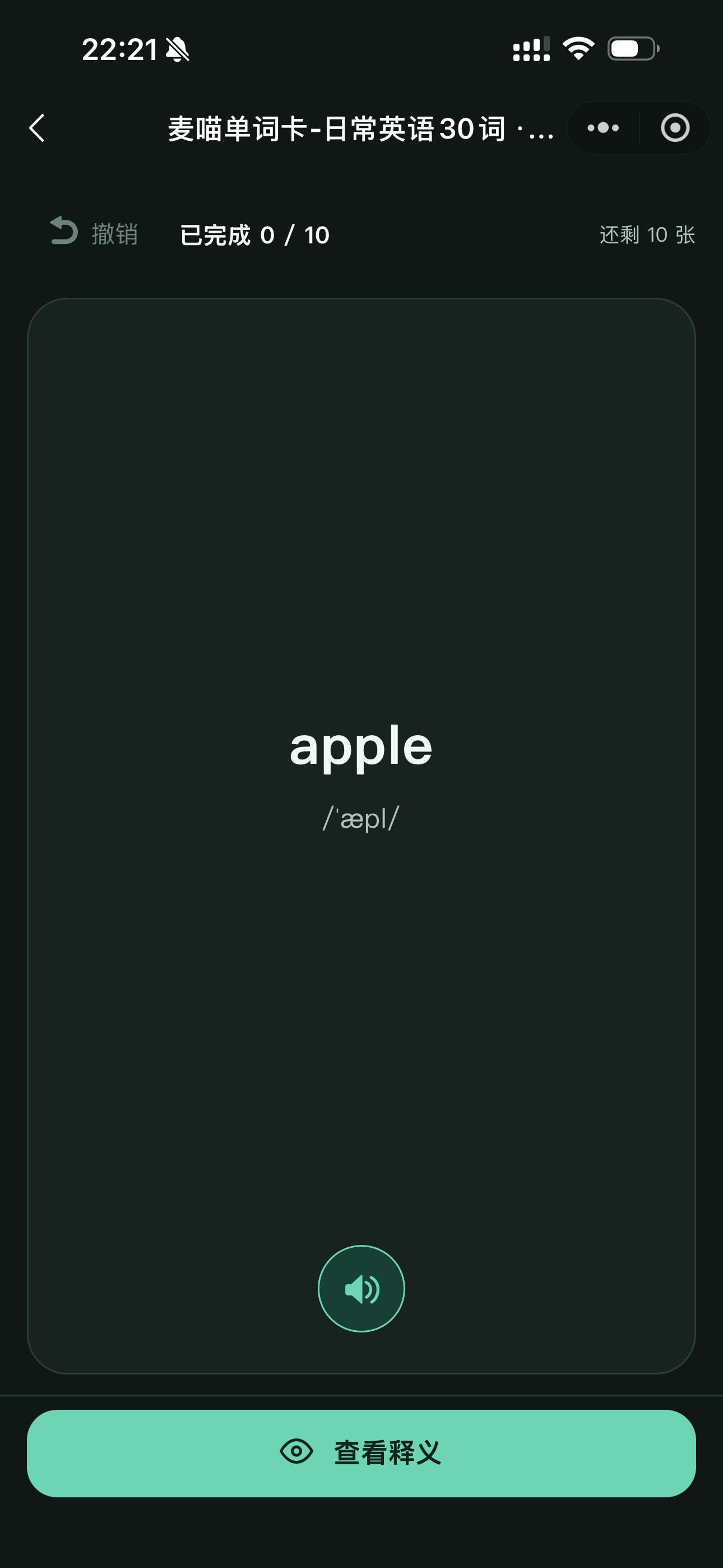
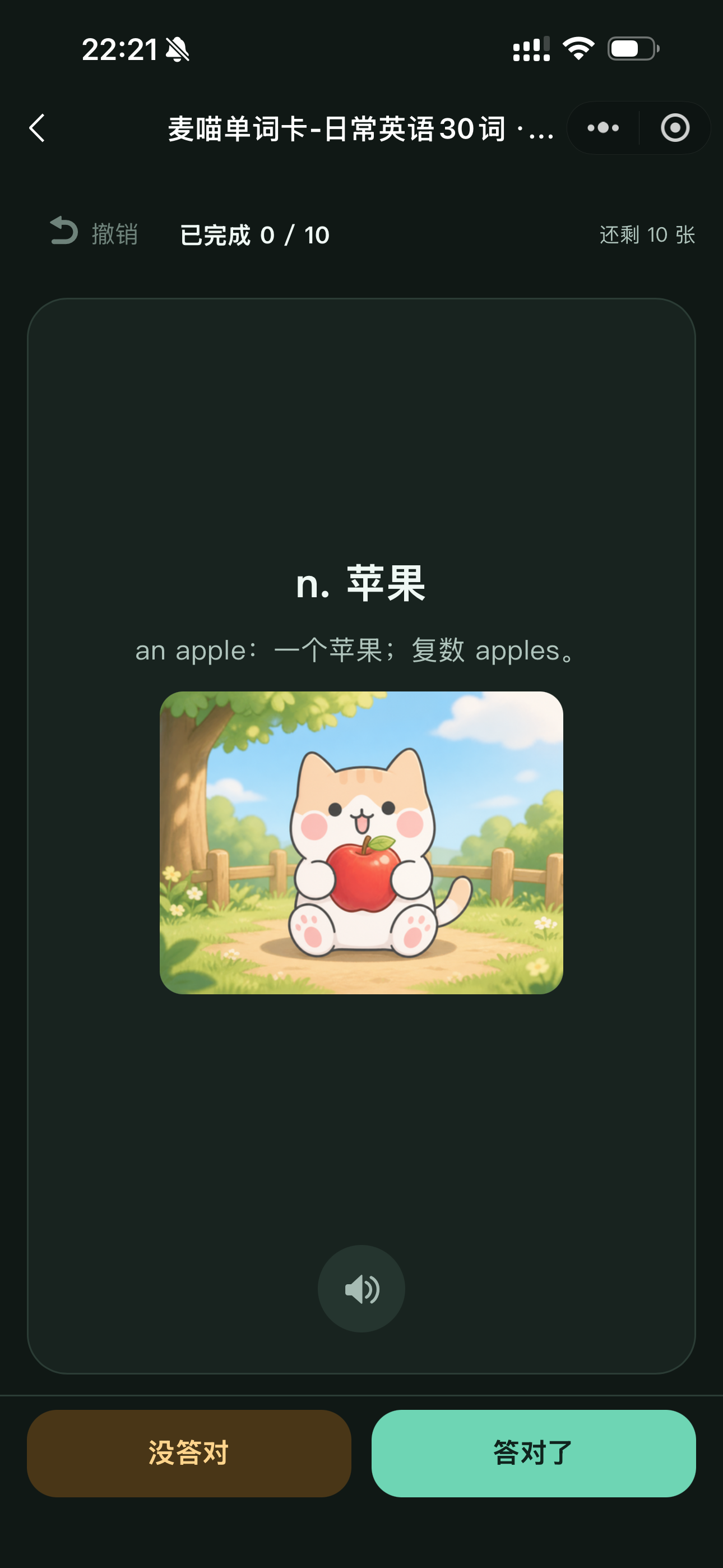
Try to recall the meaning before checking. Use the same approach in tasks and independent deck practice.
Add practice as needed
If you recognise a word but keep misspelling it, try dictation. If you confuse meanings, try a quiz or matching. Choose what you need most; you do not have to complete every mode each time.
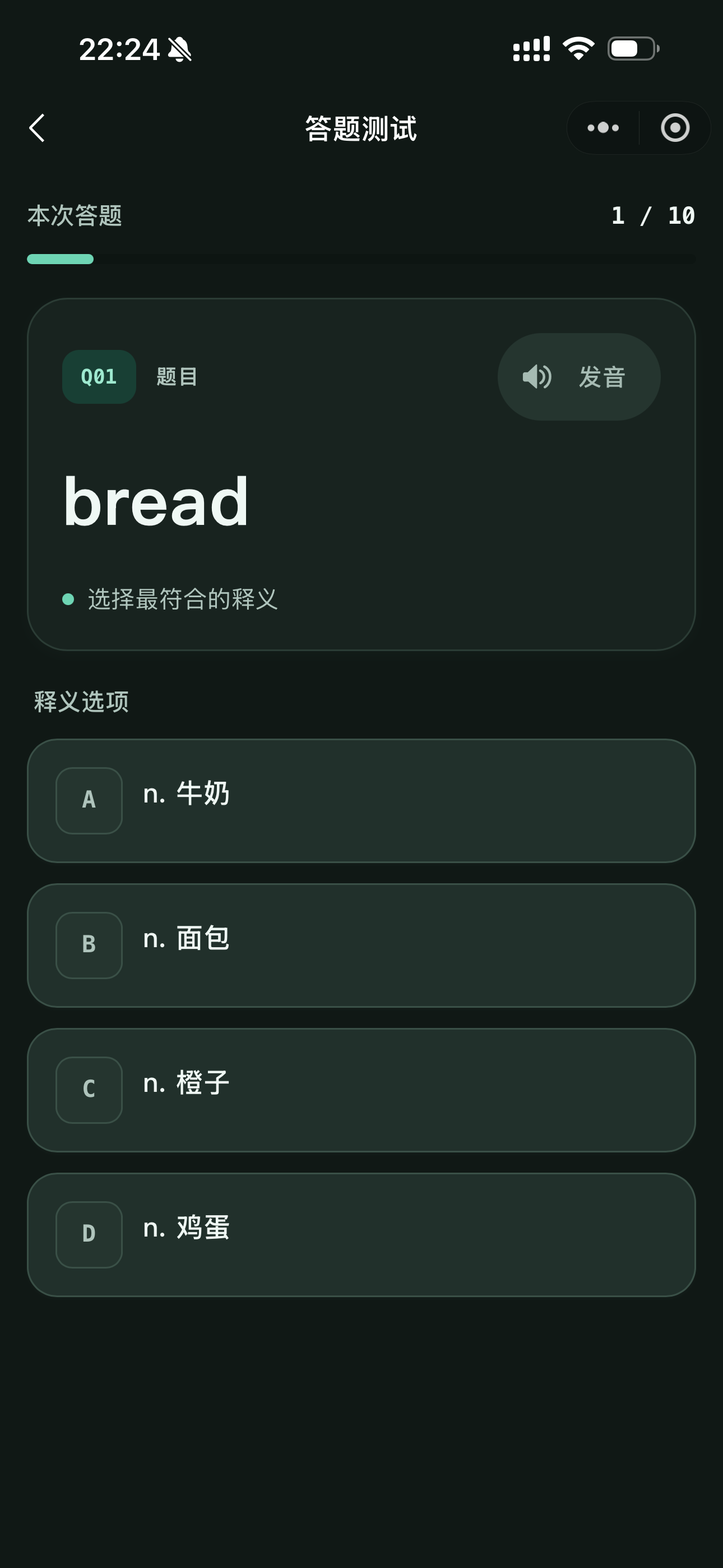
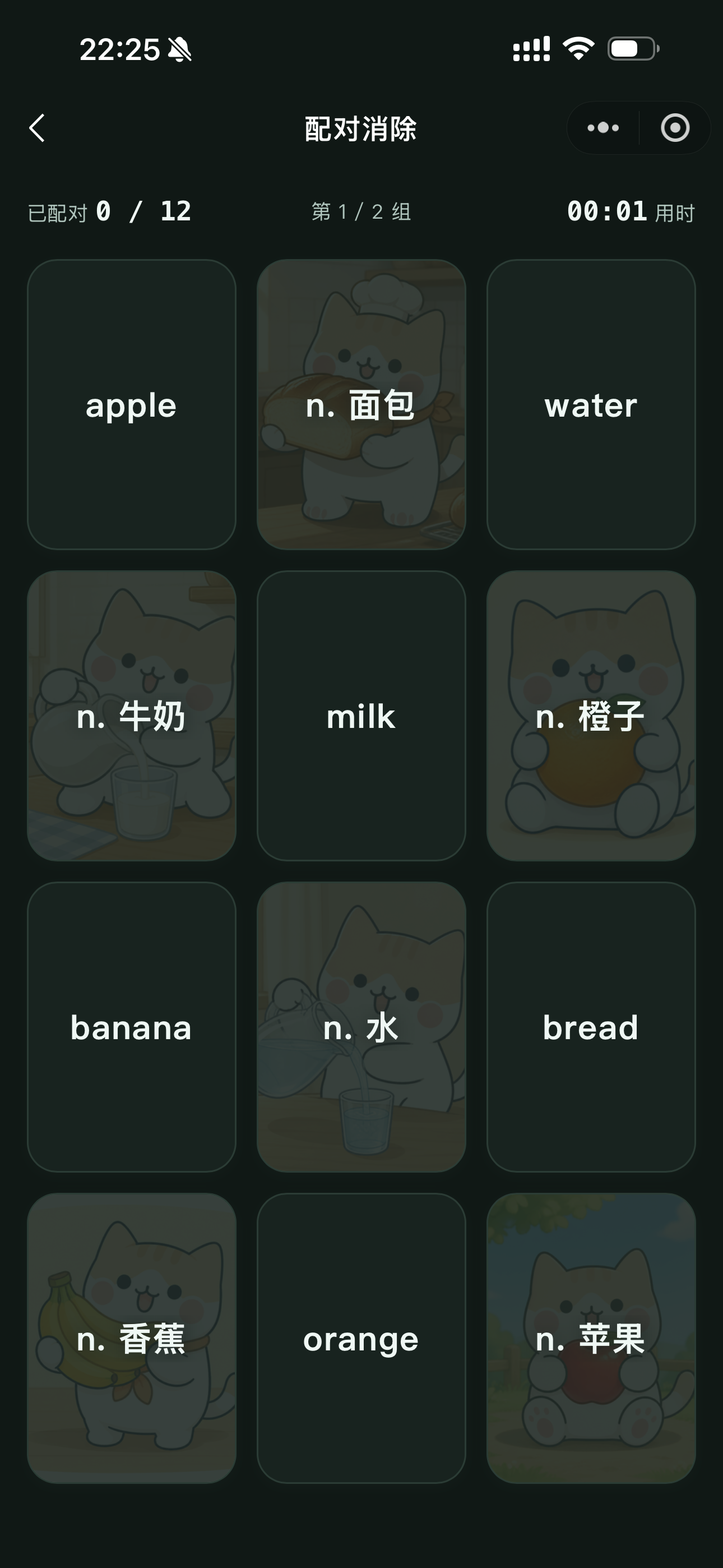
Choose the correct meaning in a quiz; pair words with their meanings in matching practice.
To practise writing on paper, choose Pen-and-paper dictation (纸笔听写) in the independent dictation settings. Write while listening, then check your answers afterwards.
Extra practice helps identify difficulties, but answering a quiz correctly once does not replace future recognition reviews.
Review and continue
Open completed exercises in Records (记录) to see which words you could not recall or spell correctly. Next time, find your current work in Today (今天) or Learn (学习) and continue with due reviews and new words.
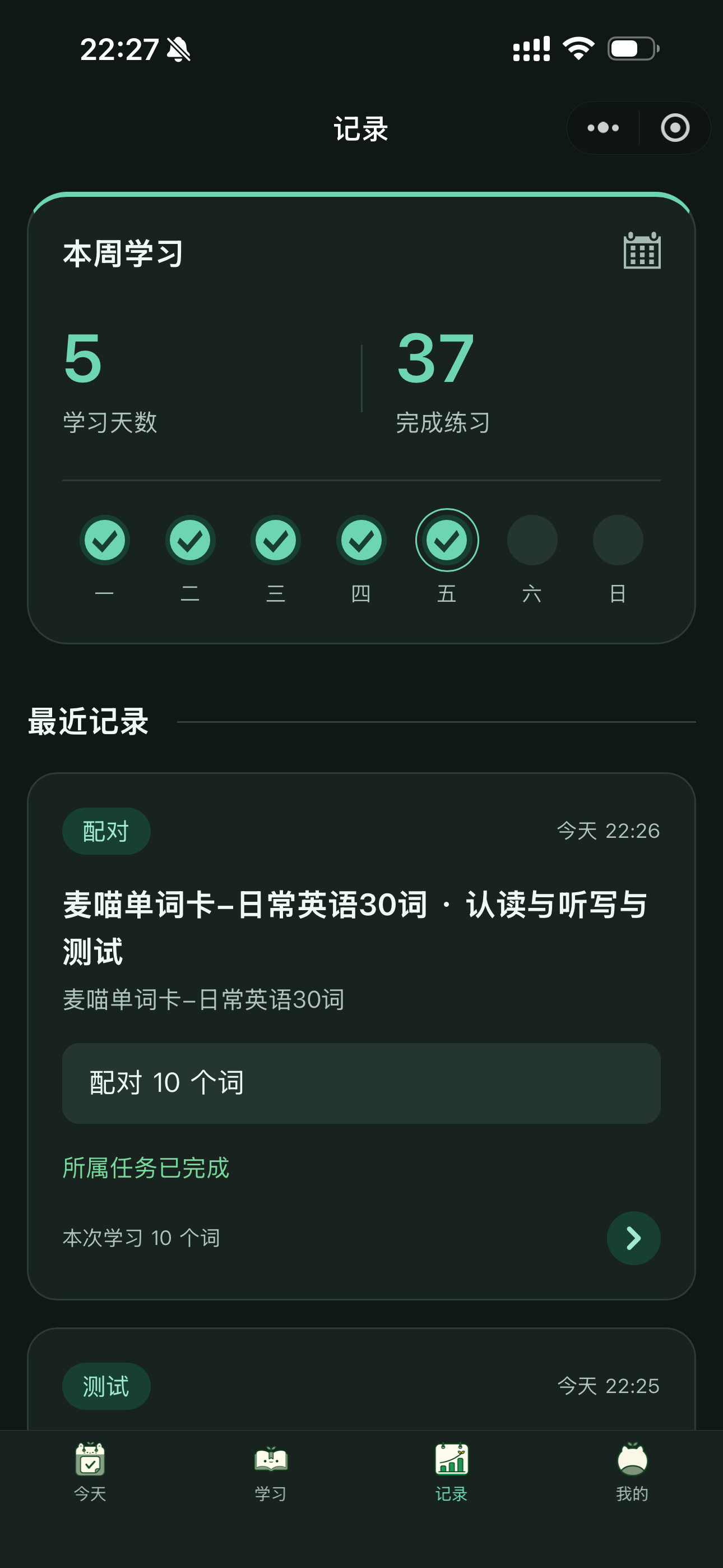
Add newly encountered words to the existing deck. If a card is repeatedly hard to understand, improve its meaning or example in the creator app and check the audio. Keep making the list more useful for your own learning.
Common questions
Do I need a group?
No group is needed for personal deck learning. Open the deck and set your recognition pace or choose a batch size.
Why more than ten words?
Your setting controls new words per day; due reviews are added separately. Check the new and review counts before starting. If the workload is too much, reduce future new words.
Why no words today?
Check whether you have already finished today’s recognition and whether the deck has new words or due reviews. No due words does not mean your records are missing. Use other practice if useful, then return later.
Can I stop the daily plan?
Choose Clear daily plan (清除每日计划) in the daily plan settings to select new words freely for each batch. Your current session and learning records are retained. Check the page’s confirmation before proceeding.
Which tier do I need?
Try a small list first. Creator decks, cards, and AI imports have allowances. When you reach a limit, check Plans and benefits and decide based on how much content you need.